How to reconcile an online payment from Razorpay in Inkwelly
For school accountants closing the books each week or month after switching on Razorpay collections. By the end every Online Gateway payment shows a green check in the Reconciled column and the unreconciled count on the Student Fees dashboard returns to zero.
To reconcile a Razorpay payment in Inkwelly: open Student Fee then Payments, set the Mode filter to Online Gateway, open More and set Reconciled to No, download Razorpay's settlement report for the same period, open each unreconciled payment and cross-check amount, date and transaction reference, then open the row menu and click Reconcile. A green check appears in the Reconciled column and the dashboard Reconciliation Readiness score updates within seconds.
Reconciliation is the gate between a parent paying online and the school's books being audit-ready. Razorpay typically settles T+2 to T+3 working days for schools on the standard plan, batching every captured payment into a single net credit to your bank account after deducting MDR and 18% GST. The webhook auto-posts each parent's payment back into Inkwelly the moment Razorpay captures it, so most payments land as a clean receipt with no human touch. But network timeouts, dropped webhook deliveries, refunded transactions and chargebacks all create edge cases where Inkwelly and Razorpay disagree. Reconciliation is how a Tier-2 school accountant proves, on a Friday afternoon, that every rupee paid by parents is accounted for against a real bank credit before the trustees ask.
1. Open the Payments page
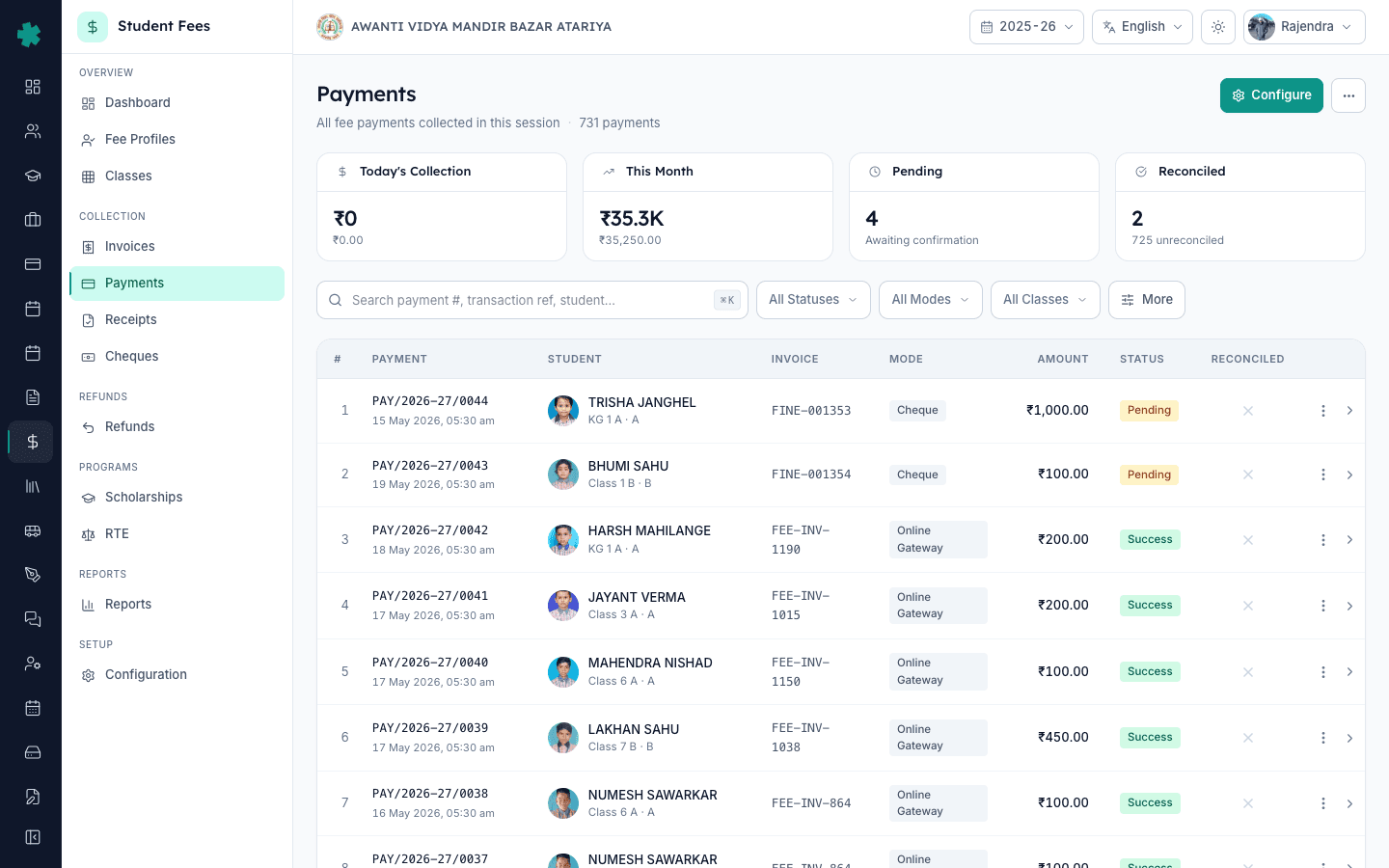
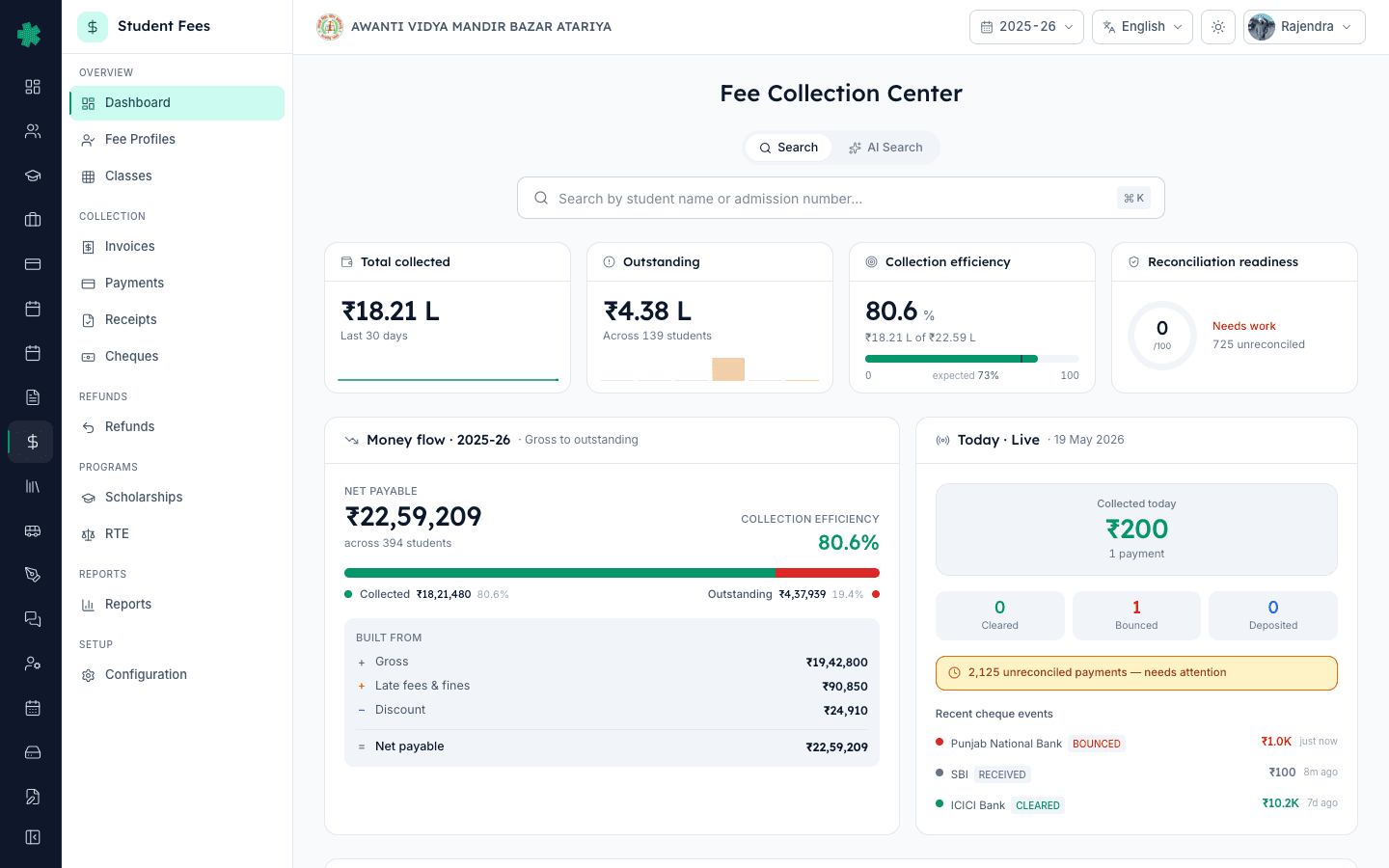
From the Inkwelly left sidebar, open Student Fee, then click Payments under the Collection section. The page opens with four KPI cards at the top: Today's Collection, This Month, Pending and Reconciled. The Reconciled KPI doubles as a warning chip when there are unreconciled successful payments and shows the exact count below the icon. Below the KPIs is a filter bar followed by the full payments table.
2. Filter by Online Gateway mode
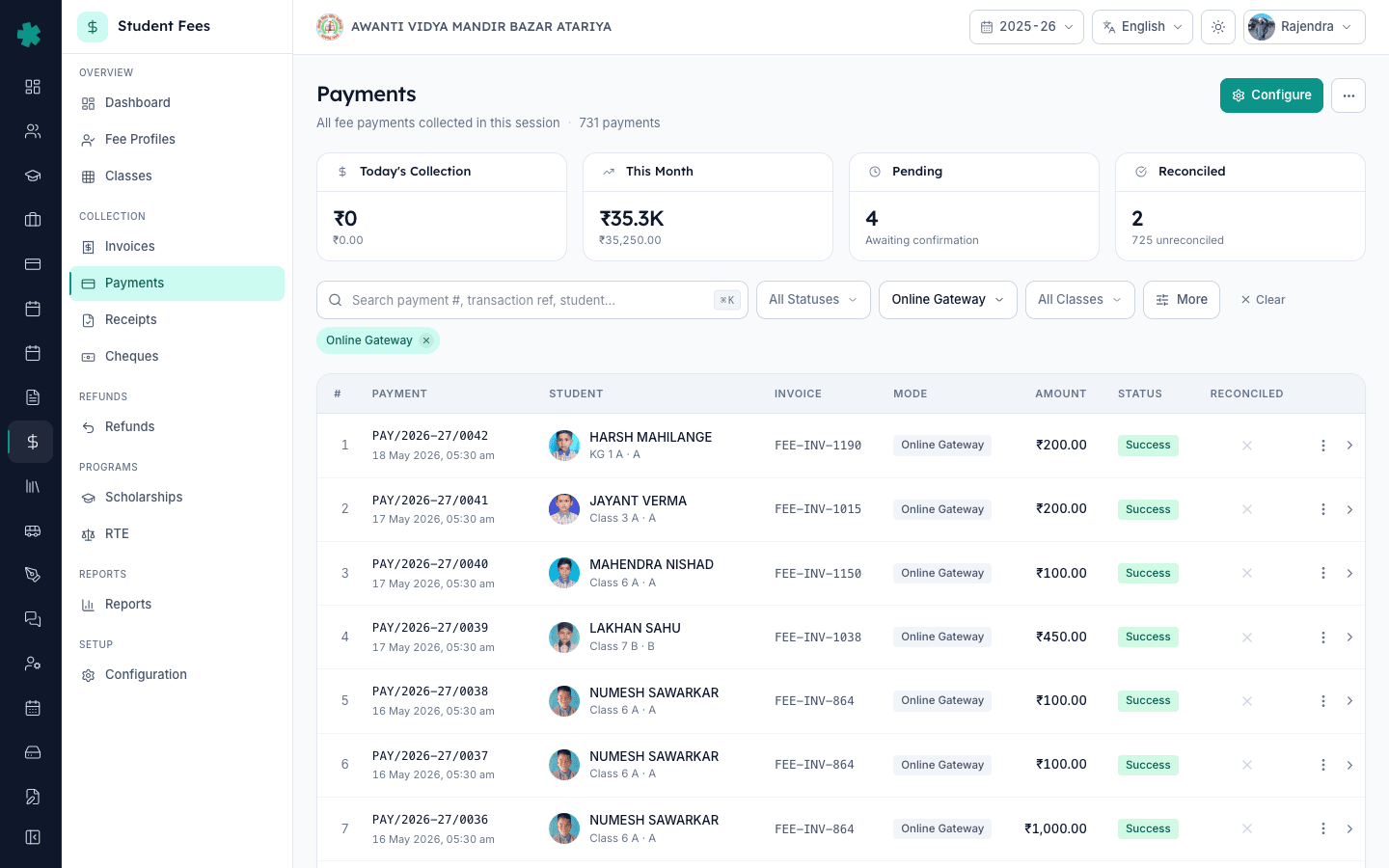
Click the All Modes dropdown in the filter bar and pick Online Gateway. The table immediately narrows to payments collected through Razorpay (UPI, cards, NEFT, IMPS, and wallets) and hides cash, cheque, and counter payments which follow a different reconciliation flow. A filter chip labelled Online Gateway appears under the filter bar so you can see at a glance which view you are on.
3. Narrow to unreconciled payments
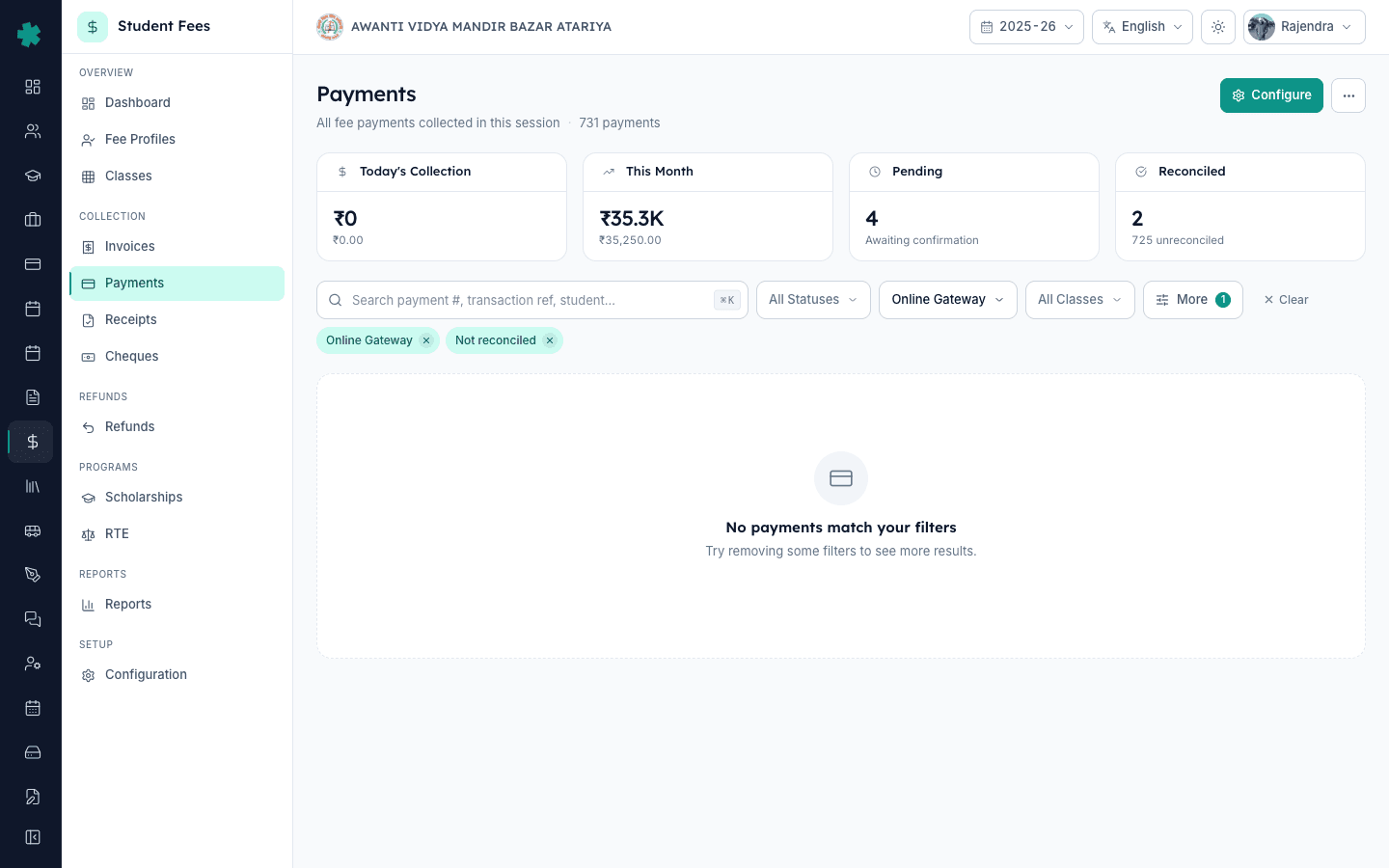
Click the More button on the right of the filter bar. In the popover, under Reconciled, click No. The table reloads showing only Online Gateway payments that have not yet been ticked. Close the popover. Two filter chips are now active: Online Gateway and Not reconciled. The row count reflects exactly what you need to close out this period. For a typical 1,200-student school with online collection turned on, the unreconciled queue at the start of a settlement window is anywhere from 30 to 200 rows.
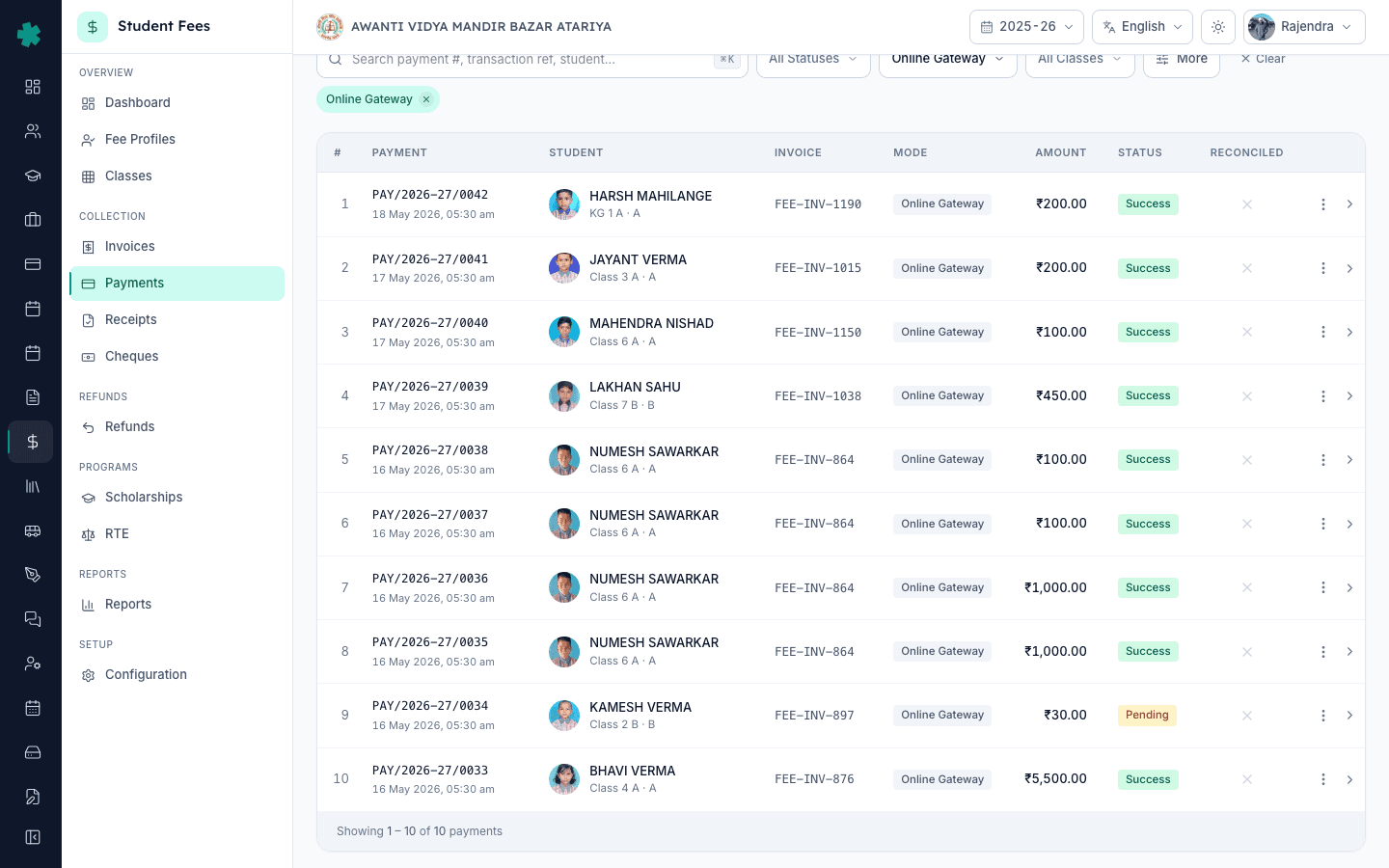
4. Pull Razorpay's settlement report for the same window
In a new browser tab, open dashboard.razorpay.com, go to Reports, then Settlements. Pick the date range that matches your unreconciled rows in Inkwelly, usually the previous week, fortnight or month. Click Download to pull the settlement report as CSV or XLSX. Each row in Razorpay's report is one captured payment with its payment_id, amount, fee, tax and the settlement_id it was grouped under. Keep this report open alongside Inkwelly; these are the two sides of the match.
5. Cross-check each payment against the settlement report
Click a payment row in Inkwelly to open its detail page. Note the Payment Number, the Amount, the Payment Date and the Transaction Reference (this is Razorpay's payment_id, for example pay_LHK1A2B3C4D5E6). In your Razorpay settlement report, search for the same payment_id. Confirm the amount in Inkwelly matches the amount captured by Razorpay (gross of fees), the date matches the captured date, and the row sits inside a settled batch credited to your school's bank account. If anything mismatches, do not reconcile yet, investigate the row separately.
6. Click Reconcile on the row menu
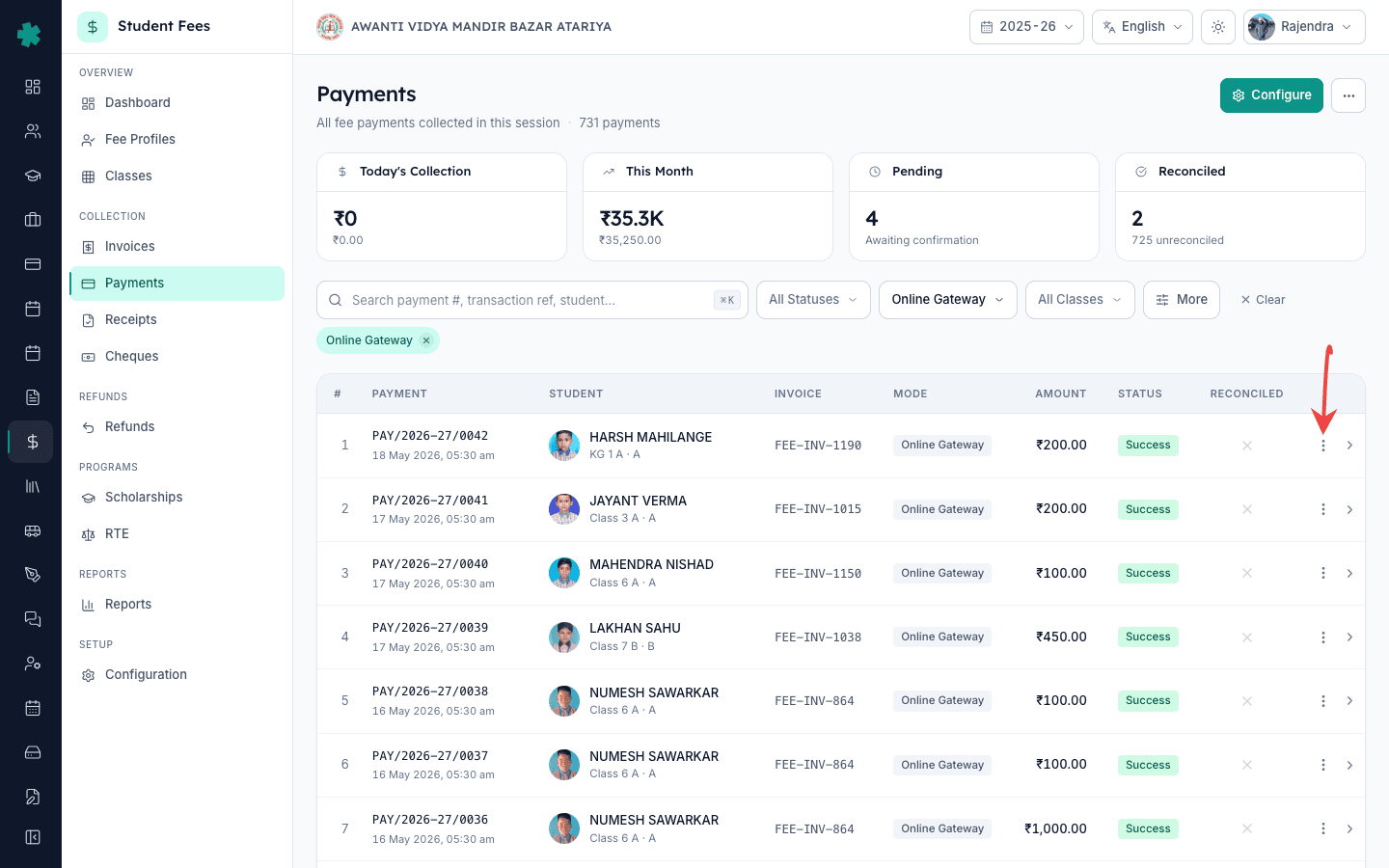
Return to the Payments list. On the row of the matched payment, click the three-dot menu on the right and pick Reconcile. The Reconcile Payment dialog opens showing a quick summary (payment number, amount, date and mode) and an optional Remarks field. Add a short note like Razorpay settlement S20260518, bank credit on 19 May for the audit trail, then click Reconcile. Inkwelly marks the payment reconciled, stamps the current user and timestamp on the audit log, and removes the row from the Not reconciled view. Repeat for every payment in the queue.
7. Verify the dashboard Reconciliation Readiness score
From the sidebar, open Student Fee then Dashboard. The Reconciliation Readiness radial KPI sits in the hero row alongside Total Collected and Outstanding. After clearing the queue, the radial reads 100, the unreconciled count under it returns to zero, and the chip flips from warning amber to success green. The Payments page itself shows a green check under the Reconciled column for every Online Gateway row from the period you closed. The trustees can now sign off the week.
Once Razorpay payments are reconciled, the next step is to pull the gateway charges report so the MDR and 18% GST per transaction are accounted as a separate P&L line; follow How to download the Gateway Charges Razorpay MDR report in Inkwelly. If a payment fails to webhook back and you need to attach the bank credit to an invoice manually, read How to collect cash, UPI, card or bank payment at the counter in Inkwelly. Before any of this, the Razorpay connection itself must be live, so see How to connect Razorpay to accept online fee payments in Inkwelly if Online Gateway mode is greyed out.
See Inkwelly Student Fees in action
Frequently asked
6 questionsWhy do Razorpay payments need manual reconciliation in Inkwelly?
The Razorpay webhook auto-posts each successful payment to Inkwelly the moment it is captured, so most rows already show as a clean receipt. Reconciliation is the second check, confirming that Razorpay actually settled the captured amount into the school's bank account, net of MDR and 18% GST. Webhook drops, refunded transactions, chargebacks and bank-side delays are the four common reasons a captured payment in Inkwelly may not match a settled credit in the bank.
How often should the school reconcile Razorpay payments in Inkwelly?
Tier-2 schools on the standard Razorpay plan typically reconcile weekly because Razorpay settles every two to three working days and the bank statement lags by one more day. Schools with very high online volume reconcile daily, and small budget schools reconcile fortnightly or monthly. The longer the queue sits, the harder mismatches are to investigate.
Online payment kaise reconcile kare Inkwelly me?
Sidebar se Student Fee aur Payments kholiye. Filter bar me All Modes dropdown se Online Gateway chuniye, phir More button kholkar Reconciled section me No par click kijiye - sirf un Razorpay payments ki list aayegi jo abhi reconcile nahi hue. Naya tab me dashboard.razorpay.com par jaiye, Reports aur Settlements se settlement report download kijiye. Har payment Inkwelly me kholkar Payment Number, amount aur Transaction Reference note kijiye, fir Razorpay report me wahi payment_id search karke amount aur date match kijiye. Jab sab sahi mile, row ke three-dot menu se Reconcile click kijiye.
Razorpay aur bank statement me mismatch ho to kya kare?
Sabse pehle Razorpay settlement report me payment_id search kijiye - agar wahan dikhe toh wo settled hai, sirf bank statement me arrival pending ho sakta hai, ek-do din wait kijiye. Agar payment_id Razorpay report me bhi nahi mile to dashboard.razorpay.com Payments search kijiye uss payment_id se. Status Failed, Refunded ya Disputed ho sakta hai. Failed ya refunded payment ko Inkwelly me Reverse kijiye, reconcile nahi. Disputed payment ke liye evidence submit hone tak reconcile rok dijiye.
What happens if I reconcile a payment by mistake in Inkwelly?
Reconciliation in Inkwelly is reversible by reversing the underlying payment rather than un-ticking the reconciled flag. Open the payment detail page, use the row menu to Reverse the payment, and Inkwelly walks the invoice balance back, removes the reconciled stamp and writes the reversal into the audit ledger. This keeps an immutable trail of who reconciled, who reversed, and when.
Does Inkwelly auto-reconcile any Razorpay payments?
Inkwelly does not auto-tick the Reconciled flag because settlement happens outside Inkwelly. The bank credit is the source of truth and an auditor needs a human confirmation. What Inkwelly does automate is the webhook-driven receipt: the moment Razorpay confirms capture, the invoice is marked paid, a receipt PDF is generated, and the receipt-sent notification fires to parents.
You might also like
3 readsSources & references
- Razorpay Documentation - Settlements · accessed 19 May 2026
Razorpay's official documentation describing the T+2 / T+3 settlement cycle, settlement IDs and reports that schools use to match captured payments against bank credits.
- Reserve Bank of India - Master Direction on Payment Aggregators and Payment Gateways · accessed 19 May 2026
RBI's regulatory framework requiring payment aggregators like Razorpay to settle merchant funds within stipulated windows and maintain auditable reconciliation.
- Companies Act, 2013 - Section 128 (Books of account) · accessed 19 May 2026
Statutory requirement for schools registered as trusts, societies or Section 8 companies to maintain books of account, of which monthly reconciliation of fee receipts against bank credits is the operational backbone.
See Inkwelly on your school
30-minute demo. We open your current ERP with you and load your data into Inkwelly on the call. Dated go-live plan by the end of it.