How to generate a single invoice for one student in Inkwelly
This guide is for front-office clerks and accountants who need to raise a fresh invoice for just one student — a mid-session new admission, a board-transfer student joining late, or a child who rejoined after dropping out. By the end you will have a board-ready, numbered invoice on the student's fee profile, ready to send to the parent.
To generate one student's invoice in Inkwelly: open Student Fee → Fee Profiles, search for the student, open their profile, scroll to the Invoices section, click Generate on the installment that needs billing, confirm the amount and due date in the dialog, and click Generate Invoice. The numbered invoice appears immediately on the profile and on the school's Invoices list, ready to send to the parent or collect at the counter.
Mid-session admissions are normal in Indian schools — about 4 to 6 percent of total enrolment shifts between schools across an academic year, driven by parent transfers, board changes and dropout-rejoin patterns. CBSE-affiliated schools admit late entrants well into Quarter 2, and most state boards permit rolling admissions for primary classes. The bulk Invoices → Generate page only runs once per installment for the whole school, so any student admitted after that sweep needs a one-off invoice on their profile. Inkwelly's single-invoice action exists exactly for that: one student, one installment, one click.
1. Open the student's fee profile
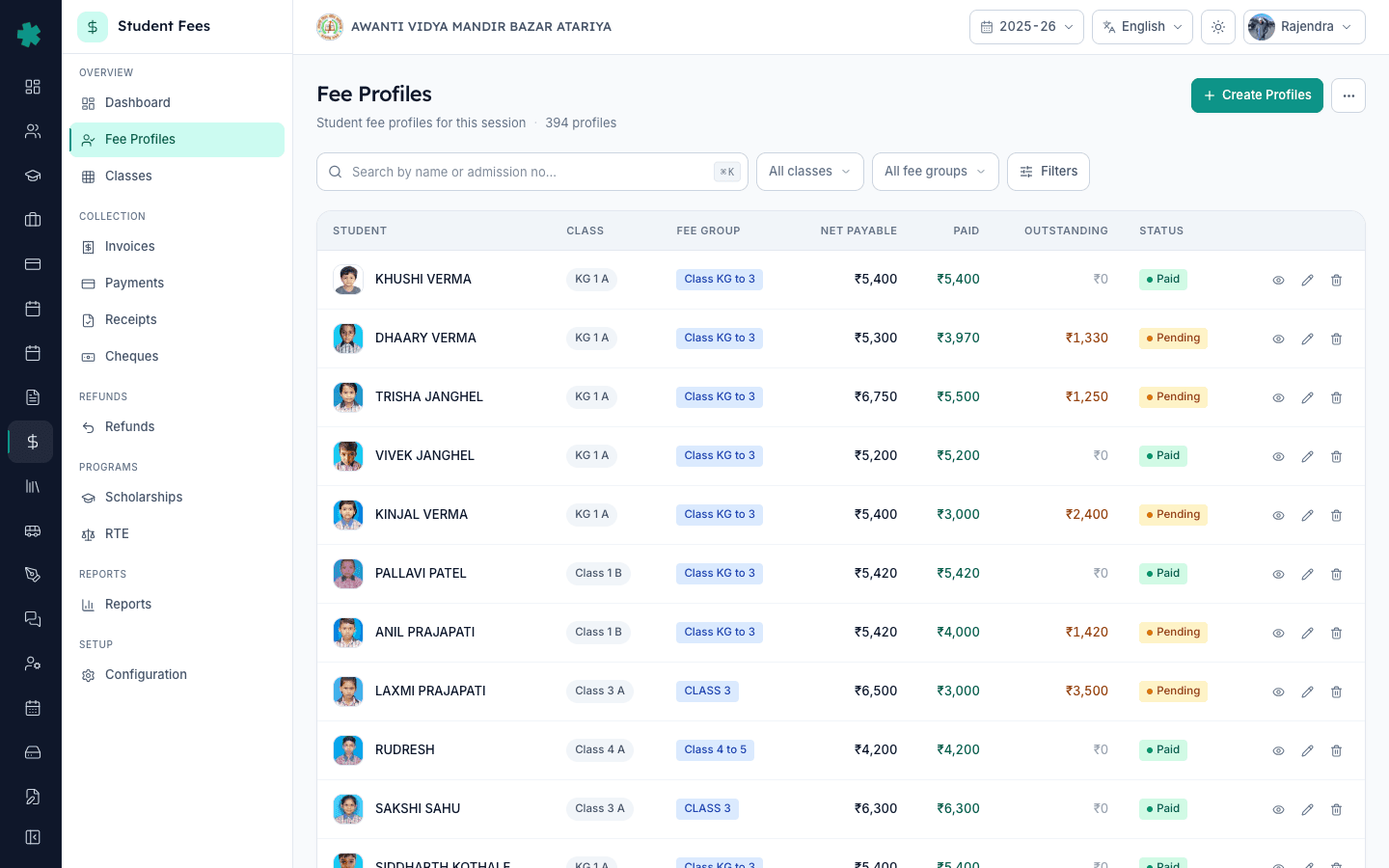
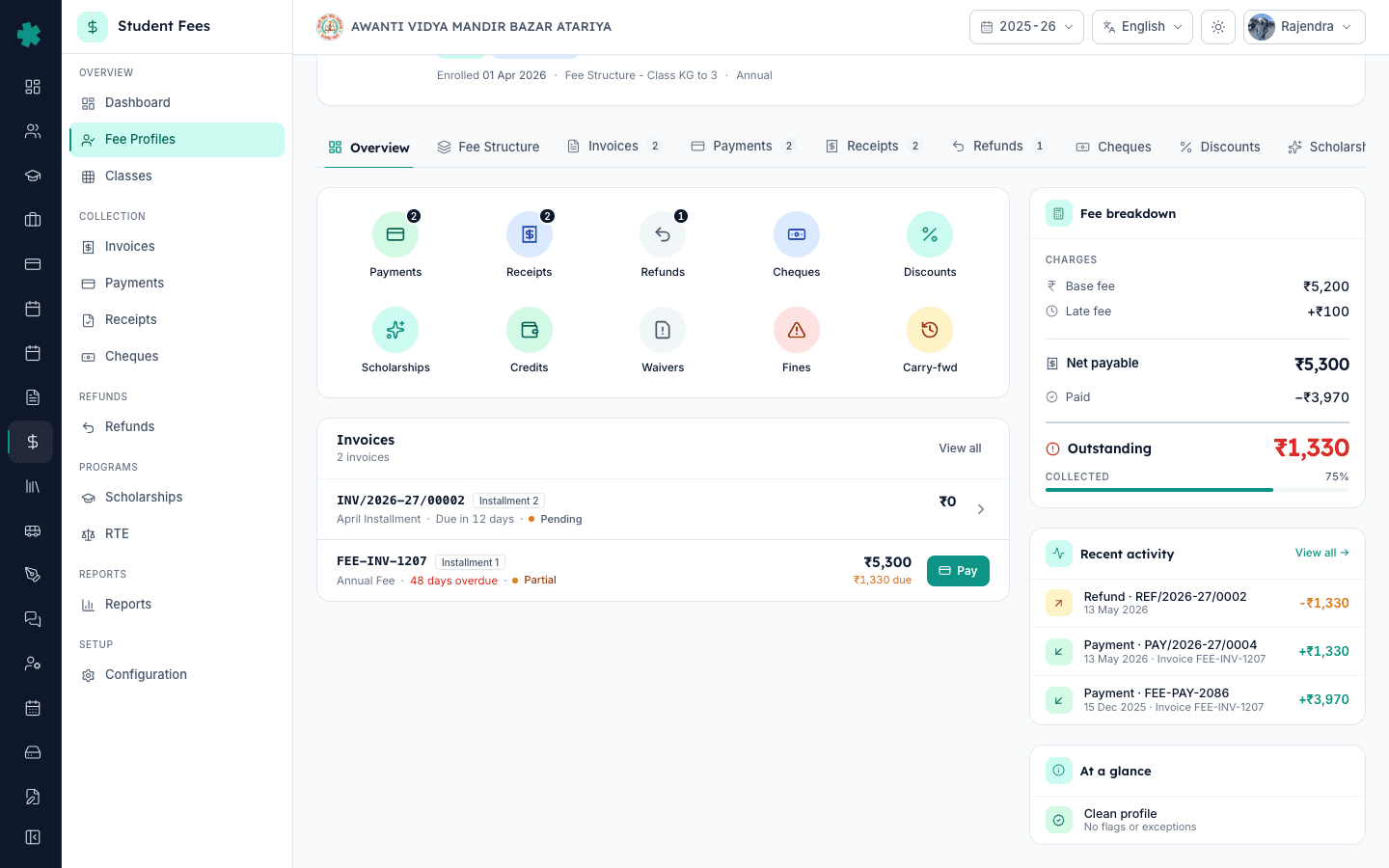
Open Inkwelly → Student Fee → Fee Profiles from the left sidebar under OVERVIEW. Search for the student by name, admission number or roll number. For a freshly admitted student, sort by Newest first or filter by class to find them quickly. Click the row to open the fee profile. The profile lands on the Overview tab by default, which is where the Invoices section lives.
2. Find the Invoices section on the profile
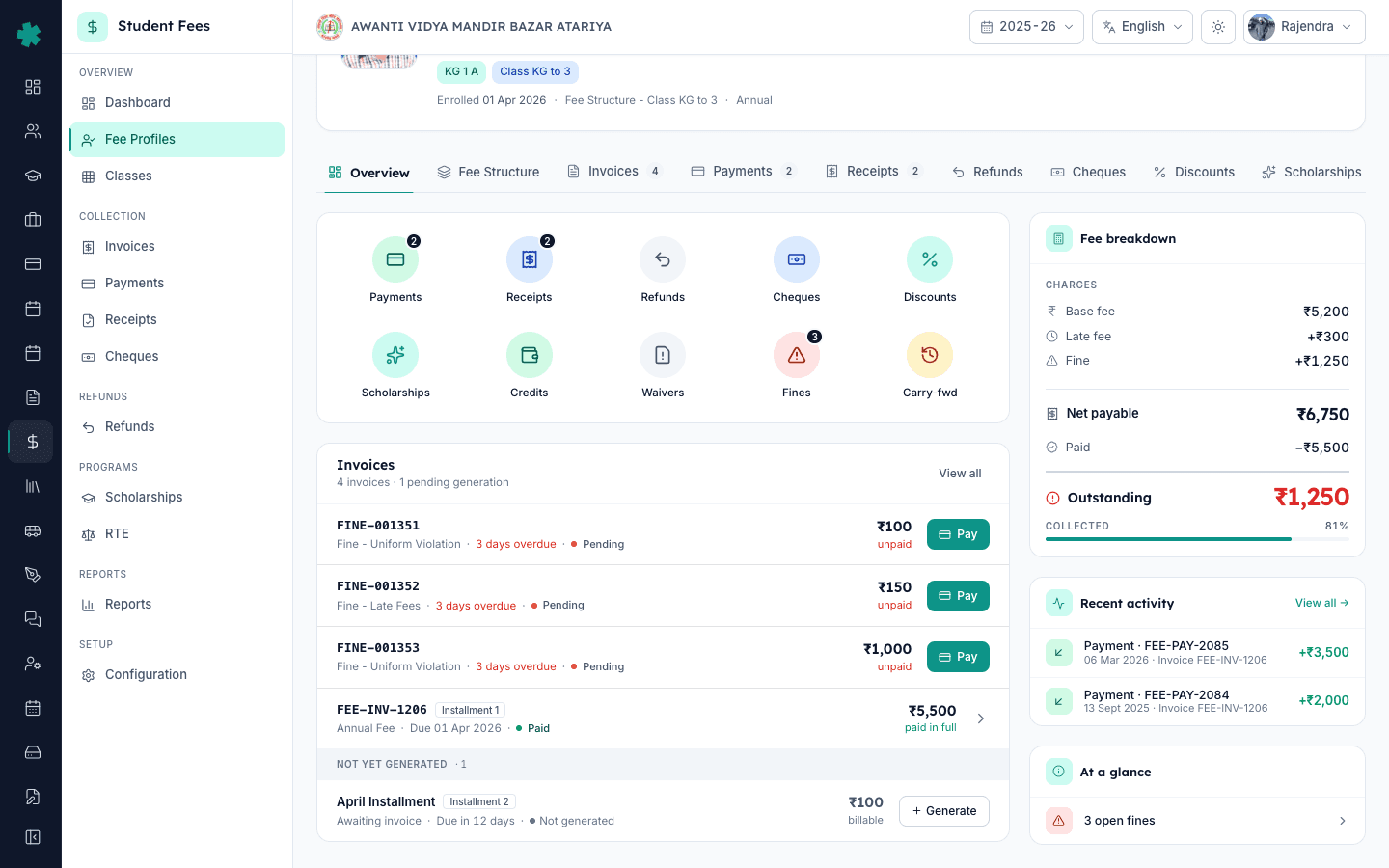
Scroll down the Overview tab until you see the Invoices section. The header shows two counts — how many invoices have been generated for the student already, and how many installments are still pending generation (for example, 1 invoice · 3 pending generation). Below the existing invoices, a thin band labelled NOT YET GENERATED separates the pending installments. Each row in that band is one installment waiting to be billed.
3. Click Generate on the right installment
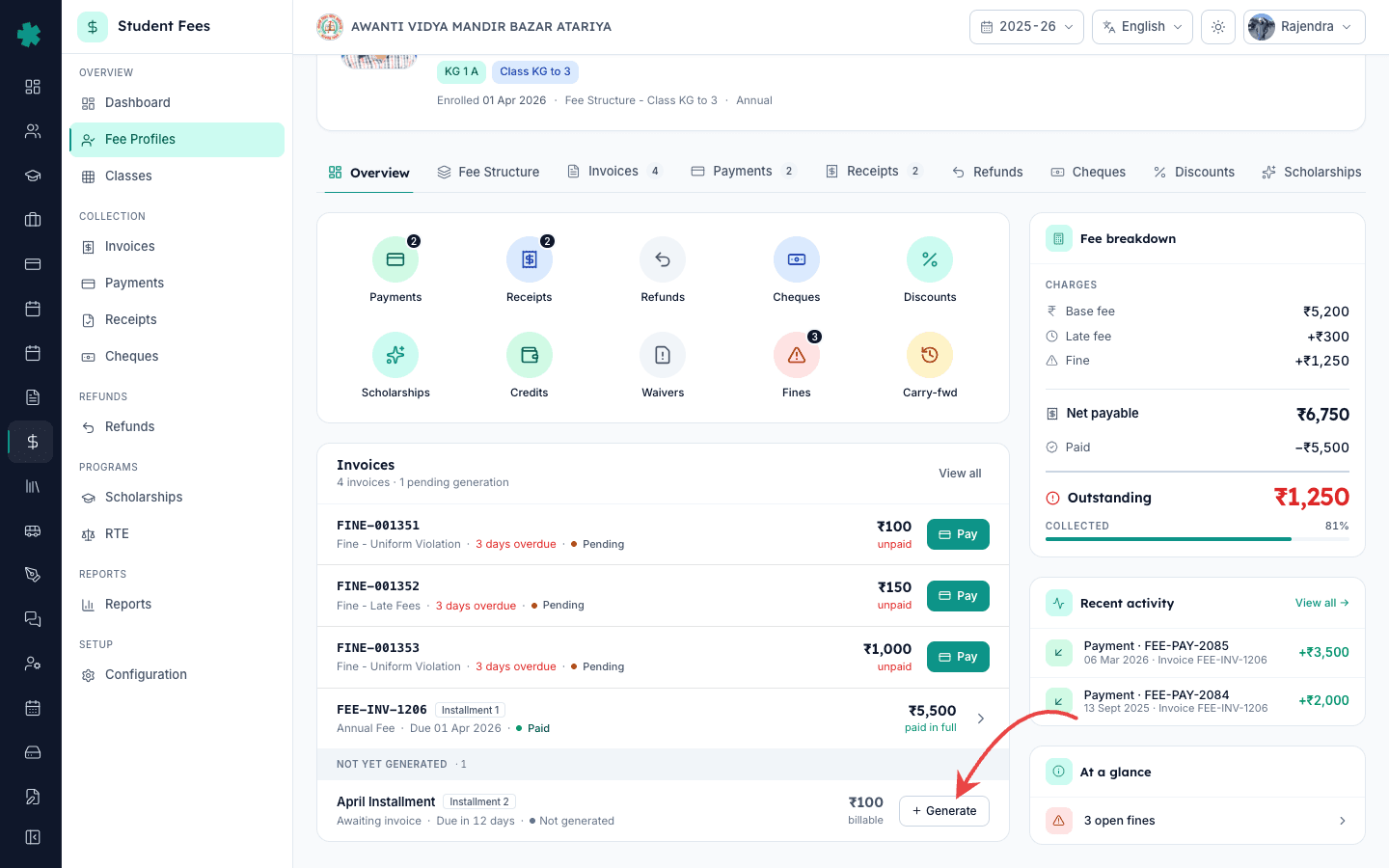
Identify the installment that needs billing for this student — usually the one matching the quarter they joined in. The row shows the installment name (for example, Q2 — July to September), the installment number, the due date and the billable amount. Click the small Generate button at the right end of the row. The same action triggers if you click anywhere on the row. Inkwelly opens the Generate Invoice dialog with that installment pre-selected.
4. Review the installment, name, due date and amount
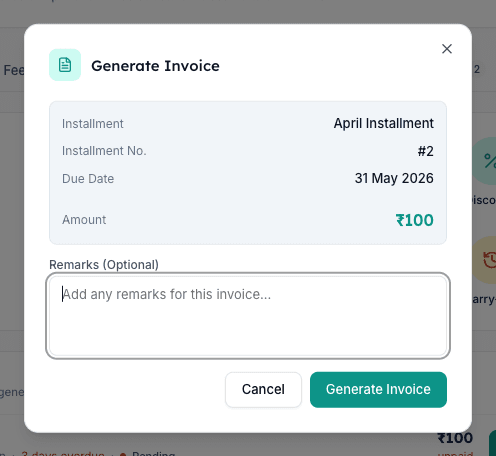
The Generate Invoice dialog summarises the bill before anything is saved. Verify four fields — Installment (the plan name), Installment No. (so you know it is the right quarter), Due Date (in dd MMM yyyy format) and Amount (in rupees). If any of these look wrong, close the dialog and check the student's fee structure assignment first. The amount shown here is the line-item total from the assigned fee structure for this installment; any late-fee adjustments are applied later, not at invoice creation.
5. Add a short remark for the audit trail
In the Remarks field, type a single line of context — for example, Late admission on 18 July, billed Q2 only or Rejoined after Q1 break, prorated by trustee approval. The remark prints on the invoice itself and appears in the invoice detail page, so the next person who opens this record (parent, auditor, principal) understands why the invoice was raised manually. This is optional but strongly recommended for any mid-session billing.
6. Click Generate Invoice
Click the Generate Invoice button at the bottom right of the dialog. Inkwelly creates the invoice, assigns the next school-wide invoice number, attaches the line items from the fee structure and marks the installment as billed for this student. The toast at the top right confirms Invoice generated successfully. The dialog closes and the profile refreshes — the new invoice now sits in the upper part of the Invoices section with status Pending.
7. Open the invoice and send it to the parent
Click the new invoice row to open the invoice detail page. From the top right you can Send to Parent (over WhatsApp, SMS or email), download the PDF, or Collect a payment straight away at the counter. The invoice now also shows up in Student Fee → Invoices for the whole school, filterable by the student's class so the cashier can locate it tomorrow. Inkwelly keeps a complete audit trail of who generated the invoice, when, and against which installment.
Next step — if many late-admission students need billing for the same quarter at once, see the related Inkwelly guide on bulk-generating invoices for an installment from the Generate hub page. Make sure the school's fee plumbing is right first: the fee structure for the session and the fee groups mapped to classes decide which installments show up on each student's profile. For automatic invoice generation on the next quarter so the office never has to repeat this for normal students, turn on auto-generation per installment on the Generate hub page — Inkwelly sweeps every student's profile in one pass and only single-invoice creation is needed for the late entrants.
See Inkwelly's fee module on a live call
Frequently asked
6 questionsHow do I generate a fee invoice for a mid-session new admission in Inkwelly?
Open Student Fee, go to Fee Profiles, search for the newly admitted student and open the profile. Scroll to the Invoices section and find the installment under the NOT YET GENERATED band. Click Generate, verify the installment name, due date and amount in the dialog, add a one-line remark explaining the late admission, and click Generate Invoice. The invoice number is assigned immediately and the parent can be billed the same day.
Mid-session naya student aaye to invoice kaise banaye?
Student Fee → Fee Profiles kholiye, naye student ka naam search kijiye, profile open kijiye. Overview tab par neeche scroll kar ke Invoices section me jaiye. Vahaan jis quarter ka invoice chahiye, us installment ke saamne Generate button dabaiye. Dialog me amount aur due date check kijiye, ek line ka remark daliye jaise 'Late admission on 18 July', aur Generate Invoice par click kijiye. Naya invoice turant ban jata hai aur parent ko bhejne ke liye taiyar ho jata hai.
Ek student ke liye invoice manually kaise generate kare?
Inkwelly me single-invoice action har student ke fee profile ke andar hai. Overview tab par Invoices section me 'Not yet generated' list me sirf un installments ke saamne Generate button dikhta hai jin ka invoice abhi tak nahi bana. Us button ko dabaiye, dialog me installment ke details check kijiye, optional remark daliye aur Generate Invoice par click kijiye. Yeh process bulk Generate page se alag hai — yahaan sirf ek student ka ek installment bill hota hai.
What if the installment I want to bill is not showing under Not yet generated?
Two possibilities. First, the invoice for that installment is already generated — scroll up in the Invoices section and look for an existing invoice tagged with that installment number. Second, the student's fee structure does not include that installment — open the Fee Structure tab on the profile to confirm which installments are assigned, and re-assign or recalculate the profile if needed.
Can I generate an invoice for a future installment before the due date?
Yes. Inkwelly does not restrict invoice generation by due date — you can generate an invoice for any installment that is part of the student's fee structure and is not yet billed. Schools often raise the next quarter's invoice a week or two before the due date to give parents time to plan. The generated invoice carries the installment's original due date, and late-fee rules apply only after that date passes.
Does this single-invoice action create a duplicate if the bulk generator runs later?
No. Inkwelly tracks generated invoices per installment per student. Once you have generated an invoice for a student-installment pair, the bulk generator skips that pair and only creates invoices for students who do not yet have one for that installment. The pending-generation count on the profile is the same signal — a billed installment disappears from the NOT YET GENERATED list straight away.
You might also like
3 readsSources & references
- CBSE Affiliation Bye-Laws — Chapter VI on Admissions and Fee Collection · accessed 19 May 2026
CBSE bye-laws permit rolling admissions and require schools to maintain a clear fee record for every admitted student, including mid-session entrants, with the fee structure declared at the start of the session.
- Right of Children to Free and Compulsory Education Act, 2009 — Section 15 on No Denial of Admission · accessed 19 May 2026
The RTE Act mandates that no child is denied admission for want of a fixed admission cycle, which is why Indian schools see consistent mid-session admissions and need a per-student invoice generation path.
- Ministry of Education — UDISE+ School Profile and Enrolment Module · accessed 19 May 2026
UDISE+ enrolment data shows roughly 4 to 6 percent of students change schools across an academic year, which is why mid-session billing is a routine office task and not an edge case.
See Inkwelly on your school
30-minute demo. We open your current ERP with you and load your data into Inkwelly on the call. Dated go-live plan by the end of it.