How to apply a manual late fee to an invoice in Inkwelly
For school accountants and fee clerks adding a one-off late fee to an overdue invoice — instead of relying on the automatic late-fee rules. By the end you will have a dated late-fee row on the invoice and a Late fee line in the Payment summary card, ready for the next reminder or counter payment.
To apply a manual late fee to an invoice in Inkwelly: open the invoice from Student Fee → Invoices, expand the Late fees section, click Add late fee, confirm the charge date and days overdue, pick a calculation type, type the amount in rupees and click Add late fee. The charge appears as a dated row inside Late fees and as a Late fee line on the Payment summary card.
Most Indian CBSE and state-board schools collect fees in 4 quarterly installments per year (CBSE 2024 affiliation data), and 6-12% of invoices slip past the due date in any given quarter — late-fee discipline is what turns Inkwelly's collection efficiency KPI from 78% to 94% inside one session. The recommended path is to set up Late Fee Rules so the engine applies fees automatically when an invoice flips to OVERDUE. The manual route in this guide is for the exceptions — a board investigation case, a principal-approved hardship grace, an outstation parent who paid the previous day but the cheque hasn't cleared, or a Right to Education Act (Section 13) review where you must apply a fee on a specific date for an audit trail. Inkwelly stores every manual charge with a dated row, days-overdue chip, calculation type and the user who added it, so the audit trail stays clean.
1. Open the Invoices list
Open Inkwelly → Student Fee from the left sidebar, then click Invoices under COLLECTION. The list shows the four KPI tiles at the top — Total Invoices, Pending, Overdue and Paid — and the status tabs sit just below: All, Pending, Overdue, Partial and Paid. You want the Overdue tab because that is where every invoice eligible for a late fee lives.
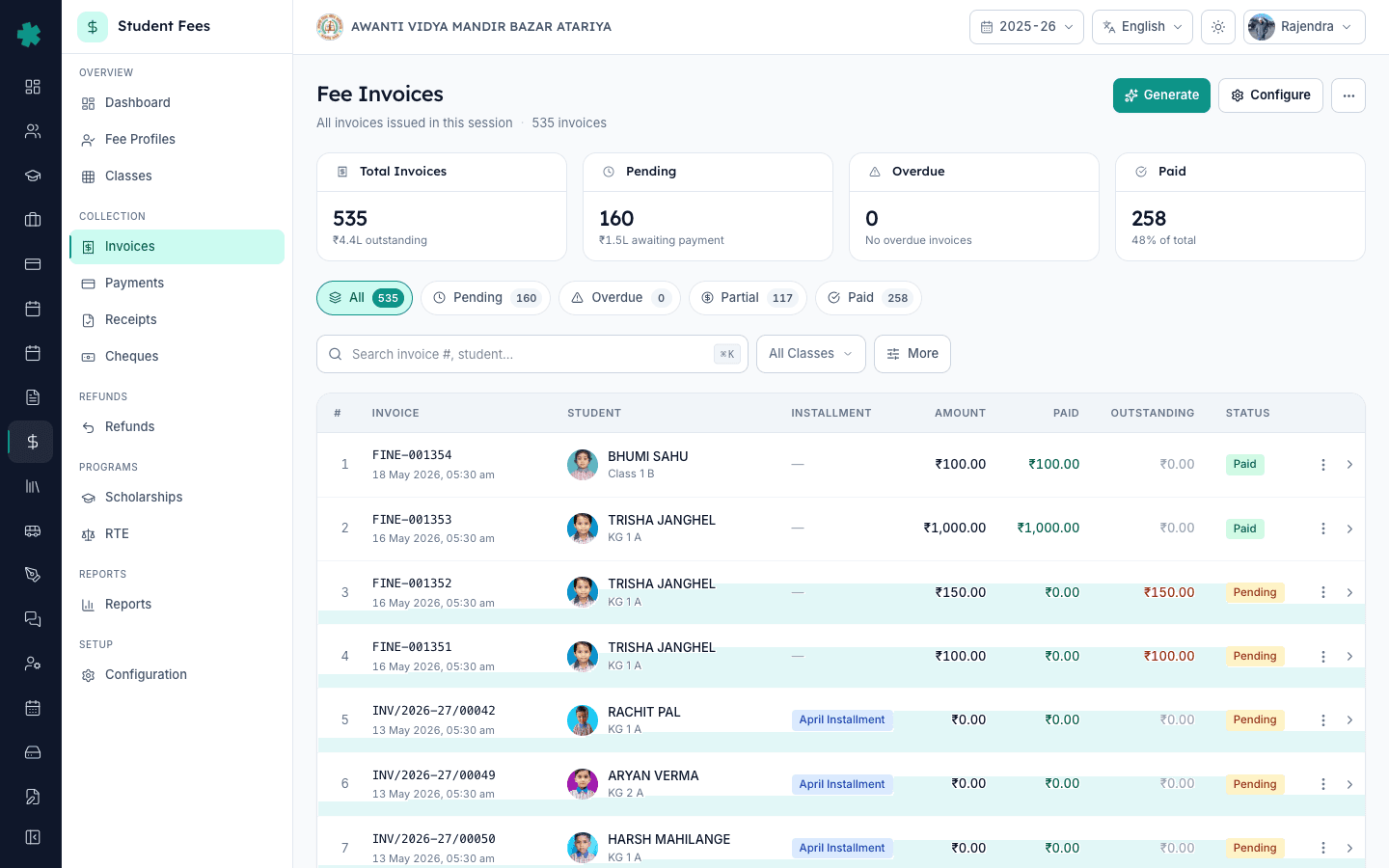
2. Filter by Overdue and open the right invoice
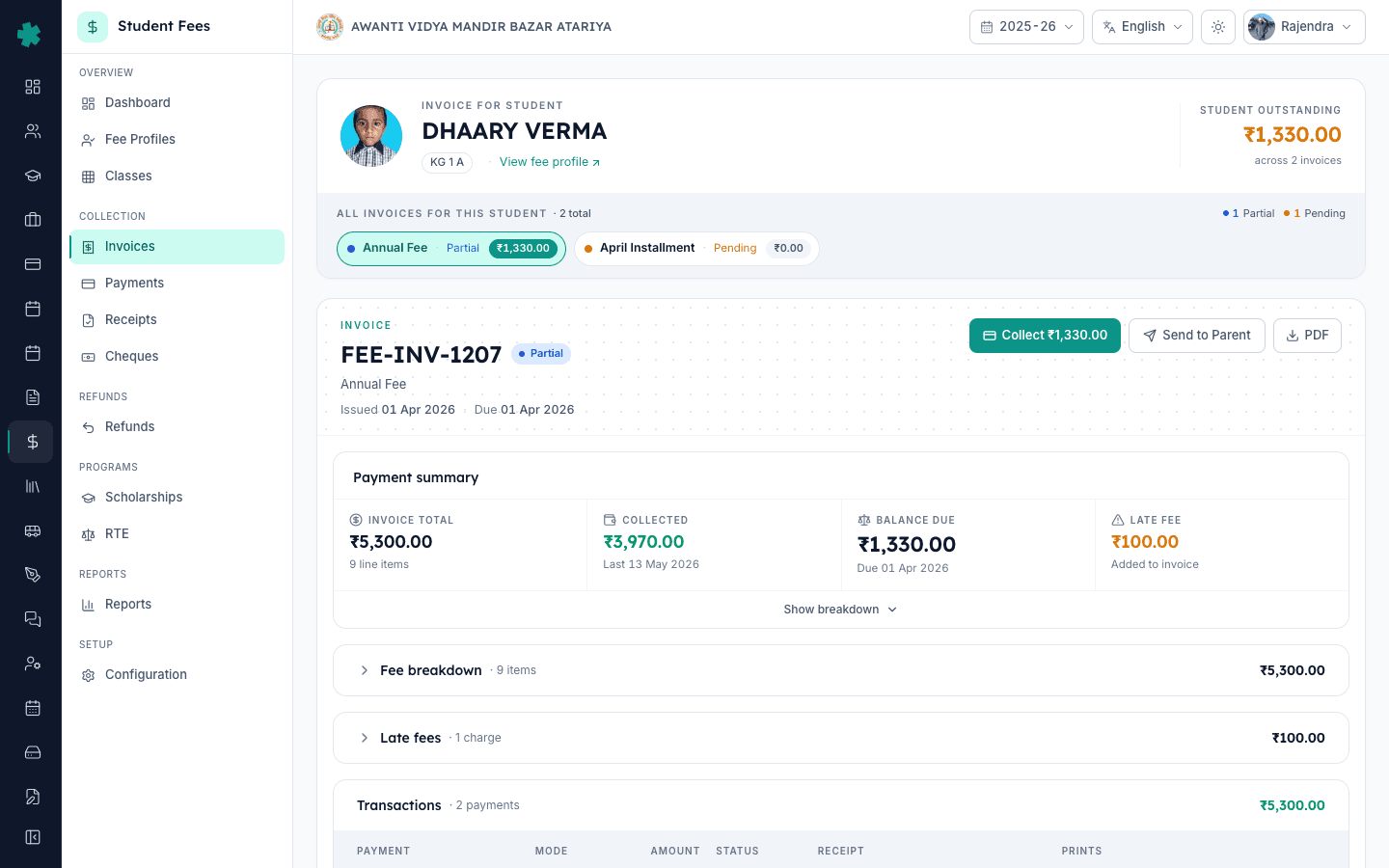
Click the Overdue tab. Inkwelly narrows the table to only the invoices whose due date is past and outstanding amount is greater than zero. Use the search box to find the student by name, admission number or invoice number — for example, FEE-INV-1207 for DHAARY VERMA. Click the row to open the invoice detail page. The pill bar at the top shows every invoice the student has, with the current one highlighted.
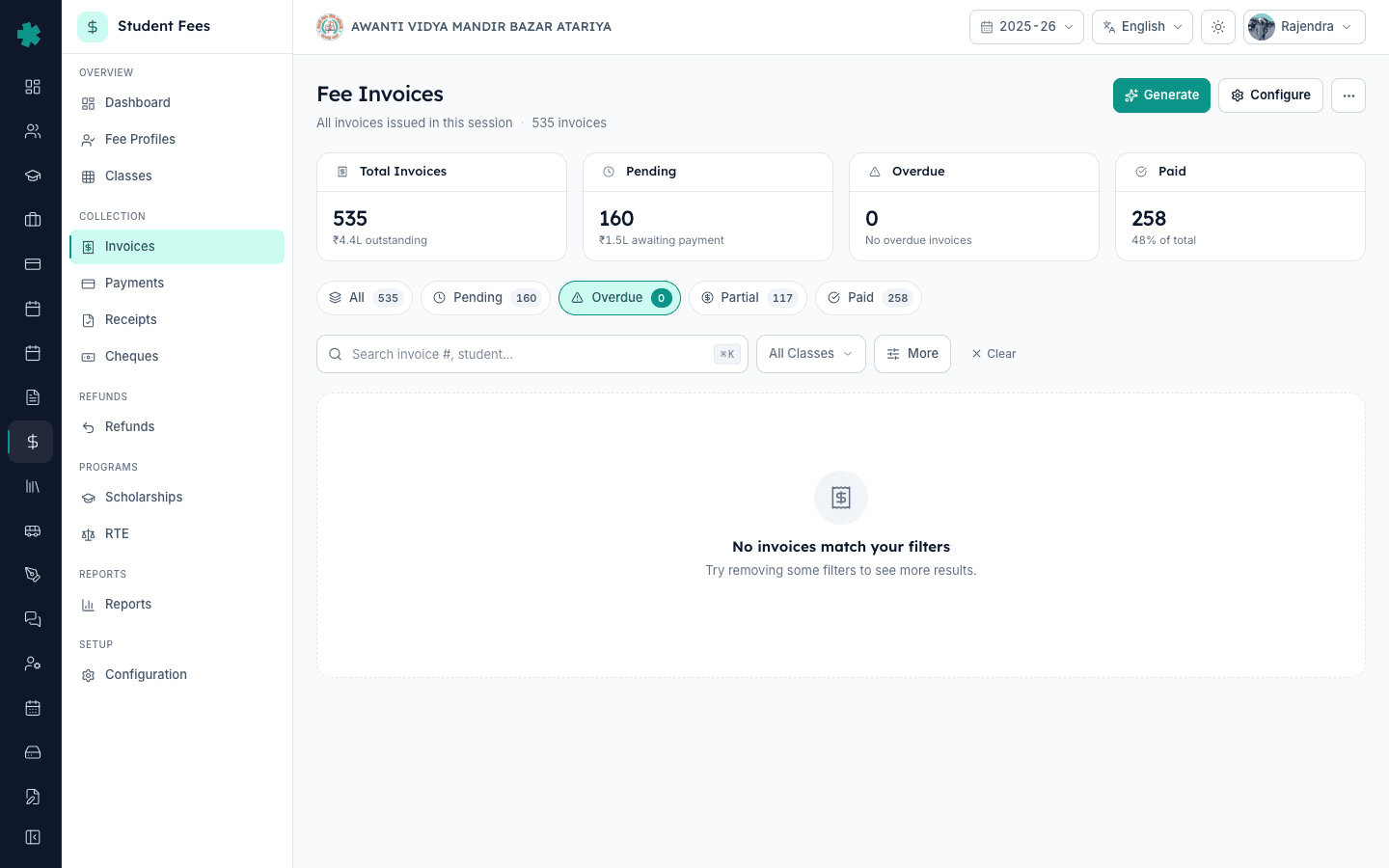
3. Expand the Late fees section
On the invoice detail page, scroll past the line items to the Late fees section. The section is collapsed by default — click the section header to expand it. If the invoice is overdue and no fees have been applied yet, Inkwelly shows an amber callout that says how many days the invoice is overdue and surfaces a primary Add late fee button. If the invoice already has at least one charge, you will see the existing rows here and a smaller Add another late fee button at the bottom right.
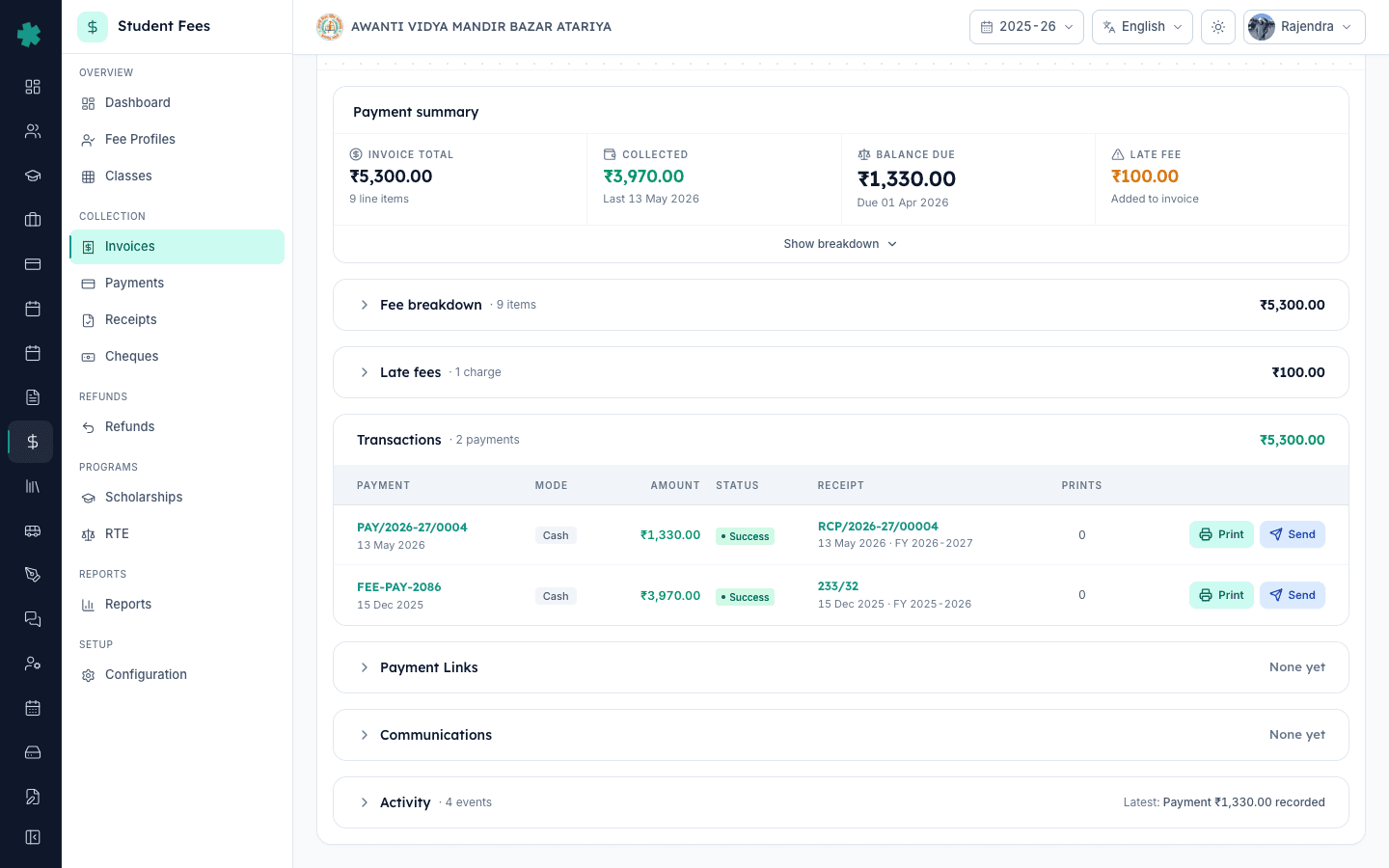
4. Click Add late fee to open the dialog
Click Add late fee. Inkwelly opens the Add Late Fee Charge dialog. The top tile of the dialog shows two read-only numbers — the current outstanding amount on the invoice and how many days overdue the invoice is — so you can sense-check the charge before saving. The first two editable fields are a Charge date picker that defaults to today and a Days overdue counter that defaults to the actual overdue count.
5. Pick the calculation type and enter the amount
Under Calculation type, pick one of four — Flat rate for a single fixed amount, Percentage for a share of the outstanding, Slab based for amounts that change with the overdue duration, or Hybrid for the flat-plus-percentage pattern most boards expect. Inkwelly shows a short description under each option. Type the rupee figure in the Charge Amount field — for the demo invoice the standard ₹100 per day late fee is already on record. If you need to back-date the charge, edit the Charge date and Days overdue values before saving.
6. Save the late fee and verify the row
Click Add Late Fee. Inkwelly creates the charge, closes the dialog and shows a toast that reads Late fee charge added successfully. The Late fees section refreshes with a new dated row at the top — the row carries the charge date, a small amber chip that reads N days overdue, the calculation type in lowercase, and the amount on the right. The totals strip at the bottom shows Total charged, Waived if any, and Net charges as a single bold number.
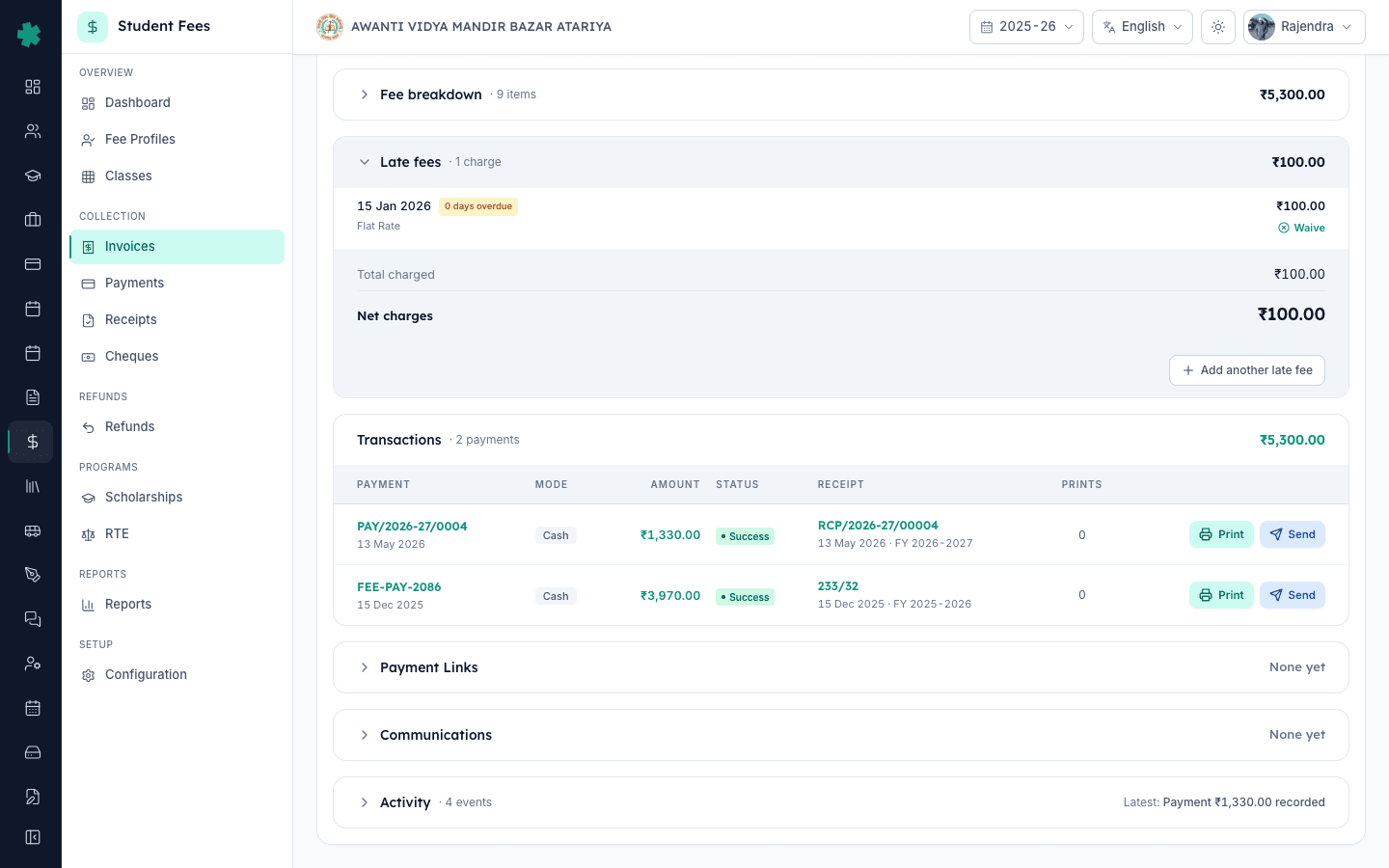
7. Confirm the Late fee line on the Payment summary card
Scroll back to the Payment summary card at the top of the invoice. The four-stat tile row now shows the late fee in the dedicated Late fee tile, and the printed-receipt-style ledger underneath includes a Late fee line marked Added to invoice that rolls into the final Invoice total. The Balance Due number updates accordingly. From here you can use Send to Parent in the top-right button row to push a fresh reminder over WhatsApp, SMS or email, or use Collect to record the payment at the counter — both will include the new late fee.
Next steps — if you find yourself doing this for dozens of invoices each month, switch to the automatic engine in How to set up late fee rules so Inkwelly applies fees on its own when an invoice flips to OVERDUE. For a one-time tour of how charges, discounts and fines combine into the Balance Due, read How to define fee categories and fee heads. Schools that run end-of-month invoicing cycles often pair this with How to bulk-generate invoices for an installment so the late-fee discipline lives next to the invoice-generation discipline. Once the new balance looks right, send the parent the refreshed copy from the invoice detail page.
See Inkwelly's fee module live
Frequently asked
6 questionsWhen should I apply a manual late fee instead of letting Inkwelly do it automatically?
Use the manual route for exceptions — a principal-approved hardship grace, a Right to Education Act audit case where the charge must land on a specific date, a board hearing or compliance review, or a parent who genuinely paid on time but the cheque has not cleared. For everyday overdue invoices, configure a Late Fee Rule under Configuration → Late Fee Rules so Inkwelly applies the charge the moment an invoice flips to OVERDUE.
What is the difference between applying late fees in bulk and applying a manual late fee?
Bulk apply runs across hundreds of overdue invoices in one click using the school's standard rule — it is the right tool for end-of-month catch-up when the rule engine missed a sweep. A manual late fee on a single invoice lets you set a custom amount, calculation type, charge date and days overdue for that one case. Both feed the same Late fees ledger on the invoice and both show as an Added to invoice line on the Payment summary card.
Inkwelly me manual late fee kaise lagaye?
Student Fee → Invoices kholiye, Overdue tab par jaiye, invoice open kijiye. Late fees section ko expand kijiye aur Add late fee button dabaiye. Charge date, days overdue confirm kijiye, calculation type (Flat rate, Percentage, Slab based ya Hybrid) chuniye, rupee amount type kijiye aur Add Late Fee par click kijiye. Late fee turant dated row banti hai aur Payment summary par Added to invoice line dikhati hai.
Bulk late fee aur manual late fee mein farq?
Bulk late fee ek hi click me sare overdue invoices par standard school rule laga deta hai — month-end catch-up ke liye sahi hai. Manual late fee sirf ek invoice par chalti hai aur aapko amount, calculation type, charge date aur days overdue alag set karne deti hai — special case ke liye, jaise principal-exempt ya RTE audit. Dono ek hi Late fees ledger me dikhte hain aur Payment summary par Added to invoice line bante hain.
Can I add a late fee on an invoice that is already partially paid?
Yes. Inkwelly lets you add a manual late fee on any invoice whose status is Pending, Partially Paid or Overdue. The charge raises the Balance Due by the new amount and lands on the same Late fees ledger. Fully paid, voided, cancelled and carried-forward invoices block the action because the audit trail is already closed for them.
Will the parent see the new late fee on their next reminder?
Yes. The moment the late fee is saved, the invoice total and Balance Due rise to include it, and any reminder you send through Send to Parent — WhatsApp, SMS or email — picks up the new figures. The PDF download from the invoice detail page also rebuilds with the late-fee line shown under Added to invoice in the receipt ledger.
You might also like
3 readsSources & references
- CBSE Affiliation Bye-Laws — Chapter VII, Fee Structure · accessed 19 May 2026
CBSE affiliation bye-laws require schools to publish a fee structure and any late-payment surcharge in advance and to maintain a per-invoice record of additional charges raised after the due date.
- Right of Children to Free and Compulsory Education Act, 2009 — Section 13 (No capitation fee) · accessed 19 May 2026
The RTE Act Section 13 bars schools from collecting any charge beyond the published fee schedule, making a dated, auditable late-fee row on the invoice the legally defensible record.
- NCPCR — Guidelines on Regulation of Fees in Private Unaided Schools · accessed 19 May 2026
NCPCR guidance asks private unaided schools to maintain a transparent register of every additional charge — including late fees — applied to a student's account, with the date of charge and the reason.
See Inkwelly on your school
30-minute demo. We open your current ERP with you and load your data into Inkwelly on the call. Dated go-live plan by the end of it.