Your school register, on a screen. Every day. Every cell. Editable.
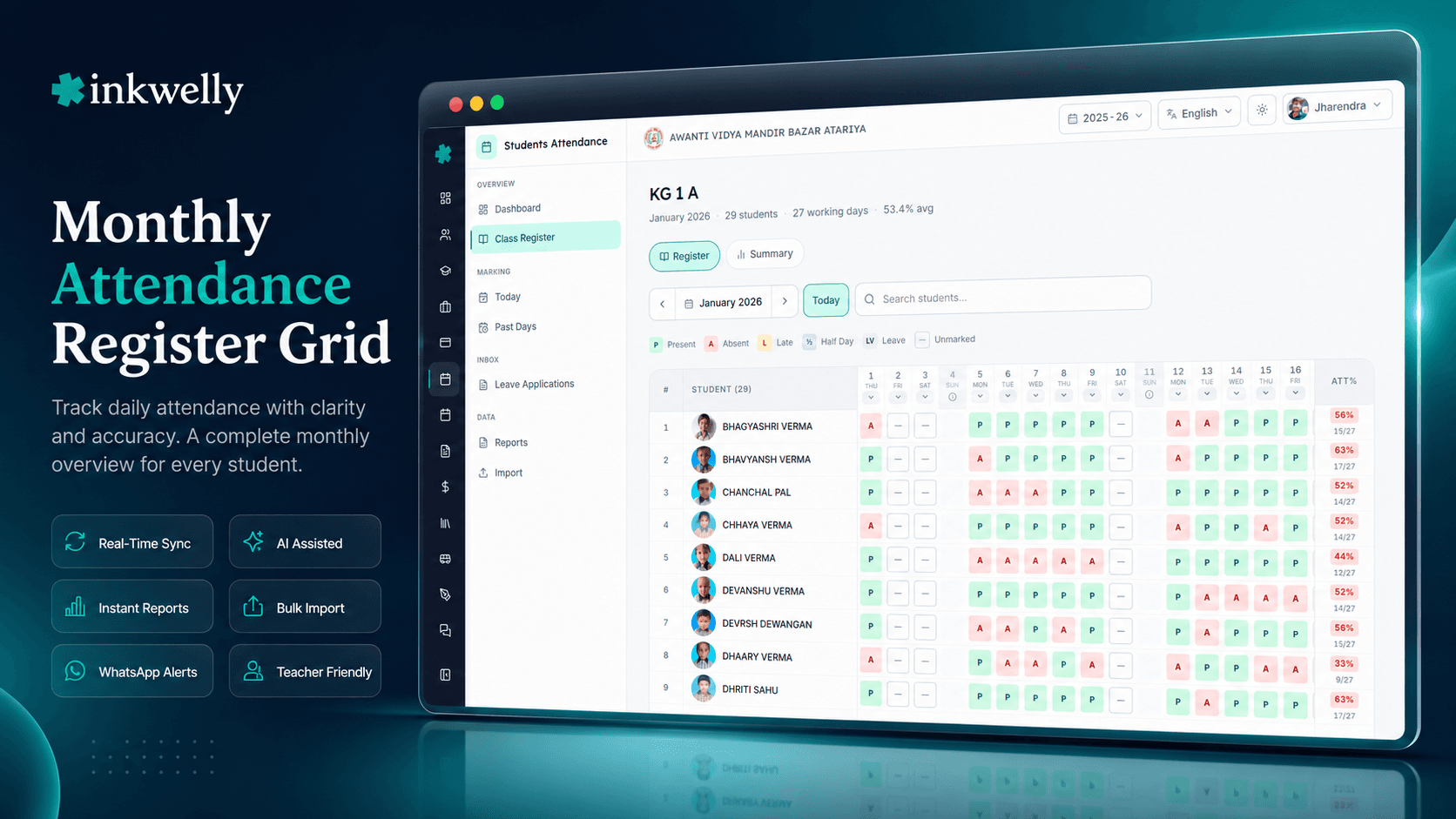
A month-on-one-screen register grid for the class teacher and the office — rows for students, columns for school days, every cell editable with reason, and a 75% RTE summary that updates as you go.
How most Indian schools keep the monthly register today
In the Class 5 B classroom, the attendance register is a hardbound book about 14 inches long. Roll numbers run down the left edge — 1, 2, 3, Aarav Sharma, Aaradhya Patel, Aayush Singh, all the way to 47. Across the top, in the class teacher's handwriting, the days of the month run left to right — 1 to 31. Every cell on this 47×31 grid holds a tick, a slash, a tiny L, or sometimes a remark squeezed into the margin. The first row of the page lists the dates the school was closed — a Sunday with a slash through it, the second Saturday with 2nd Sat, 26 Jan — R Day, Holi, 2 days school function.
At the end of every month, the head clerk takes the register, opens an Excel sheet, and copies it cell-by-cell. Class-wise totals — working days, present days, absent days, percentage. By the 5th of the next month, this Excel goes to the principal. By the 10th, a sub-set goes to UDISE+. By the 15th, a parent in Lucknow asks for her daughter's percentage report — the office assistant has to find the register, find the Excel, find the sub-totals, and recompute. Every step is paper-to-paper-to-Excel-to-letter. Every step has a chance to lose a date or count it twice.
The Monthly Attendance Register in Inkwelly is the same 47×31 grid — with the same row order, the same column order, and the same one-letter cell codes — but on a screen the class teacher can open from her phone or the staff-room laptop. Edit any cell. Bulk-mark a column. Filter to absent students only. Print the page. Export to Excel. Submit to UDISE+. The register-book mental model the school has used for fifty years stays exactly intact — the data layer below it just stops being paper.
How the monthly register works
The class teacher opens the Student Attendance dashboard, clicks her class, and clicks Register. The screen shows the current month — say, March 2026 — with the month picker in the toolbar. Forty-seven student rows on the left, thirty-one day columns across the top. Every cell is colour-coded with the five-status legend — green for Present, red for Absent, amber for Late, half-amber for Half Day, blue for Leave — with grey shading on Sundays, second Saturdays and any date the school calendar marks as HOLIDAY.
She scrolls down the row for roll number 28 — the chronic absentee her principal asked her about. The right edge of the row shows 13 / 22 working days, 59%. She clicks the cell for 18 March. A popover opens — status dropdown, remarks field, optional reason. She changes Absent to Leave, types 'sister's wedding, full week', clicks Save. The cell turns blue. The row total updates to 18 / 22, 81%. The chronic-absentee watchlist on the dashboard refreshes — the flag against roll number 28 disappears.
The head clerk needs to mark the entire 19 March column as HOLIDAY because the state board declared a sudden holiday. She clicks the column header for 19 March. A menu appears — Mark all P / A / L / HD / LV / Holiday / Week off. She clicks Mark all → Holiday, types 'State board declared holiday' in the reason. Every cell in that column turns grey across all 47 students in one frame. The audit log records changed by Head Clerk, 47 cells, reason: state board declared holiday.
On her phone in a parent-teacher meeting, the class teacher switches to the Mobile Day View — same grid, but pivoted: one column on the left is the day, every student of the class on the right with their status dot. Tapping a student's row shows the same cell popover. Editing on mobile updates the master grid in real time — there is no separate phone vs desktop data.
What the register grid does that paper cannot
- Every cell is editable individually — click, change status, type reason, save — with audit log of who changed what and when
- Bulk-mark an entire column — useful for sudden holidays, surprise events, weather closures, half-day functions
- Bulk-mark an entire row — useful for backdating leave for a student returning from a long medical absence
- Status legend visible at all times — P / A / L / HD / LV / H / W — colour-coded for instant scan
- Row totals on the right edge — working days, present days, percentage, with a red flag if below 75% RTE threshold
- Column totals at the bottom — students present today, absent today, on leave today, marking-coverage for that date
- Sundays and second Saturdays auto-shaded — reads from the school's working-week configuration, no manual upkeep
- Holidays auto-filled — every date on the school calendar with
HOLIDAYtype is pre-shaded, no double entry - Cell-level remarks — hover or tap a cell to see the original remark the teacher typed at 8:10 a.m. that morning
- Mobile day view — pivot the same grid for a single-day mark on the phone, edits sync instantly with desktop
- Month switcher — jump to any month of the academic session, all data already linked
- Excel export — generates the standard CBSE / ICSE / State Board monthly format with totals and signatures
- Print-ready view — single-page print with the school header for the principal's filing cabinet
- Delete-with-reason dialog — every deletion records the user, reason and timestamp, never silent
Cell-by-cell editing with audit log
A class teacher can click any cell in the past or current month and change its status. The popover that opens has the status dropdown, the remarks field, and a Save button. Every change writes a row to the audit log — Class 5 B, roll 28, 18 March 2026, changed from ABSENT to LEAVE by Mrs. Sharma at 11:42 a.m., reason: sister's wedding, full week.
The audit log is visible in the per-student attendance summary and on the cell hover. When a parent in October asks why a particular date was marked absent, the principal opens the cell, sees that the entry was made by the substitute teacher at 8:08 a.m., the original remark was 'no notice from parent', and that the entry was changed three days later by the head clerk after the medical certificate arrived. The dispute resolves in 30 seconds — not after a full re-read of the paper register.
Bulk column marking for surprise holidays
When the state board declares a sudden holiday at 7:30 a.m., or the school decides to close at lunch because of a heatwave, the head clerk does not need to open every class register one by one. From the monthly grid, she clicks the column header for the affected date and picks Mark all → Holiday — with a required reason like 'state board declared heatwave holiday'. The whole column for all 47 students turns grey in one frame.
The same column-header menu also handles the rare reverse case — a class function that pulls the entire grade out of regular periods, recorded as a bulk Mark all → Leave with the reason 'inter-school cultural function'. The teacher then picks off the few students who did not attend and reverts their cells individually. The principal's report shows 'Class 8 — leave by event, 42 of 47 attended' without ambiguity.
Row totals and the 75% RTE flag
The right edge of every row shows the running totals — working days in the month, days present, attendance percentage. When the percentage drops below the school's threshold (the chronic absentee watchlist defaults to 75% per RTE Act 2009 norms), the row turns soft red and the percentage gets a red flag.
The head clerk scans the register at the end of the month, sees four red rows in Class 5 B, and copies those four roll numbers into the chronic-absentee follow-up list. No manual percentage calculation, no paper-and-Excel reconciliation. The same row totals also drive the per-student attendance profile, the parent-facing percentage on the parent app, and the consolidated CBSE 'Pupil Attendance Profile' that schools submit during affiliation renewals.
Mobile day view for parent-teacher meetings
When the class teacher is in a parent-teacher meeting and the parent asks 'show me my child's attendance for September', she does not want to scroll a 47-row grid on a phone. She switches to the Mobile Day View — day-on-top, students-below, status dots in a single column. Tapping a student's row opens the cell popover for that day, exactly the same as on the desktop grid.
Edits on mobile sync to the master grid in real time — there is no separate desktop vs mobile data. The mobile day view is also what most class teachers use during the morning roll call when they prefer the day-pivot mental model over the month-pivot one. Both views are the same data; the school can pick whichever matches the moment.
“Pehle har month ke 2 tareekh ko clerk ko register de ke Excel banwana padta tha. Ab register hi screen pe hai, woh print karke principal ko de dete hain. Aadhe ghante ka kaam dus minute mein ho jata hai.”
Five real-world months on this grid
1. End-of-month closure (the 1st of the next month). The head clerk opens the previous month's grid for every class, scans for blank cells (a class teacher who forgot to mark one day), fills them with the correct status, then exports the Excel for the principal. Three classes had one missing day each; the head clerk filled them in 90 seconds without leaving her chair.
2. UDISE+ submission window (October). The school is filing the UDISE+ Student Attendance schema. The office opens the consolidated register view, exports the prescribed Excel format — student-wise totals for the months till date, including the social-category and gender splits UDISE+ asks for. No re-keying, no separate export request to a vendor; the same register grid the class teacher edits drives the submission file.
3. Mid-year teacher transfer. A Hindi teacher leaves and a substitute teacher takes over Class 5 B from 1 December. The new teacher opens the register for December onwards. The previous months' data is still visible (read-only for her, editable for the head clerk). The audit log shows which entries were made by which teacher — useful when a parent later disputes a September entry.
4. Affiliation renewal (CBSE / ICSE). The school is renewing CBSE affiliation. The board asks for the 'Pupil Attendance Profile' for the past three academic sessions. The office picks the three sessions in the register module's archive view; the system generates a consolidated PDF with month-by-month totals per class for each session. What used to take a week of office work is a 10-minute job.
5. Parent dispute over a chronic-absenteeism letter. The school sent a 75%-shortage letter to a Class 9 parent in February. The parent comes in furious — 'mera bachcha kabhi nahin bunked'. The principal opens the register, sees nine specific dates marked absent, hovers each cell to see the original remark the teacher typed that morning. Six of the nine were 'no notice from parent, called home, line dead'. The parent reads them and the conversation moves from disputing data to discussing follow-through. No paper hunt; no Excel disagreement.
Common operations on the register
- Click any cell — change status, type reason, save with audit
- Click a column header — bulk-mark every student for that date with reason
- Click a row — see per-student percentage breakdown plus the per-student attendance profile
- Switch month — jump to any month of the academic session, no reload
- Switch view — desktop grid vs mobile day view, same data, real-time sync
- Filter to absent only — hide everything except cells with absent / leave / late status
- Print register — single-page A4 print with the school header for principal's file
- Export Excel — standard CBSE / ICSE / State Board / UDISE+ format with totals
- Delete with reason — every cell deletion logs user, timestamp, reason — never silent
- Lock a past month — office closes a month, no further edits without admin override
- View audit — every cell shows who changed what and when, on hover
- Compare against another class — side-by-side monthly summary for principal review
See your school's register on a screen
20-minute walkthrough on the Inkwelly demo school. Bring last month's paper register and an Excel export — we will load the same data into the grid live and show you the row-totals and audit log instantly.
Limits, safety and the small print
Roll numbers and dates are the only axes. This grid is rows = students sorted by roll number, columns = working days of the month. There is no pivot to 'hours of the day', no period-wise attendance, no subject-wise attendance on this screen — those are deliberate exclusions. The Indian register-book layout the school has used for fifty years is what teachers eye-scan in seconds; we keep it.
Past-month edits require permission. The school can lock past months from the calendar admin panel. Once locked, only a head clerk or principal can edit a cell — with mandatory reason. Class teachers see a read-only view of locked months. This stops accidental overwrites of last term's data when a teacher is correcting today's data.
Bulk delete needs an explicit reason. Deleting a cell, a column, or a row uses the Delete with reason dialog. The reason is mandatory. The audit log records who deleted, what was deleted, and why. Bulk delete of a whole class's entire month is intentionally a multi-step confirmation — the screen will ask twice and require typing the class name to confirm, because that is a 47×31 = 1,457-cell delete.
Mobile day view supports edits, but slow networks see the desktop grid as a paginated table. When the bandwidth is low, the desktop grid auto-paginates by 10 students at a time; mobile day view always paginates by date. No screen ever loads more than a thousand cells at once, even on a 3G connection from a tier-3 town. The audit log writes happen on save — not on every key-press — so the network round-trip count stays low.
Calendar updates flow downstream automatically. If the calendar admin marks a previously-working day as a new HOLIDAY retroactively, every register grid for that date auto-shades on next open and the row-totals recompute. If a previously-holiday day becomes a working day mid-year (rare — e.g., a board exam re-scheduled), the same flow applies in reverse. The school never has to manually update fifty class registers when one day's status changes.
Trade the hardbound register for an editable grid
The register grid is one of seven [Student Attendance](/modules/students-attendance) features Indian schools rely on every day. Book a demo and see it on your school's data.
Belongs to
1 moduleFrequently asked
9 questionsDoes the register match the CBSE / ICSE / UDISE+ format my school already uses?
Yes. Rows are students sorted by roll number; columns are working days of the month with weekly-off and holiday columns shaded. The Excel export generates the standard formats CBSE / ICSE schools file during affiliation renewals and the UDISE+ Student Attendance schema. Row totals — working days, present days, percentage — match what those formats expect.
Can multiple teachers edit the same class's register at the same time?
Yes. The class teacher and the head clerk can both have it open. Cell-level edits are independent — if both edit different cells, both saves succeed; if both edit the same cell, the most recent save wins and the audit log captures both attempts. There is no merge conflict UI; cells are atomic.
What if I want to mark attendance for a Sunday or a holiday?
Sundays, second Saturdays and holidays are pre-shaded grey and not editable as regular working days. If your school is genuinely open on a Sunday for a special event, the calendar admin can override that date as a working day, after which the cells become editable. The lock removes accidental marking on weekends; the override removes the inconvenience for special working days.
How are row totals calculated when a student joins mid-month?
Working days for that student are counted from the admission date — not from the 1st of the month. So a student admitted on 18 March in a 22-working-day month will have her percentage calculated against the 5 working days she was eligible for, not 22. The row total reflects this. The same logic applies to a student transferring out mid-month.
Can I print one register page per class for the principal's file?
Yes. The print view formats the grid onto a single A4 page in landscape — with the school's header, class name, month, and the student-wise totals on the right edge. The principal can keep a paper copy for the file alongside the digital one. We have schools that print at end-of-month and bind a hardbound copy for the office archive.
Is the audit log per-cell visible to a class teacher?
Yes — hovering or tapping a cell shows the audit history (who changed it, when, and the reason on each change). The full audit log including deletions is also exposed in the per-student attendance profile. Audit data is read-only and cannot be edited.
Can a past month be locked so it cannot be edited accidentally?
Yes. The school admin can lock any past month from the calendar admin panel. Once locked, class teachers see the grid in read-only mode for that month. Head clerks and principals retain edit access with a mandatory reason field on every change. Reopening a locked month requires the school admin's explicit action.
Does the export Excel include the social-category and gender splits UDISE+ wants?
Yes. The UDISE+ Student Attendance export includes per-student totals plus aggregations by gender, social category (General, OBC, SC, ST, Minority), CWSN, and EWS — all derived from the student profile. The class teacher does not need to maintain separate spreadsheets; the same register data drives the UDISE+ submission file.
What happens to attendance percentages when a student takes long approved leave?
Approved leave applications (medical leave, function leave) flow into the register as `LEAVE` status cells — already pre-filled when the leave is approved. The school can configure whether leave days count toward the working-days denominator (by default they do, with the *'leave excluded'* metric available as a separate column for principal review). The 75% RTE calculation uses the configured rule, not a hidden one.
You might also like
2 readsSee Inkwelly on your school
30-minute demo. We open your current ERP with you and load your data into Inkwelly on the call. Dated go-live plan by the end of it.