One screen. One class. Roll call done in 90 seconds.
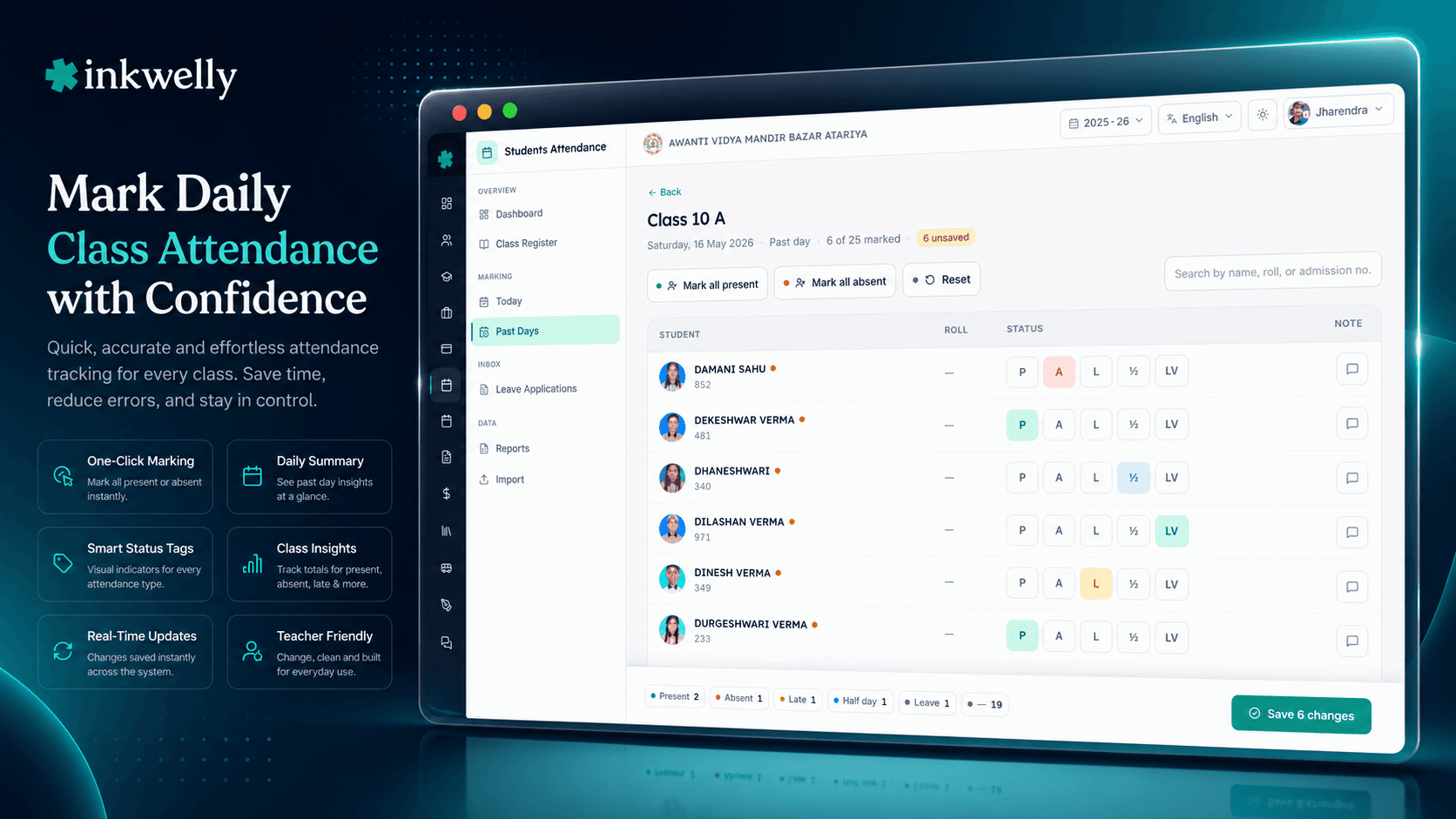
A purpose-built daily-attendance screen for Indian classroom teachers — five statuses (Present, Absent, Late, Half Day, Leave), one-click Mark All, per-student remarks, automatic holiday lock and live class totals while you mark.
How most Indian classroom teachers mark attendance today
It is 8:05 a.m. The Class 5 B teacher walks in, opens a hardbound register on the second page from the back, and starts calling roll numbers. Roll number 1 — Aarav Sharma — yes ma'am. Tick. Roll number 2. Tick. Roll number 3 — silence. Question mark. By the time roll number 47 is called, the first bell for the next period has already rung. The same scene plays out in 38 other classrooms in the school, in registers that look identical.
Thirty minutes later a peon collects the registers and stacks them on a shelf in the staff room. By 9:30 a.m. the office assistant is typing the day's totals into an Excel sheet — class-wise, section-wise, gender-wise, by social category if the school is on UDISE+. By the time a parent calls the office at 11:00 a.m. asking 'Aarav aaye hain kya?', the data has been copied twice and is already a guess. By Friday, three of those forty registers have ink smudges over an entire week. By March, two have completely disappeared and a teacher has retired with whatever was inside them.
The job is small. The system is heavy. Mark Daily Class Attendance is the screen we built to replace that 30-minute morning routine with a 90-second one — without giving up a single thing the register actually does. It runs on the class teacher's phone or the staff-room laptop, syncs to the school's Student Attendance dashboard instantly, and produces every report the principal, accountant and UDISE+ submission needs.
How Mark Daily Attendance works
A class teacher opens Inkwelly on her phone and taps Mark Today on her dashboard. The class she is assigned to opens directly — no class picker, no list to scroll. She sees every student of Class 5 B sorted by roll number, each with their photo, full name and student ID, and a row of five status buttons: P · A · L · ½ · LV. The default for every student is Present, because in most classes most students are present.
She scans the room. The two empty seats are roll numbers 12 and 28. She taps A on those two rows. Roll number 19 walked in five minutes late — she taps L. Roll number 33 has come for the morning assembly only — she taps ½ and types 'half-day, mother's hospital visit' in the remarks field. She taps Save. The screen shows: Attendance saved for 47 students. Total elapsed: 90 seconds.
Back in the principal's office, the attendance dashboard updates immediately. The principal sees Class 5 B's marking-coverage circle move from grey to green. Today's pulse grid shows 38 of 39 classes have marked. The office assistant doesn't have to type anything. The chronic-absentee watchlist refreshes — roll number 28 has now crossed the 75% RTE threshold and a flag appears next to her name.
No paper register, no Excel transcription, no double entry. The same data feeds the monthly register grid, the per-student attendance profile, the UDISE+ export and the parent communication queue — all from this one screen the class teacher uses every morning.
What gets captured on every save
- Status per student — Present, Absent, Late, Half Day or Leave (matches CBSE/ICSE/State Board reporting)
- Per-student remarks — free-text, optional, captures the 'why' (medical, function, hospital visit, weather)
- Roll number ordering — students appear in the same sequence as the school's paper register
- Photo and student ID on every row — no risk of marking the wrong child in same-name cases
- Date the entry applies to — defaults to today, can be backdated within the academic session
- Source of the entry — MANUAL, MOBILE_APP, or BIOMETRIC (set automatically based on the device used)
- Recorded-by user ID and timestamp — audit log shows who marked the class and when, to the second
- Holiday flag — if the date is on the school calendar as a holiday, the screen blocks save with the holiday name
- Update vs Save — if attendance was already marked, the button reads Update and a clean audit trail records the change
- Live class totals — Present, Absent, Late, Half Day, Leave count and percentage update as the teacher taps
The 5-status model Indian schools actually use
Most school-ERP screens give you only Present and Absent. Real Indian classrooms use five. Late is for the student who arrives after the first bell — important for buses running on the school transport route. Half Day is for the student who attends morning assembly only — common during exam season, sibling weddings, vaccination drives. Leave is for the student whose parent has filed a leave application — and clicking that status auto-links to the approved leave record.
The statuses match the AttendanceStatus enum the rest of Inkwelly uses (PRESENT, ABSENT, LATE, HALF_DAY, LEAVE) so attendance flows cleanly into the monthly register, per-student summary, fee adjustments and UDISE+ exports without translation. The school never has to invent its own codes.
Mark-All for the class — when 46 of 47 are present
Most mornings most students are present. The teacher taps Mark all → Present in the toolbar above the student list, and every row turns green in one frame. She then changes only the absent students — usually two or three. The default flips from 'tap 47 times' to 'tap two times'.
Mark-All also works for the rare reverse case — a sudden weather shutdown, a class where most students went to a function. Tap Mark all → Absent, then change only the few who came. Tap Mark all → Leave if the school's annual sports day pulled the entire class. The remarks field stays untouched between toggles, so the 'why' a teacher already typed is preserved when the bulk button is used.
Per-student remarks — the why the register can't fit
A paper register can fit a tick. It cannot fit 'doctor's visit, will return after lunch, mother on phone'. The Inkwelly mark screen has a free-text remarks field on every row — used heavily in the first three months of any school's rollout because that is when teachers realise the office stops calling them to ask 'why was Aarav absent?'.
Remarks are optional but they pay back later. When a parent disputes a chronic-absenteeism letter in October, the school can pull the September register and read the original remarks the teacher typed at 8:10 a.m. — 'mother said hospital visit, brother also absent' — instead of guessing six weeks later. The remarks are visible on the monthly register grid cell hover, on the per-student summary, and on the export Excel sheet for office use.
Calendar-aware lock for holidays and weekends
If the date is a Sunday, second Saturday, Republic Day, the school's annual function, or any other day on the school calendar marked as HOLIDAY, the mark screen disables every status button and shows a banner with the holiday name — 'Republic Day — Attendance cannot be marked on holidays.' The Save button is disabled. There is no way to mark attendance on a non-school day, by accident or otherwise.
This matters at year-end. UDISE+ submissions and RTE 75% calculations both treat 'days the school was open' as the denominator. Schools that mark attendance on a Sunday by mistake get one extra working day on every student's record — and a confusing dispute when the parent compares it against the published school calendar. The lock removes the failure mode entirely.
“Pehle 8:05 se 8:35 tak register hi bharte the. Ab 8:05 mein khol ke 8:07 mein save ho jata hai. Tees minute miljaate hain Maths padhane ke liye.”
Five real-world classrooms, one screen
1. The 8:05 a.m. roll call (everyday). Class teacher opens her phone, sees Class 5 B, taps Mark-All Present, changes the two absent rows to Absent, types a remark on the half-day case, taps Save. Total time: 90 seconds. Done before the morning prayer ends.
2. The substitute teacher (Tuesday). The regular Hindi teacher is on a planned leave — the head clerk has assigned a substitute for two periods. The substitute opens her phone, sees Class 5 B in her assigned-classes list, marks the class normally. The audit log records recordedBy = substitute teacher against today's date, and the next-day report still rolls into Class 5 B's monthly summary correctly.
3. The post-lunch correction (same day). A student marked Absent at 8:05 actually walked in at 9:30 with a late note from the school gate. The teacher reopens the screen at 11:00 a.m., changes the row from A to L, taps Update. The change is timestamped and visible in the audit trail — useful when a parent later asks why the morning SMS said absent.
4. The annual function (Saturday). The school is open but the entire Class 8 attended a city-level cultural function. The teacher opens the mark screen, taps Mark-All Leave, types 'Inter-school cultural function — Lucknow Mahotsav' in the remarks of the first row to mark the day's reason, taps Save. The principal's report shows 'Class 8 — full leave (event)' without ambiguity.
5. The chronic-absentee follow-up (October). The chronic-absentee watchlist flags roll number 28 below the 75% RTE threshold. The principal opens her per-student summary, sees every absent date with the original remarks the teacher typed in real time. Two were 'sister's wedding', one was 'fever', four had no remark — those are the four the principal calls the parent about. Without the per-row remarks, the call would have been a guess.
Common scenarios this screen covers
- Rural school with patchy connectivity — the mobile app caches the day's class roster and queues the save until signal returns
- Co-teacher / homeroom teacher pair — both can mark the same class, the audit log shows whose entry stands
- School with 1500+ students across 50 sections — every class teacher sees only her own assigned classes
- Mid-year admission — a new student appears on the next save automatically, no re-roster step
- Student transfer out — roll number frees up, the next admission can reuse it, attendance history stays bound to the original student
- Student with two same-class siblings — photo + student ID on every row prevents the wrong-child mark
- Pre-primary classes (Nursery, LKG, UKG) — same screen, same statuses, no special workflow needed
- Boarding schools — separate morning-roll, evening-roll workflows can be configured at the school level
- Backdated entry — class teacher can mark for a past school day within the same academic session, with audit
- Holiday or weekend — Save is blocked, with the holiday name shown so there is no doubt
See the daily mark screen on your school's data
20-minute walkthrough on the Inkwelly demo school. Bring your own register layout — we will show how it maps onto the daily-mark screen, the [monthly register](/features/monthly-attendance-register), and the chronic-absentee dashboard.
Limits, safety and the small print
Roll-number sort is the only built-in sort order. Students are always shown in roll-number sequence — the same order the paper register and CBSE/ICSE official report formats use. Sorting by name or admission date is not exposed on this screen, on purpose. The teacher's eye-memory of 'roll number 12 sits in the second row' is the fastest possible scan, and we do not break it with a sort menu.
Default status is Present. This matches the reality that 90%+ of students are present on a typical day. Teachers who prefer to start with everything Absent and tap up can use Mark-All → Absent at the top of the screen. Either approach gets to a saved attendance in under two minutes.
No bulk import on this screen. This is the single-class, single-day surface. Bulk-mark across multiple classes lives on the monthly register grid. Backfilling a full month of past data is done from the per-class register, not here, on purpose — a pattern that prevents accidental mass overwrites of the morning's correct data.
Holiday list is school-controlled. The school's calendar admin sets which dates are holidays. The mark screen reads from that list — if a date is missing from the calendar, the screen will allow marking. We recommend the office adds the school's full annual holiday calendar at the start of the year so the lock works for every Republic Day, Independence Day, Diwali, Holi, Eid, Christmas, Guru Nanak Jayanti, Teachers' Day and the school's own annual function.
Mobile-first but works on every device. The screen is built mobile-first because the class teacher's phone is the most common device. It works equally on the staff-room laptop, the principal's iPad and the school's shared tablet — same five-status layout, same Mark-All bar, same save flow. There is no separate desktop UI to learn.
Replace the 30-minute register with a 90-second screen
Inkwelly's daily mark screen is one of seven [Student Attendance](/modules/students-attendance) features Indian schools rely on every morning. Book a demo and see it on your own class data.
Belongs to
1 moduleFrequently asked
9 questionsHow long does it actually take to mark a class of 47 students?
On a normal day with 2-3 absent students, under 90 seconds — open the class, tap Mark-All Present, change the absent rows to Absent, tap Save. The five-button per-row layout is designed for that exact flow. The slowest case (a class with 10+ absences and remarks on each) is still under 4 minutes.
What happens if the teacher's phone has no internet at 8:05 a.m.?
The Inkwelly mobile app caches the day's class roster locally. Marking happens offline; the save is queued and pushed when the signal returns. Once the save completes, the audit log records the actual save timestamp — not the offline-mark timestamp — so the school knows when the office actually received the data.
Can two teachers mark the same class on the same day?
Yes — the homeroom teacher and a co-teacher both have access. The screen shows the existing attendance and the Save button changes to Update if a record already exists. The audit log records every change with the user ID and timestamp; the most recent save is the one that counts for reports.
Can attendance be backdated for a past school day?
Yes — within the same academic session. The teacher changes the date on the screen and marks for that past day. Backdated entries are logged with both the original entry's date and the actual save timestamp, so the principal can see the correction trail. Marking outside the current academic session is not allowed.
What about Saturdays, second Saturdays and the school's annual function days?
The school's calendar admin sets which dates are working days, second-Saturdays-off, holidays or special working Saturdays. The mark screen reads from that calendar. If a date is on the holiday list, the Save button is disabled and the holiday name is shown. If it is a working Saturday, attendance can be marked normally.
Is the data CBSE / ICSE / UDISE+ ready?
Yes. The five statuses (PRESENT, ABSENT, LATE, HALF_DAY, LEAVE) plus HOLIDAY and WEEK_OFF map directly to CBSE and ICSE periodic-report formats and to the UDISE+ Student Attendance schema. The export Excel sheet is generated from the same data without re-keying. State boards that ask for additional categories (Maharashtra Mahadbt, Tamil Nadu Matric) are supported via per-school configuration.
Does it work for boarding schools with morning and evening attendance?
Yes. The school can enable a second daily attendance slot on this screen — typically morning-roll and evening-roll for residential / Sainik schools. Both slots use the same five-status model. Day schools see only the single daily slot.
What if a class has 60+ students — does the screen still feel fast?
It does. The screen is virtualised and the Mark-All toolbar always stays at the top. Schools with sections of 60-65 students have rolled out the screen without changing their workflow. The longest reported single-class mark time is around 2 minutes for a class of 64 with 9 absences and remarks on each.
Are the remarks visible to parents?
No — remarks are visible to the class teacher, the school office and the principal only. Parents see the day's status (Present / Absent / Late / Half Day / Leave) on the parent app and on any communication the school sends, but not the internal remark text. This protects sensitive context (medical, family) the teacher captures for office use.
You might also like
2 readsSee Inkwelly on your school
30-minute demo. We open your current ERP with you and load your data into Inkwelly on the call. Dated go-live plan by the end of it.