Co-scholastic, finally marks जैसी care मिले। CBSE Part 2, NEP holistic, ICSE SUPW — अलग config, अलग teacher, अलग deadline।
Per session co-scholastic areas एक बार configure करें, per class per area सही teacher assign करें, हर बच्चे के लिए descriptor के साथ 5-point grade capture करें, class teacher की holistic remark sign off करें, और marksheet पर CBSE Circular 39/2018 prescribed Part 2 layout render करें — scholastic marks से अलग, कभी मिक्स नहीं।
आज ज़्यादातर भारतीय schools co-scholastic assessment कैसे handle करते हैं
Result day से एक दिन पहले Sunday है — Bahraich के एक CBSE upper-primary स्कूल में। Class teacher 11:30 PM अपने desk पर बैठी हैं — Part 2 (Co-scholastic) categories की printed Excel sheet के साथ (Work Education, Art Education, Health and Physical Education, Discipline) और 38 बच्चों को हर एक पर grade करना है। PT teacher पहले ही जा चुकी है और Class 6-10 की HPE grades नहीं आईं। Art teacher की grades पिछली शाम WhatsApp voice note पर आई थीं — 'A1, B2, A1, A2, B1...' — जिसे class teacher ने Excel cells में उसी order में transcribe किया जिस order में सुना। Class-teacher remark column में 38 boxes हैं; 35 में 'Has shown improvement this year' लिखा है — क्योंकि यह phrase 10 PM पर copy-paste किया था और अब उनकी कलाई दुखने लगी है।
खर्चा सिर्फ़ Sunday का नहीं है। Class 6 का बच्चा जिसकी Art grade WhatsApp voice note पर 'A1' थी actually A2 मिला; typo कोई नहीं पकड़ता। स्कूल के environment club में leader रहे बच्चे का class-teacher remark 'Has shown improvement' कहता है — same as struggling child — क्योंकि class teacher के पास differentiate करने का time नहीं था। Discipline column में numeric 1-10 score है जहाँ CBSE format 5-point letter grade with descriptor prescribe करता है; marksheet template (generic Excel print) numbers render करता है, parent पढ़ता है, और CBSE Part 2 की 'A grade in everything' tradition 'मेरे बच्चे को Discipline में 7 मिले?' confusing WhatsApp message में collapse होती है।
Co-scholastic एक reason से exist करता है। CBSE Circular 39/2018, NEP 2020 holistic-progress framework, ICSE SUPW (Socially Useful Productive Work) requirement — तीनों बच्चे की school life का वो part capture करने के लिए designed हैं जो scholastic marks नहीं कर सकते। जब स्कूल इसे 11 PM Sunday afterthought की तरह treat करता है, child वो part of report card खो देता है जो कहता है 'this is who they are beyond marks'। Inkwelly का Examinations module co-scholastic को marks जैसी care देता है — अलग config, अलग teacher assignment, अलग deadline, अलग audit log, अलग marksheet rendering।
Inkwelly में co-scholastic assessment कैसे काम करता है
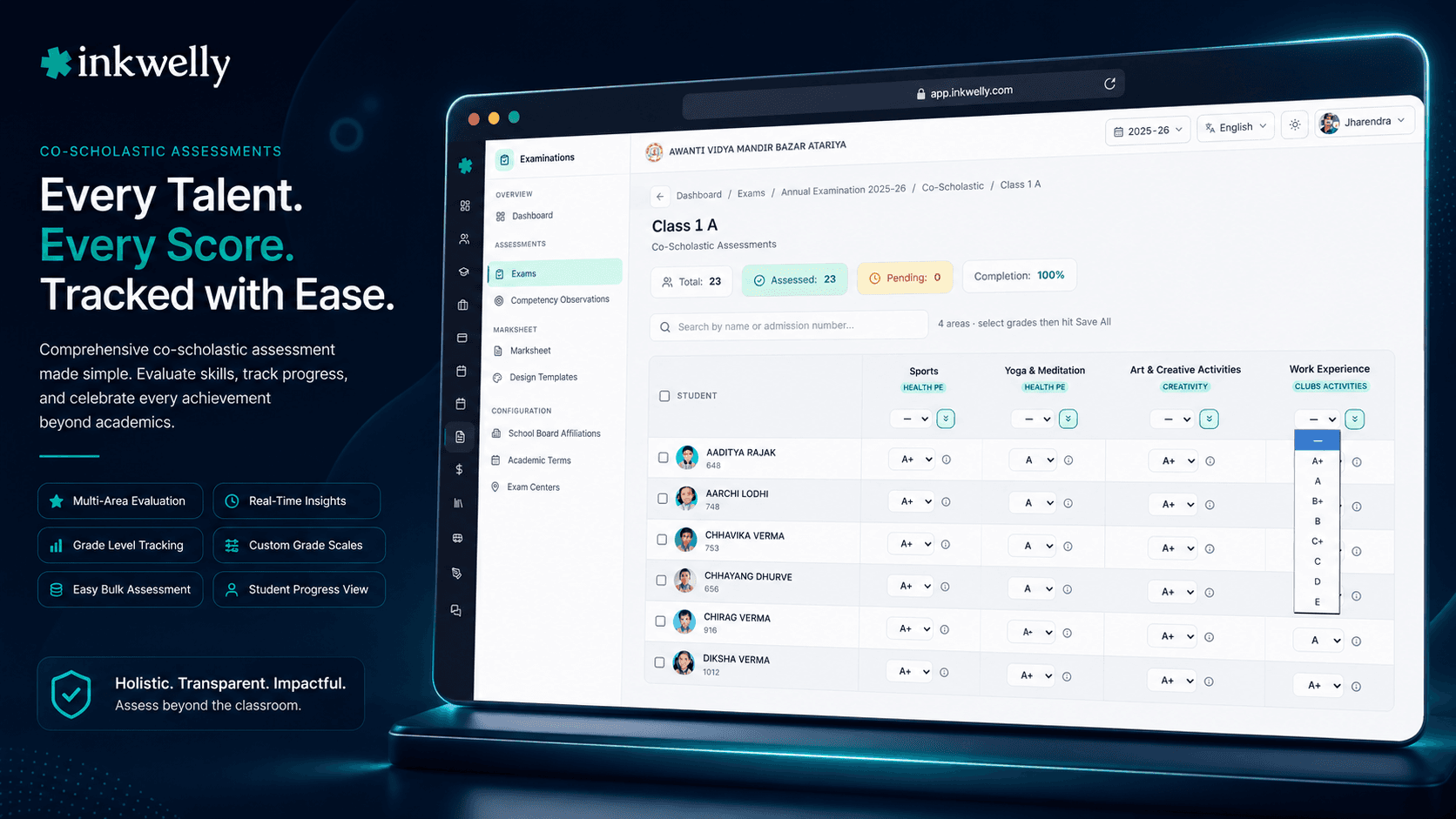
Coordinator जब Exam → Co-Scholastic Assessment screen खोलती हैं, class-card grid दिखता है — exam से linked हर class के लिए एक card — class name, section, total students, completion percentage और colour-coded progress badge के साथ। Coordinator class card click करके drill in करती हैं; screen per-class view पर shift होता है — student list (name, roll number) और हर configured co-scholastic area के लिए एक column (Work Education, Art Education, Health and Physical Education, Discipline, Critical Thinking, Collaboration, Communication, Citizenship)। हर cell configured grading scale के bands के साथ grade picker है (typically 4-point scale के लिए A, B, C, D या 8-point CBSE scale के लिए A1-D2)।
Areas per session एक बार Co-Scholastic Configuration screen से configure होते हैं। हर area areaType (configurable taxonomy से free choice), nepDomain mapping (PHYSICAL, SOCIO_EMOTIONAL, COGNITIVE, LANGUAGE, AESTHETIC — NEP 2020 holistic categorisation), gradingScaleId (स्कूल art के लिए 4-point और cognitive areas के लिए 8-point use कर सकता है), per class default teacher assignment (HPE के लिए PT teacher, Art Education के लिए Art teacher, Discipline के लिए Class Teacher) carry करता है। Configuration session के exams के across reused; half-yearly same areas inherit करता है जो annual।
हर cell के लिए, Inkwelly grade (band picker), optional remarks text field (per-area, per-child) और user, timestamp, prior grade और new grade के साथ audit-log entry store करता है। Grade picker dropdown है — band label और descriptor visible (जैसे 'A1: Outstanding — initiates and leads activities') के साथ — ताकि teacher को याद नहीं रखना पड़े की कौन-सा band कौन-से behaviour का है। Descriptor area level पर एक बार configured और reused। Teacher सिर्फ़ अपने assigned area और assigned classes के लिए grades fill करती हैं; cross-class और cross-area access server-side enforced।
Class-teacher remark APPROVED status का gate है। सारे area teachers ने grades fill करने के बाद, class teacher per-class view खोलती हैं, हर बच्चे के हर grade देखती हैं, और पर child holistic remark लिखती हैं। Remark editor के पास context bar है जो बच्चे के area grades, recent attendance और scholastic top scorer subjects दिखाता है — इतनी information ताकि class teacher 30 second में differentiated remark लिख सके। APPROVED के लिए remark required है; अगर कोई remark missing है system status advancement block करता है। Completed Part 2 module फिर locked और marksheet template पर CBSE Circular 39/2018 prescribed layout में rendered — area name, grade band, descriptor, class-teacher remark, सब parent के पढ़ने के लिए सही जगह पर।
Co-scholastic assessment क्या-क्या करता है
- Class-card grid landing — हर class का एक card — completion percentage और progress badge के साथ at-a-glance read के लिए
- Per-class drill-down student grid पर — हर configured area के लिए एक column और हर बच्चे के लिए एक cell
- Configurable areas — Work Education, Art, Health and PE, Discipline, plus NEP 2020 holistic categories (Cognitive, Language, Aesthetic, Socio-Emotional, Physical)
- NEP 2020 holistic-progress reporting के लिए per area
nepDomainmapping - Per-area grading scale — कुछ के लिए 4-point, कुछ के लिए 8-point, configurable per area, audit-logged
- Per-area teacher assignment — HPE के लिए PT, Art Education के लिए Art, Discipline के लिए Class Teacher — per class configured
- Band label और descriptor visible के साथ grade picker — 'A1: Outstanding — initiates and leads activities'
- Per-area, per-child remarks field — optional, free-text, marksheet annex के लिए captured
- Class-teacher holistic remark — mandatory, per child 1-3 sentences, context bar के साथ — जो सारे area grades दिखाती है
- Status workflow — NOT_STARTED, IN_PROGRESS, SUBMITTED, VERIFIED, APPROVED — scholastic marks workflow को mirror करता है
- Part 2 के लिए marksheet rendering CBSE Circular 39/2018 prescribed layout में
- हर grade change, हर remark edit, हर status transition पर audit log — PDF में exportable
Per-area teacher assignment — PT teacher Art grades enter नहीं करता
Real भारतीय schools में co-scholastic chaos का सबसे common cause एक teacher है जो हर बच्चे के लिए हर area enter करने की कोशिश करता है। PT teacher को Art grades enter नहीं करना चाहिए; Art teacher को Discipline grades enter नहीं करना चाहिए; सिर्फ़ Class teacher को Discipline enter करना चाहिए (और यह decision ख़ुद school-policy choice है)। जब हर कोई सब कुछ करने की कोशिश करता है, mistakes होती हैं, और class teacher 11 PM Sunday को printed Excel sheet के साथ उन्हें पकड़ती हैं।
Inkwelly का per-area teacher assignment इसे configuration level पर fix करता है। हर area, हर class का एक designated teacher है — HPE के लिए PT teacher, Art Education के लिए Art teacher, Discipline के लिए Class Teacher। Teacher Inkwelly में log in करती हैं, सिर्फ़ assigned classes और areas देखती हैं, और वहाँ grades enter करती हैं। Data isolation server-side enforced; PT teacher ग़लती से Art grades edit नहीं कर सकती। Class teacher अपनी class का full grid देखती हैं पर सिर्फ़ Discipline (अपना assigned area) और holistic remark edit कर सकती हैं; बाक़ी areas read-only context के रूप में दिखती हैं।
Descriptor के साथ grade picker — band label आधी truth है
Grade picker जो dropdown पर सिर्फ़ 'A1, A2, B1, B2' दिखाता है best case में half-functional है। Teacher को याद रखना पड़ता है कि कौन-सा band कौन-से behaviour से correspond करता है, और labels teachers और classes के across time के साथ drift करते हैं। CBSE Circular 39/2018 हर band के लिए descriptor specify करता है — 'A1: Outstanding — initiates and leads activities; demonstrates sustained interest', 'A2: Very Good — actively participates with peers and shows curiosity', और आगे।
Inkwelly का grade picker band label और descriptor side-by-side दिखाता है। Teacher descriptor पढ़ती हैं, बच्चे के behaviour को recognise करती हैं, band pick करती हैं। Descriptor area level पर configured — Health and Physical Education area के descriptors Discipline area के descriptors से अलग हैं — और session के हर exam के across reused। Descriptor parent-facing marksheet पर भी rendered — ताकि parent 'A1: Outstanding — initiates and leads activities' पढ़े ना कि सिर्फ़ 'A1'। Marksheet meaningful है; grade सिर्फ़ एक letter नहीं।
Class-teacher holistic remark — differentiated, contextual, 30-second-typeable
Class-teacher remark parent के through marksheet का सबसे ज़्यादा पढ़ा जाने वाला part है। Real भारतीय स्कूल की class teacher को यह पता है; 38 में से 35 remarks 'Has shown improvement this year' कहने का reason यह नहीं कि उन्हें परवाह नहीं, बल्कि 11 PM Sunday को थकी हुई हैं और 38 differentiated paragraphs scratch से लिखने का time नहीं।
Inkwelly का remark editor इसे context bar से solve करता है। Remark text field के ऊपर, एक strip बच्चे का हर co-scholastic area में grade, recent attendance percentage, latest scholastic exam के top 3 subjects, और Student Information Module में captured recent disciplinary या commendation events दिखाती है। Class teacher 5 second में strip पढ़ती हैं और 25 में remark type करती हैं — differentiated, specific, child-aware paragraph: 'Aarav is exceptional in Critical Thinking and Citizenship and has been a class monitor since June. He benefits from extra support in PE; mother to encourage outdoor play.' Marksheet यह दिखाती है; parent पढ़ता है; स्कूल की reputation 38 ऐसे paragraphs से shape होती है — हर 30 second में लिखे क्योंकि data already teacher की fingertips पर था।
Status workflow — scholastic marks को mirror करता है, कभी mixed नहीं
Co-scholastic और scholastic दो अलग चीज़ें हैं, और उन्हें conflate करना design mistake है जो ज़्यादातर generic ERPs करते हैं। बच्चा scholastic पर APPROVED हो सकता है और co-scholastic पर अभी DRAFT में, या vice versa। Marksheet तब तक hold होती है जब तक दोनों APPROVED नहीं हो जाते। Inkwelly इसे co-scholastic को अपना status workflow देकर enforce करता है — NOT_STARTED, IN_PROGRESS, SUBMITTED, VERIFIED, APPROVED — class teacher VERIFIED का gate-keeper और principal APPROVED का।
Verification step जहाँ mistakes पकड़ी जाती हैं। Class teacher हर बच्चे के हर area grade को review करती हैं; outliers देखती हैं (PT teacher का HPE grade पूरी class के लिए 'A1' — unrealistic), missing entries, और refinement चाहिए remarks। IN_PROGRESS पर reason के साथ वापस भेज सकती हैं; area teacher को notification मिलती है। Trustees और affiliation cell workflow trail verify कर सकते हैं; audit log हर status transition user, timestamp और reason के साथ carry करता है। Co-scholastic को scholastic जैसी care मिलती है — जो पूरा point है।
“पिछली बार Class 6 के 38 बच्चों के remarks 'Has shown improvement' लिख दिया था। इस बार Inkwelly में context bar देख के हर बच्चे के लिए अलग remark लिखा। Parents को first time ऐसा marksheet मिला जिसमें बच्चे की actual बात लिखी थी।”
Real-world scenarios co-scholastic assessment के लिए
-
PT teacher 6 classes के लिए HPE grades 20 minute में enter करती हैं। PT teacher morning sessions के बाद अपने phone से log in करती हैं। Class-card grid 6 assigned classes दिखाता है। Class 6 में drill, 38 students दिखते हैं, descriptor-rich dropdown से हर एक के लिए HPE grade pick करती हैं। Class 6 के लिए 18 minute में finish; बाक़ी 5 classes के लिए replicate; 230 बच्चों के लिए total 90 minute। Class teacher data immediately populated देखती हैं।
-
Sunday afternoon class teacher 38 बच्चों के लिए differentiated remarks लिखती हैं। Context bar हर बच्चे के area grades, attendance और top subjects दिखाती है, class teacher हर बच्चे के लिए differentiated remark 30 second में लिखती हैं। 38 बच्चों के लिए total 19 minute; remarks specific (Aarav, Citizenship, June से monitor; Priya, Art, exhibition winner; Rahul, attendance 67%, mother counsel) और parent renewed attention के साथ marksheet पढ़ता है।
-
Mid-session नया area added। स्कूल half-yearly से Class 6-10 के लिए 'Digital Citizenship' co-scholastic area add करने का decide करता है। Coordinator Co-Scholastic Configuration खोलती हैं, NEP
COGNITIVEdomain और स्कूल के standard 4-point scale के साथ area add करती हैं, IT teacher per class assign करती हैं। Half-yearly screen पर अब additional column दिखता है; IT teacher को notification मिलती है। -
Class teacher HPE को re-verification के लिए वापस भेजती हैं। Verification के दौरान, class teacher देखती हैं कि PT teacher की HPE grade class के हर बच्चे के लिए 'A1' है — unrealistic। Reason 'review outlier — 38 A1s' के साथ area को IN_PROGRESS पर वापस भेजती हैं। PT teacher notification receive करती हैं, actual performance के against grades review करती हैं और more reasonable distribution के साथ refined version submit करती हैं।
-
NEP 2020 holistic-progress card export। स्कूल का affiliation cell NEP-compliance demonstrate करने के लिए Class 8 का holistic-progress card request करता है। Coordinator Holistic Card export खोलती हैं, Class 8 pick, half-yearly exam pick, एक PDF download करती हैं जो हर बच्चे का 5 NEP domains के across competency profile दिखाता है। Export same data है, अलग rendering में।
इस screen पर common operations
- NEP domain mapping और per-area grading scale के साथ areas configure
- Per area per class teachers assign — HPE के लिए PT, Art Education के लिए Art, Discipline के लिए Class Teacher
- Descriptor-rich dropdown से grades enter — band, label और descriptor visible
- Marksheet annex के लिए per-area, per-child remarks add
- Context bar (grades, attendance, top subjects) के साथ class-teacher holistic remark लिखना
- Reason के साथ area को IN_PROGRESS पर वापस भेजना — area teacher को audit-logged notification
- Class teacher के रूप में VERIFIED sign off; principal के रूप में APPROVED sign off
- Marksheet Part 2 को CBSE Circular 39/2018 layout में export — area, grade, descriptor, remark
- Multi-domain competency profile के साथ NEP 2020 holistic-progress card export
- Per-class progress dashboard देखें — completion percentage, outliers, missing remarks के साथ
अपने school के data पर co-scholastic assessment running देखें
Last term की Part 2 Excel sheet लाइए (हम नहीं हसेंगे)। Inkwelly में 15 minute में areas configure करेंगे और descriptor-rich grade picker, context-bar remark editor, और CBSE Part 2 marksheet rendering live दिखाएंगे।
Limits, safety और small print
Co-scholastic assessment अपने status workflow के under है — NOT_STARTED, IN_PROGRESS, SUBMITTED, VERIFIED, APPROVED — scholastic marks से अलग। Marksheet तब तक hold होती है जब तक scholastic और co-scholastic दोनों APPROVED नहीं reach कर लेते। Co-scholastic transitions वैसे ही audited हैं जैसे scholastic transitions; audit log हर grade change, हर remark edit और हर status transition user, timestamp, prior value और new value के साथ capture करता है।
Per-area role-based access server-side enforced। PT teacher Art grades edit नहीं कर सकती, Art teacher Discipline grades edit नहीं कर सकती, class teacher सिर्फ़ अपना assigned area plus holistic remark edit कर सकती हैं। Cross-class access principal और exam coordinator के अलावा blocked। Audit log हर बच्चे के co-scholastic data का हर read capture करता है; यह DPDP Act 2023 personal-data audit trail के लिए required है।
Area configuration school-wide और session के exams के across reused है। Mid-session area की grading scale या NEP domain change करने से affected exams की rendered marksheet की regeneration trigger होती है; regeneration explicit action है, silent नहीं। हर band का descriptor per area text-configurable है; custom co-scholastic frameworks (Karnataka State Board school का life-skills framework जैसा) चलाने वाले schools अपने descriptors लिख सकते हैं। System particular set of areas या descriptors enforce नहीं करता; structural workflow enforce करता है।
किस मॉड्यूल का हिस्सा
1 moduleअक्सर पूछे गए सवाल
7 सवालCBSE Part 2 (Co-scholastic) correctly supported है?
हाँ। चार CBSE Part 2 areas — Work Education, Art Education, Health and Physical Education, Discipline — Inkwelly के co-scholastic config में first-class हैं। हर एक के पास CBSE Circular 39/2018 prescribed 5-point grading scale (A, B, C, D, E) है — descriptors के साथ। Marksheet Part 2 को prescribed layout में render करती है — area name, grade band, descriptor और class-teacher remark के साथ, scholastic Part 1 से separately।
NEP 2020 holistic progress cards के बारे में क्या?
Inkwelly की per-area `nepDomain` mapping (PHYSICAL, SOCIO_EMOTIONAL, COGNITIVE, LANGUAGE, AESTHETIC) schools को NEP 2020 holistic-progress card format में opt-in करने देती है। NEP domain के साथ tagged areas multi-domain competency profile में feed करते हैं जो separate marksheet annex के रूप में export होता है। Same area config दोनों CBSE Part 2 layout और NEP holistic card drive करता है; दोनों surfaces run करने वाले schools same data use करते हैं।
क्या अलग classes के अलग set of co-scholastic areas हो सकते हैं?
हाँ। Area configuration per-class assignment है। Class 1-2 सिर्फ़ Discipline और Health हो सकती हैं (foundational stage); Class 3-5 Art Education और Work Education add कर सकती हैं; Class 6-10 NEP cognitive domains समेत full set चला सकती हैं। Per-class assignment per session एक बार configured; half-yearly config inherit करता है; per-exam overrides possible हैं।
क्या co-scholastic और scholastic marks aggregate में कभी mixed होते हैं?
नहीं। Co-scholastic और scholastic दो separate axes हैं। Percentage और rank सिर्फ़ scholastic marks से compute होते हैं। Marksheet दोनों axes separately दिखाती है — Part 1 (scholastic) और Part 2 (co-scholastic) — prescribed CBSE Circular 39/2018 layout में। Promotion logic सिर्फ़ scholastic consider करता है; co-scholastic holistic profile में feed करता है पर rank में नहीं।
क्या स्कूल grade bands के लिए अपने descriptors लिख सकता है?
हाँ। हर area की grade-band descriptors text-configurable हैं। CBSE Part 2 का default Circular 39/2018 prescribed text है; custom frameworks (State Board का life-skills curriculum, IB school के learner-profile attributes) run करने वाले schools अपने descriptors लिख सकते हैं। Descriptors marksheet पर grade band के next render होते हैं — ताकि parent स्कूल के exact words पढ़े, generic A1 नहीं।
क्या Inkwelly 4-perspective competency observation framework support करता है?
हाँ। Competency observations module per competency 4 perspectives capture करता है — teacher, self (बच्चा ख़ुद rate करता है), peer (structured peer-review window), और parent (result eve पर WhatsApp पर भेजा गया 5-question form) — critical thinking, collaboration, communication, creativity और citizenship के across। 4 ratings per-competency-per-child-per-term store होते हैं और report card पर holistic profile annex में feed होते हैं। System 4 को एक score में average नहीं करता; चारों side-by-side दिखाता है — small disagreement flag के साथ जहाँ meaningfully diverge होते हैं।
Co-scholastic parent app के साथ कैसे interact करता है?
Marksheet PUBLISHED होने के बाद parent app scholastic marks के साथ co-scholastic grades दिखाता है। हर grade descriptor के साथ rendered; class-teacher remark paragraph के रूप में renders। NEP holistic-progress card, अगर enabled, parent app में separate tab के रूप में renders — competency radar visual के साथ। Parents edit नहीं कर सकते; parent-teacher chat के through comment कर सकते हैं।
आपको ये भी पसंद आ सकता है
2 लेखInkwelly आपके स्कूल पर — खुद देखें
30 मिनट का डेमो। आपके मौजूदा ERP को आपके साथ खोलकर, कॉल पर ही आपका डेटा Inkwelly में लोड करते हैं। कॉल ख़त्म होते-होते एक तय तारीख़ का गो-लाइव प्लान आपके हाथ में।