How to see every message sent for one invoice in Inkwelly
Inkwelly groups every send by its triggering source, so one fee invoice shows its share message, payment reminder, receipt, and fine alert in a single view. This page walks through opening that view and reading delivery status for parent-support calls.
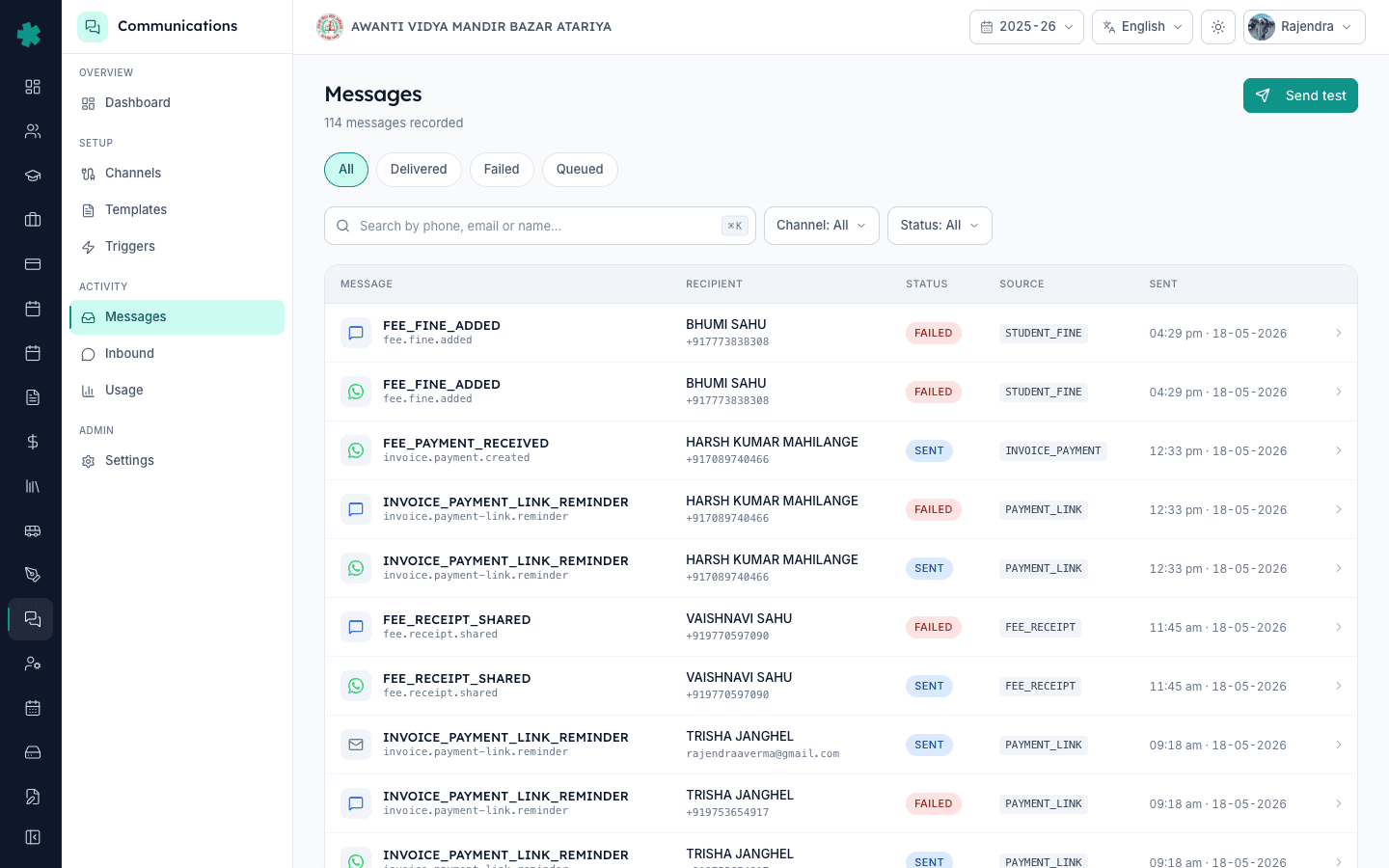
TL;DR — Open Student Fees, pick the invoice, click the Communications tab. You see every WhatsApp, SMS, and email Inkwelly fired for that invoice in order — invoice-shared message, payment-link reminder, receipt, fine alert — each with timestamp, channel, recipient number, and delivery status.
Most school ERPs show a messages log as one long stream — you scroll, search by phone number, and hope you found the right send. Inkwelly indexes every message by its causation, which is the system event that triggered it. A fee invoice is one causation. Every send Inkwelly fired because of that invoice — the initial share, the 3-day reminder, the payment receipt, the fine alert — sits under that one invoice. When a parent calls saying the receipt never came, you open the invoice and see exactly what was sent, when, to which number, and whether the provider returned a delivered status. No guessing, no cross-checking.
1. Open the invoice in Student Fees
From the left nav go to Student Fees, then Invoices. Filter by the student name, admission number, or invoice number. Click the invoice row to open the detail page. The top of the page shows amount, due date, paid status, and the four tabs — Details, Payments, Receipt, Communications. If the invoice was created in the last 24 hours and no message has fired yet, the Communications tab will still appear but show an empty state.
2. Switch to the Communications tab
Click Communications. Inkwelly lists every send tied to this invoice, sorted newest first. Each row shows the channel icon (WhatsApp / SMS / Email), the trigger name (Invoice Shared, Payment Reminder, Receipt Generated, Fine Applied), the recipient number or email, the time sent, and a coloured delivery pill — sent, delivered, read, failed. Read receipts only appear for WhatsApp when the parent has read receipts enabled on their end.
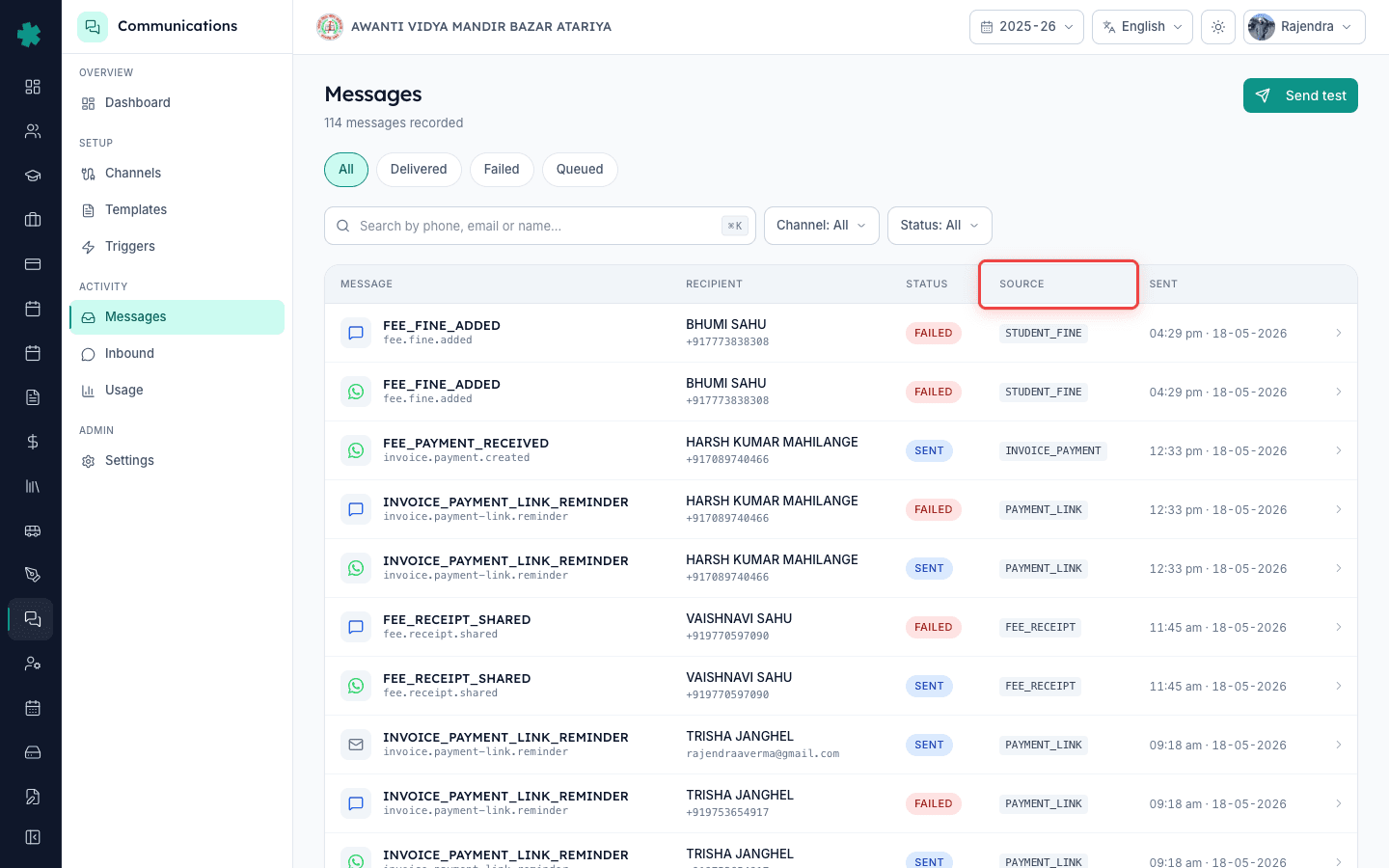
3. Read the delivery status pill
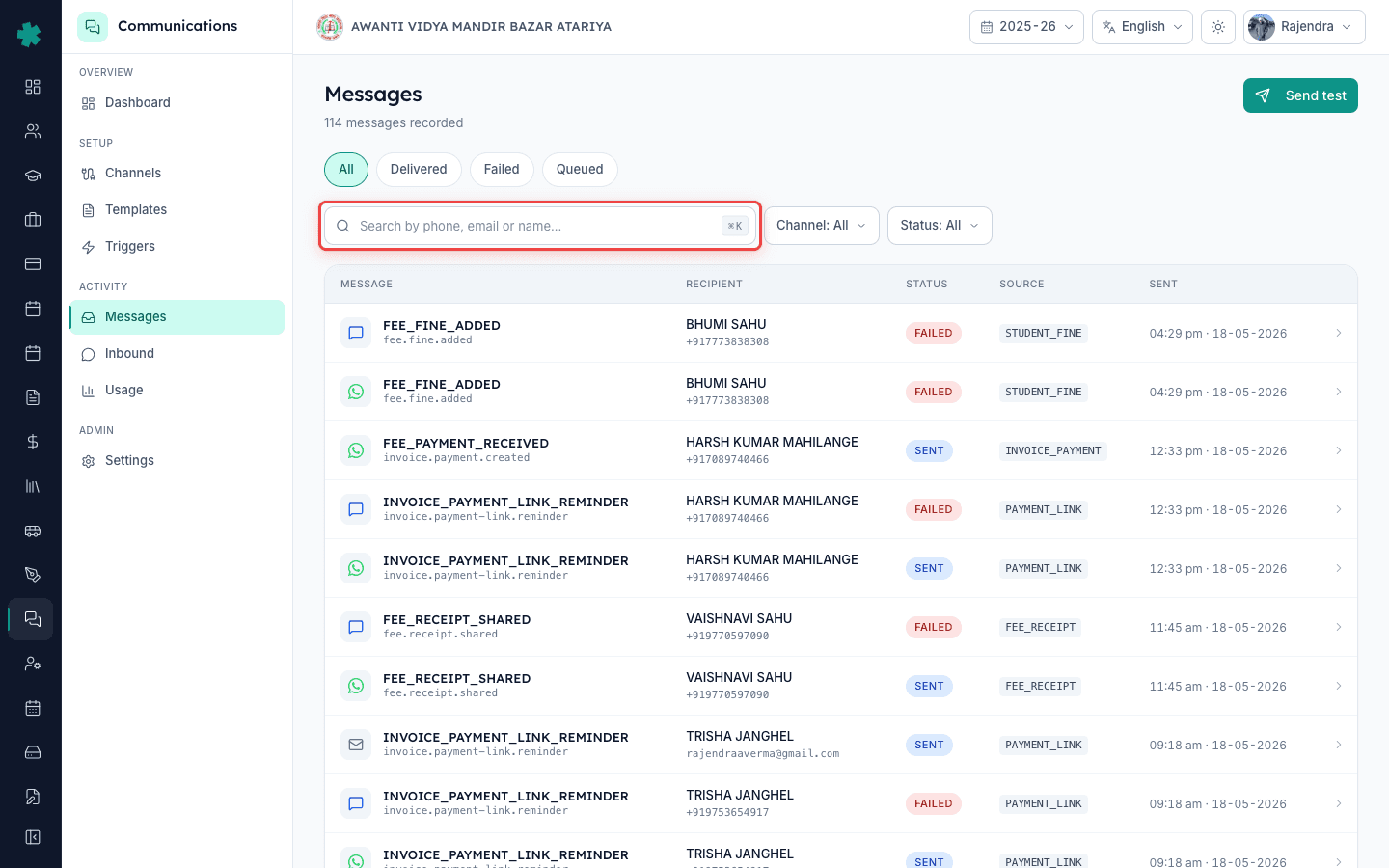
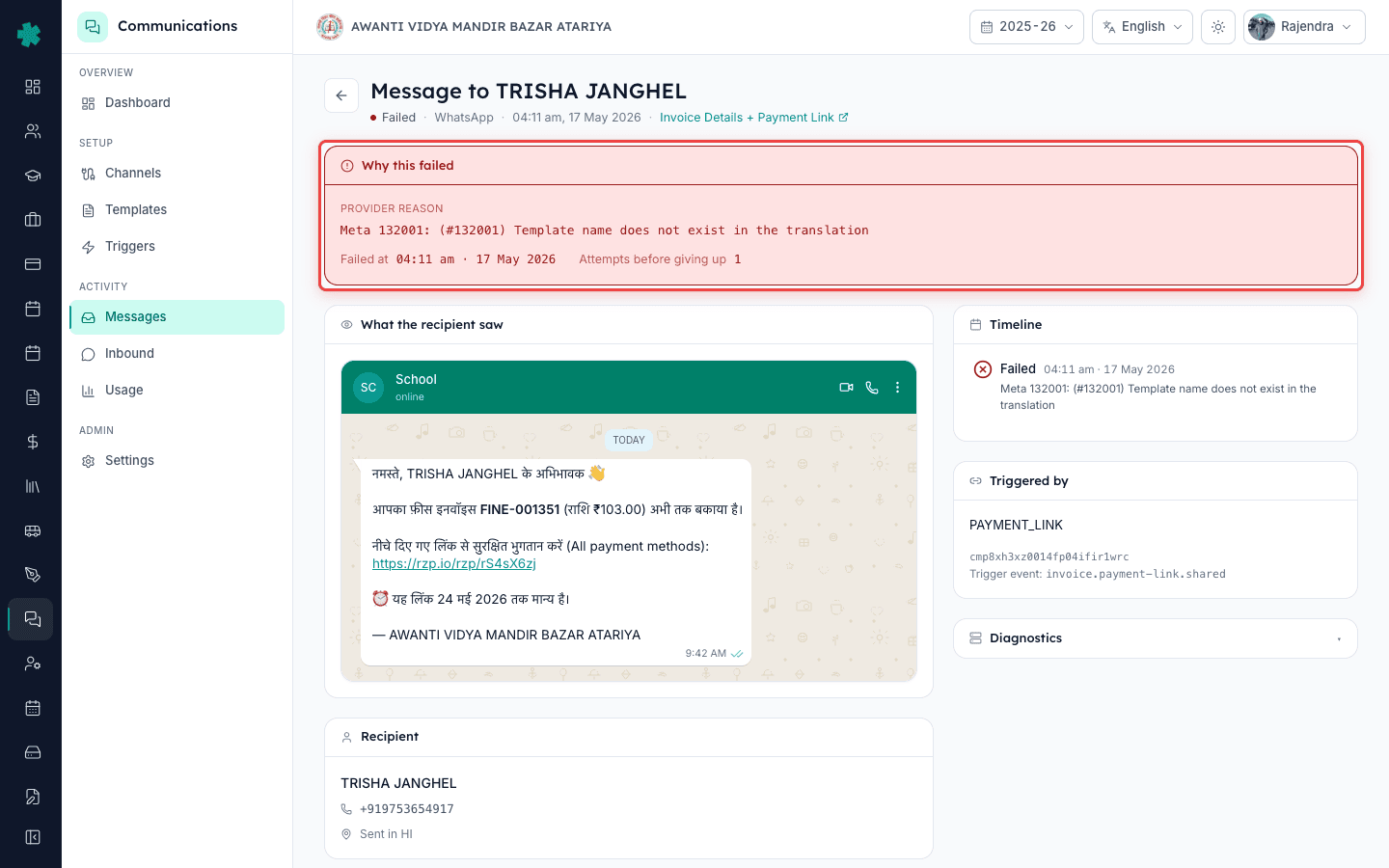
The pill colour tells you the parent-side state. Sent (grey) means Inkwelly handed the message to the provider but no acknowledgement came back yet — wait 60 seconds and refresh. Delivered (blue) means the provider confirmed the device received it. Read (green) is WhatsApp-only and means the parent opened the chat. Failed (red) means the provider rejected it — click the row to see the rejection reason (invalid number, opted-out, template not approved).
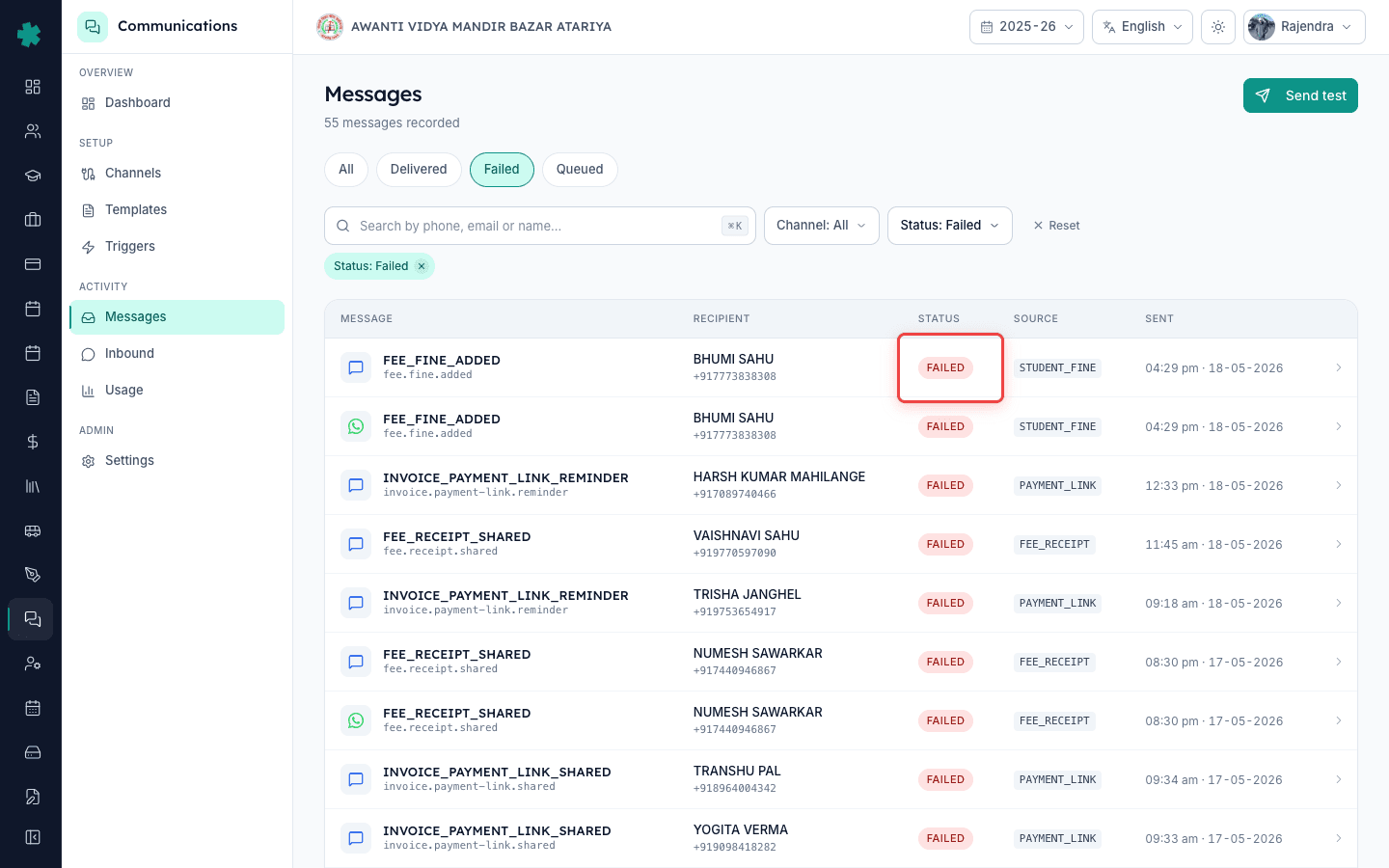
4. Open a single message for full detail
Click any row to expand it. You see the exact rendered body (with the parent's name, amount, and due date substituted in), the template variant Inkwelly used, the provider that delivered it (Meta Cloud for WhatsApp, MSG91 or Fast2SMS for SMS, Inkwelly SES for email), the provider message ID, and the cost charged to your wallet. This is the screen you share-screen during a parent call to prove what was sent.
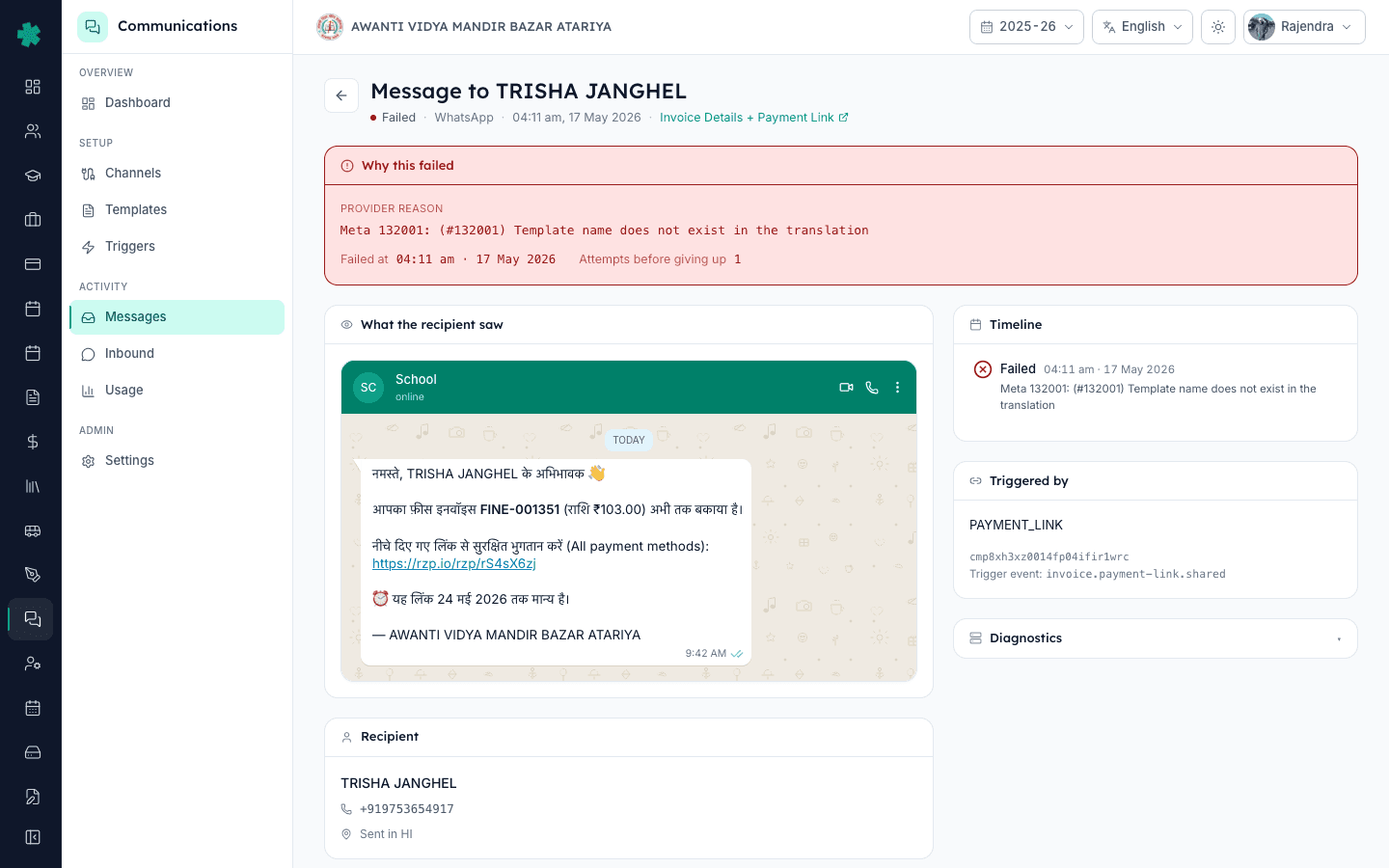
5. Use the Messages filter as an alternative path
If you are starting from the Communications module instead of from the invoice, go to Communications, then Messages. Open the filter panel and set Causation Type to INVOICE_PAYMENT. Paste the invoice ID or invoice number in the Causation Reference field. Apply. You get the same list of sends, just from the other direction. Use this when a parent gives you a transaction ID or receipt number but no student name.
6. Resend a failed message in one click
If a row shows Failed, hover over it. A Retry button appears. Inkwelly re-fires the same template to the same recipient using the next available provider in your channel rotation. If the original failure was a wrong number, fix the parent contact on the student profile first, then click Retry — Inkwelly picks up the corrected number automatically. Retries cost the same as a fresh send and show as a new row, not a status change on the old one.
7. Export the log for a written audit trail
Click the Export icon at the top right of the Communications tab. Inkwelly downloads a CSV with every column you see on screen — channel, trigger, recipient, body preview, status, timestamp, provider, cost. Keep this when a parent escalates to the principal or asks for written proof. The CSV is also useful for monthly internal audits of how many fee messages went out per class teacher.
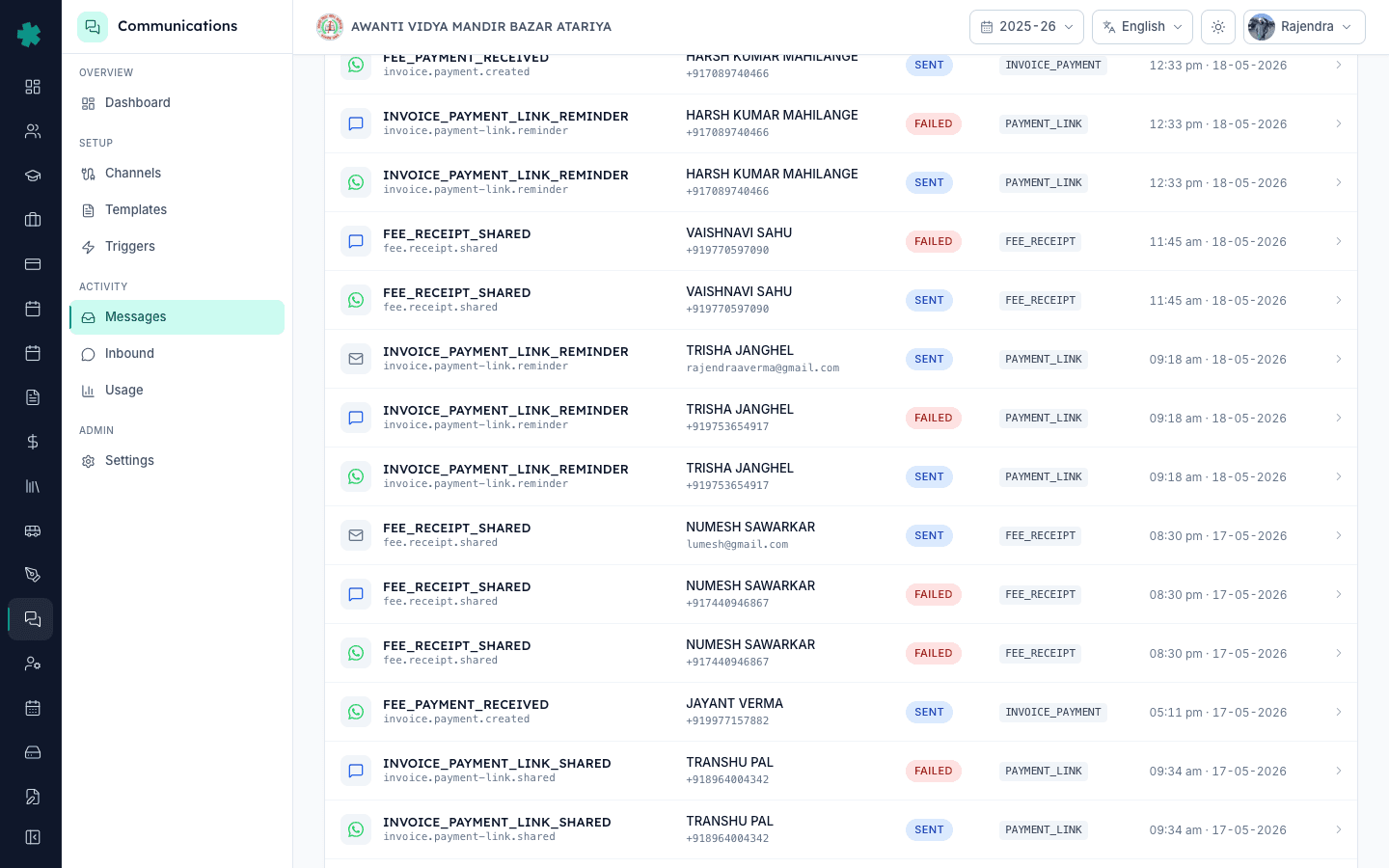
What to do next. If many invoices are showing Failed in a row, the channel itself may be down — see the alerts troubleshooting page. If the parent insists the message never reached even though Inkwelly shows Delivered, the parent likely blocked the sender number on WhatsApp; ask them to unblock and trigger a manual resend. For monthly billing reconciliation against the Meta or MSG91 invoice, use the Communications Usage page.
See it on a live demo
Book a 20-minute walkthrough — we will open a real invoice and show the by-causation message view on your school's data.
Frequently asked
6 questionsDoes the Communications tab show messages sent before I switched to Inkwelly?
No. The tab only shows sends Inkwelly fired. Messages sent from your previous ERP, from WhatsApp Web manually, or from a personal phone do not appear here. For historic messages, check the old system or the parent's chat.
Why does one invoice show three reminder messages?
Inkwelly fires a payment-link reminder at fixed intervals — typically 3 days, 7 days, and 14 days past the due date — until the invoice is paid or marked written off. Each fire is a separate row with its own delivery status.
What does the Read pill mean exactly?
For WhatsApp only, Read means Meta returned a read receipt — the parent opened the chat. If the parent has disabled read receipts on their phone, you will never see Read even if they have actually opened the message. SMS and email never show Read.
Can a parent reply to the messages, and where do replies show up?
Yes for WhatsApp on a connected Business number. Replies appear in Communications, then Inbox, threaded against the same parent. The reply does not show inside the invoice Communications tab — that tab is outbound-only.
How long are the messages stored?
Forever, as part of your Inkwelly tenant data. The body, status, recipient, and provider IDs stay queryable for the life of the account. Exported CSVs you keep are also unaffected by retention.
Does retrying a failed message cost extra?
Yes. Each retry is a fresh send to the provider — Meta or MSG91 charge per attempted delivery, not per success. Inkwelly shows the retry as a new row with its own cost so your Usage page total stays accurate.
You might also like
3 readsSources & references
- TRAI TCCCPR 2018 regulation on commercial communication
India regulator framework that requires per-message audit trails for school-to-parent commercial sends.
- Meta WhatsApp Cloud API webhooks documentation
How Meta delivers the sent / delivered / read status events that Inkwelly renders as the delivery pill.
See Inkwelly on your school
30-minute demo. We open your current ERP with you and load your data into Inkwelly on the call. Dated go-live plan by the end of it.