How to reverse a fee payment in Inkwelly
For school accountants and front-office staff who recorded a fee payment against the wrong invoice, posted a duplicate, or had a cheque bounce. By the end you will have reversed the payment, restored the invoice outstanding balance, and cancelled the linked receipt — with a full audit trail.
To reverse a fee payment in Inkwelly: open Student Fee → Payments, search by payment number or student name, click the row to open detail, click the Reverse button, type a clear reversal reason (minimum 10 characters), and confirm. Inkwelly restores the invoice outstanding balance, cancels the linked receipt, and reduces the student fee profile total — all inside one transaction, in under a minute.
Reversal and refund are not the same action and the Indian school office confuses them daily. A reversal is a correction made as if the payment never happened — the money stays where it is, the invoice goes back to outstanding, and the receipt is voided. A refund moves real money out of the school's bank account to the parent. Schools that collect 4,000+ payments a year typically reverse 0.5 to 1 percent of them — wrong allocations, duplicate posts, and bounced cheques are the top three causes. Companies Act 2013 voucher rules require every reversal to keep both the original and the reversal in the ledger; Inkwelly never deletes the source payment so the audit trail stays intact.
1. Open the Payments page
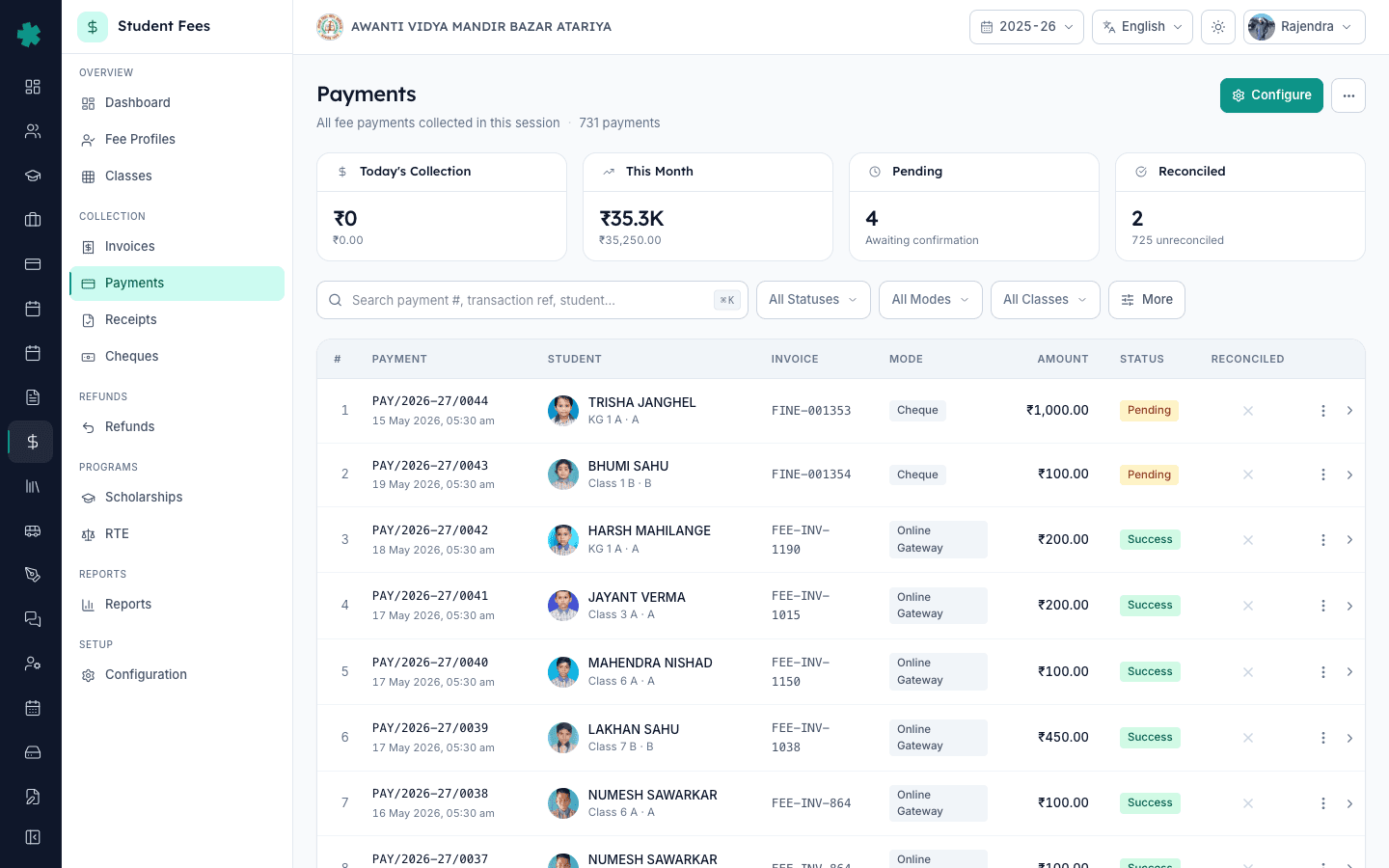
Open Inkwelly → Student Fee → Payments from the left sidebar under the COLLECTION section. Inkwelly lists every fee payment the school has recorded this session, with KPI tiles for Total, Pending, Online, and Reconciled at the top. The status tabs separate Success, Pending, Failed, and Reversed payments. If you reversed something earlier today, the Reversed tab is where it will live afterwards.
2. Find the payment to reverse
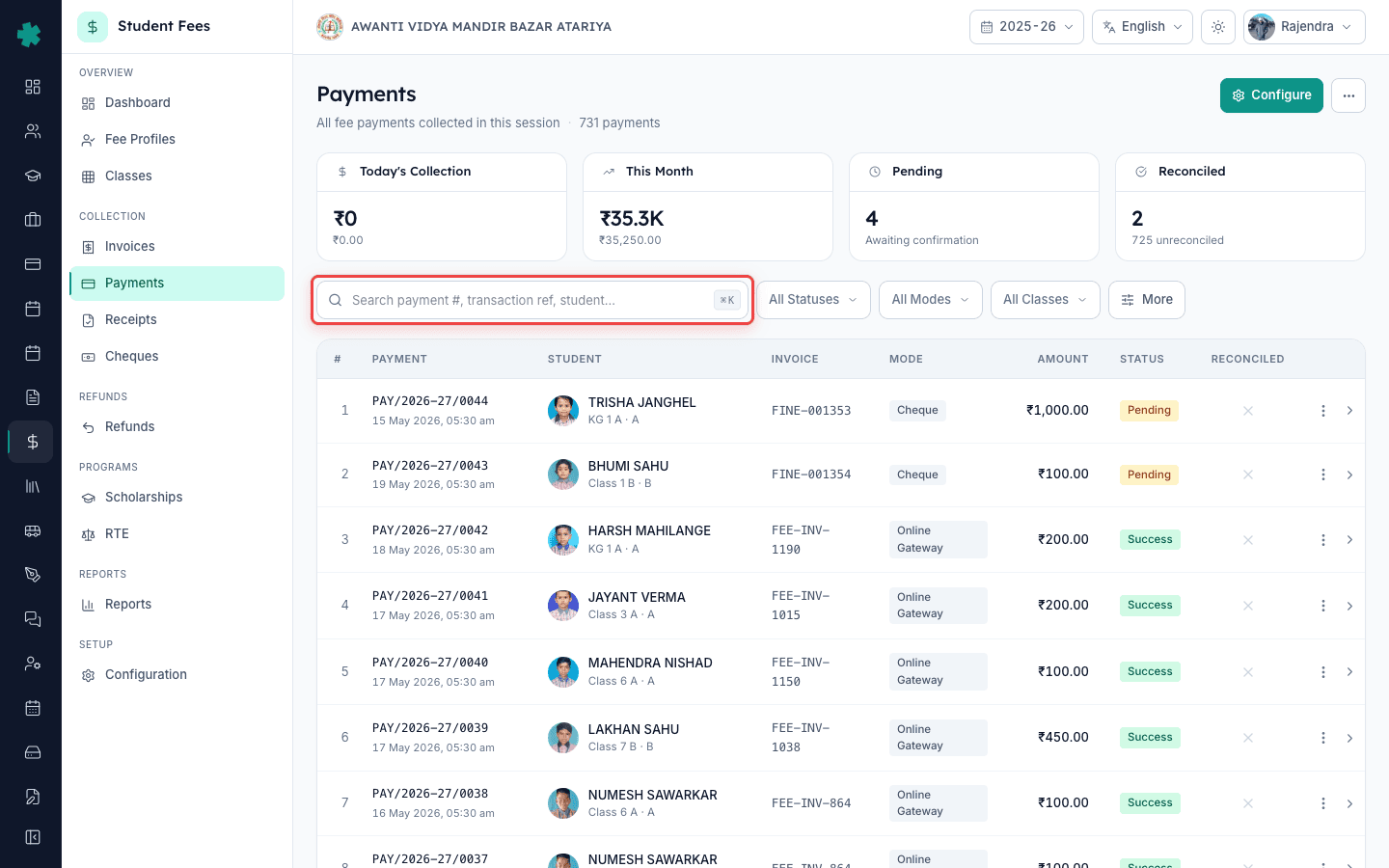
Use the search bar at the top to type the Payment Number (for example FP/2025-26/00472) or the student's name. The filter row also accepts Class, Mode, and date range — useful when a parent says "the receipt I got last Monday" but does not remember the number. Inkwelly keeps the list to a hundred rows per page by default, sorted by payment date descending so today's entries sit on top.
3. Open the payment detail
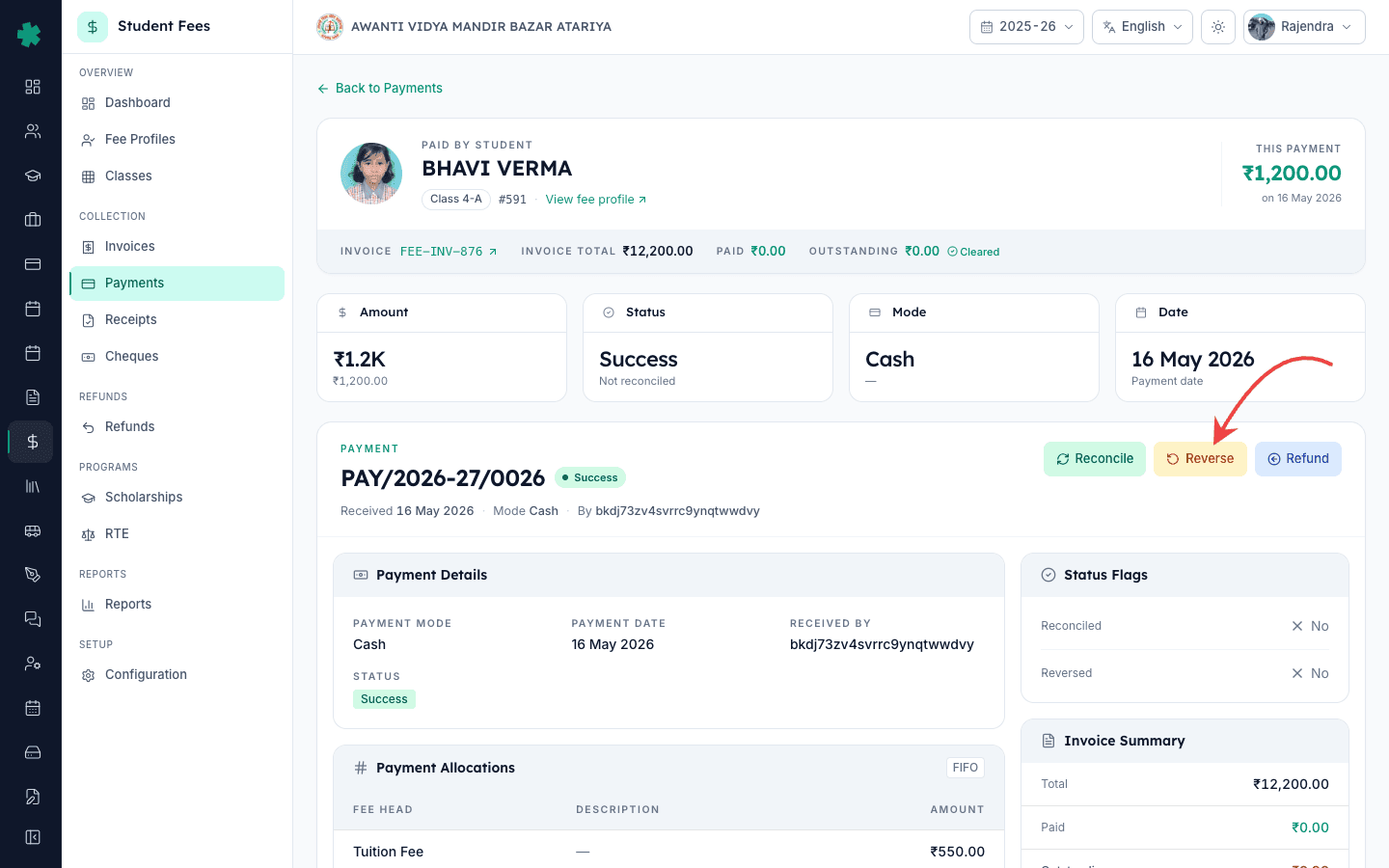
Click the payment row. The detail page opens with the student identity card on top, KPI tiles for amount, status, mode, and date, and three action buttons on the top right — Reconcile, Reverse, and Refund. The Reverse button appears only when the payment is in Success status and has not already been reversed; pending and failed payments do not need reversal, and a once-reversed payment cannot be reversed again.
4. Click the Reverse button
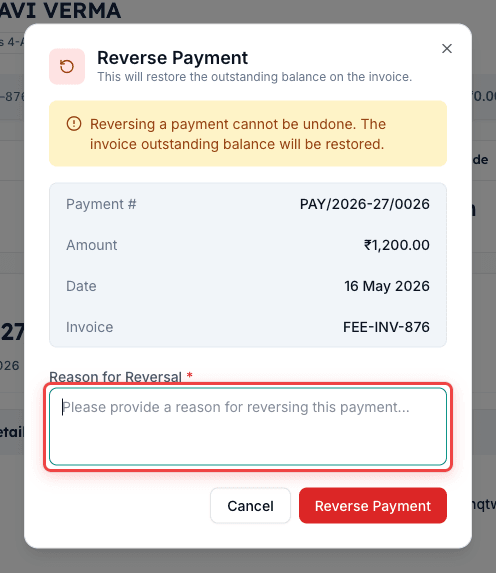
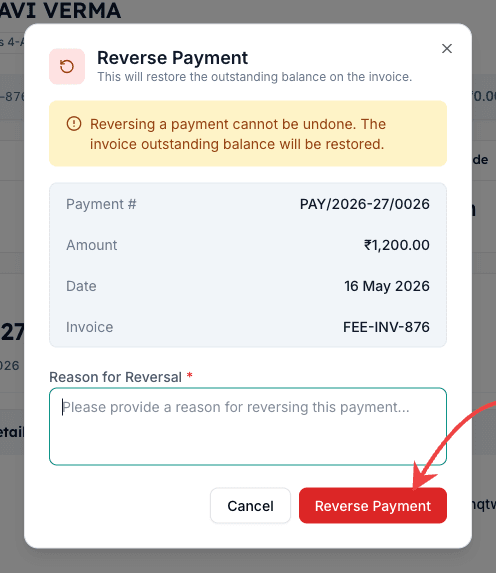
Click the orange Reverse button on the top right. Inkwelly opens a dialog with a small red circular-arrow icon, the title Reverse Payment, and a one-line warning that says the invoice outstanding balance will be restored. Below it the dialog shows a read-only summary — Payment Number, Amount, Date, and the linked Invoice Number — so you can confirm you opened the right one before continuing.
5. Enter a clear reversal reason
Type the reason for the reversal in the textarea. Inkwelly requires at least ten characters and free text is fine — use short, specific phrases like Wrong invoice — should have hit FI/2025-26/0918, Duplicate of FP/2025-26/00471, Cheque #654321 bounced — ICICI Bank, or Parent disputed amount — pending verification. This reason becomes the cancellation note on the linked receipt and goes into the audit ledger forever, so write the sentence a colleague six months from now will still understand.
6. Confirm and reverse the payment
Click the red Reverse Payment button at the bottom of the dialog. Inkwelly runs everything as a single database transaction: it flips the payment status to Reversed, restores the invoice paid amount and outstanding amount, rebuilds the line-item splits using the original allocations, cancels every linked receipt with the cancellation note Payment reversed: <your reason>, and reduces the student's fee profile total paid amount by the same figure. A green success toast appears and the dialog closes.
7. Verify the restored balance
The payment detail page now shows a red banner that says Payment reversed: followed by your reason and the exact reversed-at timestamp. The status pill on top reads Reversed. The Status Flags card on the right column flips the Reversed marker to Yes. Click the invoice number in the student identity card to confirm the outstanding amount has gone back up by the reversed figure, and open the student's fee profile to confirm the total paid has dropped. Past receipts still exist in the receipts list but now carry a CANCELLED pill.
Next step — if real money also has to leave the school's bank, follow How to initiate a refund for a parent in Inkwelly after the reversal lands so the refund is tied to the original receipt. If the trigger was a bounced cheque, finish the lifecycle with How to handle a bounced cheque and redeposit it in Inkwelly. For a clerical mistake that did not involve receipt printing yet, How to cancel a fee receipt in Inkwelly is the lighter-weight path you should consider first.
See Inkwelly Student Fees in action
Frequently asked
6 questionsWhat is the difference between reversing a payment and refunding it in Inkwelly?
A reversal is a correction made as if the payment never happened — the invoice outstanding balance goes back up, the linked receipt is cancelled, and the student fee profile total paid is reduced. No money leaves the school's bank account. A refund is the opposite — Inkwelly initiates an actual money-out transaction to the parent via NEFT, UPI, or cheque against the existing payment. Use reversal for clerical mistakes and bounced cheques, and refund when the parent is leaving the school mid-session or has paid extra.
Can I reverse a payment after the receipt has been printed and given to the parent?
Yes. Inkwelly lets you reverse any payment in Success status regardless of whether the receipt was printed. The reversal cancels the linked receipt in the system and stamps it with your reversal reason as the cancellation note. The paper copy with the parent is now invalid — ask them to discard it and issue a fresh receipt after the corrected payment is recorded. Most schools call or WhatsApp the parent the same evening to avoid confusion.
Payment reverse aur refund mein kya farq hai?
Reverse karne ka matlab hai ki payment galat record hua tha — Inkwelly invoice outstanding wapas badha deta hai, receipt cancel kar deta hai, aur student profile ka total paid kam ho jata hai. Paisa bank se nahi jata. Refund ka matlab hai ki paisa actually parent ko wapas dena hai — NEFT, UPI ya cheque se. Galat entry, duplicate, ya cheque bounce hone par reverse use kijiye. Parent withdrawal ya extra payment par refund use kijiye.
Cheque bounce hone par payment reverse kaise kare?
Pehle Student Fee → Cheques page par jaiye, bounced cheque ko Bounce status par maark kijiye — Inkwelly automatically uss linked payment ko reverse kar dega. Agar aap directly payment se shuru karna chahte hain to Student Fee → Payments par jaiye, woh cheque payment kholiye, Reverse button dabaiye, aur reason mein likhiye Cheque bounced — bank name aur cheque number sahit. RBI ke Negotiable Instruments Act ke under bounced cheque par 30 din ke andar notice dena zaroori hai, isliye reason saaf likhiye taaki audit ke time proof rahe.
Can a reversed payment be reversed again or undone?
No. A payment can only be reversed once — the Reverse button does not appear again on a payment that is already in Reversed status. If you reversed the wrong payment by mistake, the correct fix is to record a fresh payment against the same invoice with the correct amount, mode, and date, and add an internal note that this entry replaces the earlier reversed one. The original reversed payment stays in the ledger forever as evidence of the correction trail, which is what Companies Act voucher rules require.
Will the parent get an automatic message when I reverse their payment?
Not by default. Inkwelly reverses the payment, restores the invoice, and updates the student fee profile, but the parent communication is a manual step you take after — send the corrected invoice from the invoice detail page or message them on WhatsApp from the student fee profile. Most accountants send a one-line note explaining what happened (wrong invoice, duplicate, cheque bounced) along with the corrected outstanding amount so the parent does not panic when the next reminder arrives.
You might also like
3 readsSources & references
- Reserve Bank of India — Notification on Cheque Return Charges and Bounced Cheque Procedure · accessed 19 May 2026
RBI requires drawee banks to communicate cheque return reasons in writing, which schools must record as the reversal reason when a fee cheque bounces.
- Negotiable Instruments Act 1881 — Section 138 (Dishonour of cheque) · accessed 19 May 2026
Section 138 makes a bounced cheque a criminal offence; schools must keep the reversal reason and timestamp as evidence before issuing the statutory notice within 30 days.
- Companies Act 2013 — Section 128 (Books of account) · accessed 19 May 2026
Section 128 requires every voucher entry, including reversals, to remain on the books with the original and the correction visible — Inkwelly preserves both the source payment and the reversal in the ledger.
See Inkwelly on your school
30-minute demo. We open your current ERP with you and load your data into Inkwelly on the call. Dated go-live plan by the end of it.