How to read the Communications dashboard in Inkwelly
The Communications dashboard is where you see, at a glance, whether parents are actually getting your messages. This guide walks through every card, the numbers that matter, and the one action to take when something dips.
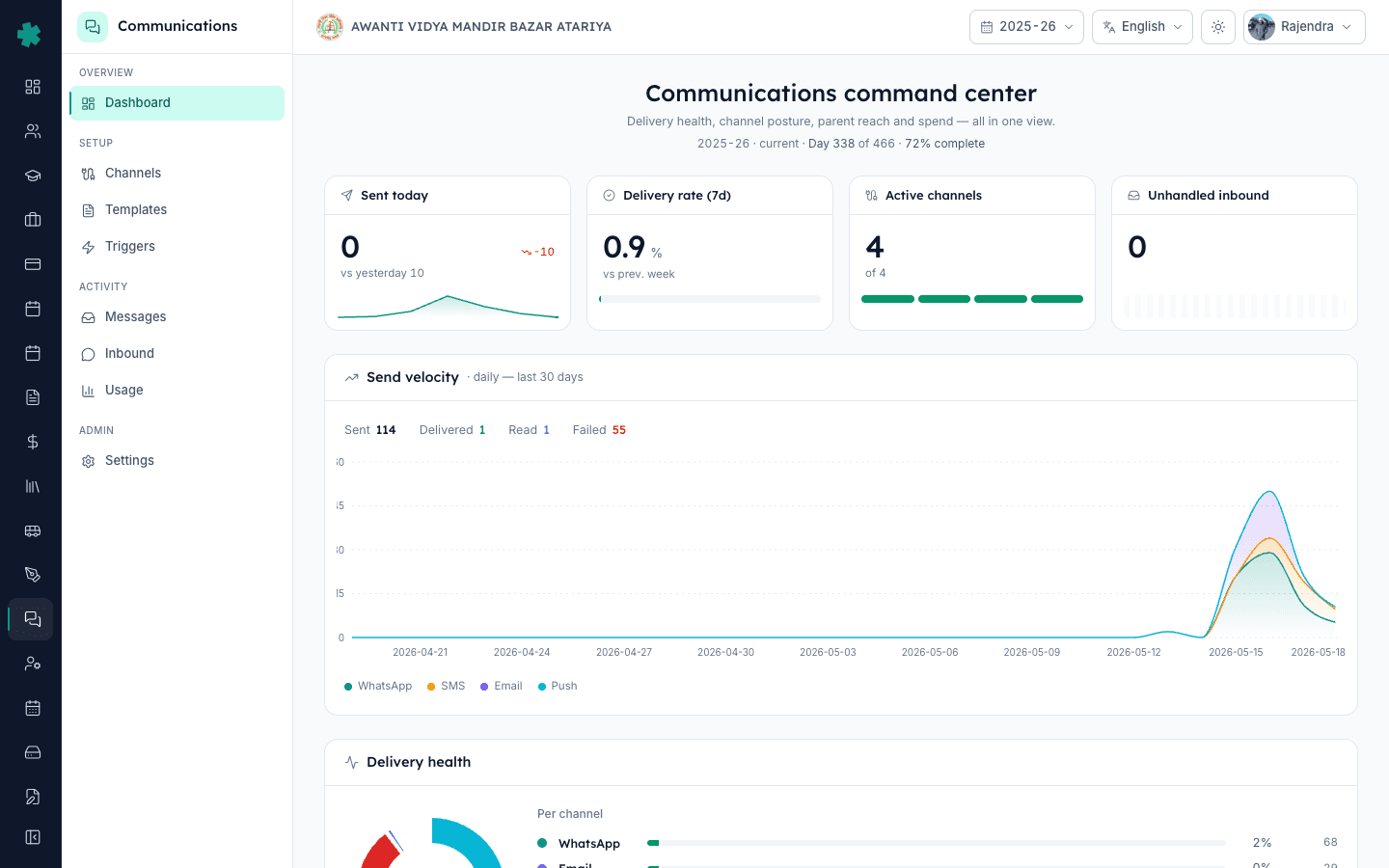
TL;DR — Open Communications, scan the four Hero KPIs at the top (Sent today, Delivery rate 7d, Active channels, Unhandled inbound). A healthy school sees Delivery rate above 92%, zero red alerts, and Unhandled inbound near zero. If any card turns amber or red, click it — the dashboard always tells you the exact recipient list or template to fix.
Most Indian principals tell us the same thing: they trust the message went out because the ERP showed a green tick, but a parent walks in two weeks later asking why no fee receipt ever arrived. The dashboard exists to break that blind trust. Every card on /communications answers one specific question — How many went out today? What share were delivered? Which channel is leaking? Which template got rejected? Which parents are unreachable? Once you learn to read it for two minutes a morning, you stop discovering problems through complaints and start catching them before assembly ends.
1. Open the dashboard and read the four Hero KPIs
Go to the left navigation and click Communications. The top strip shows four numbers — Sent today (total messages dispatched since midnight, all channels combined), Delivery rate 7d (share marked DELIVERED over the last seven days), Active channels (how many of WhatsApp, SMS, Email, Push are currently usable), and Unhandled inbound (replies sitting in your inbox with no human response yet). For a typical 800-student school, expect 200–800 sent on a fee or homework day, Delivery rate above 92%, all four channels active, and Unhandled inbound under 10.
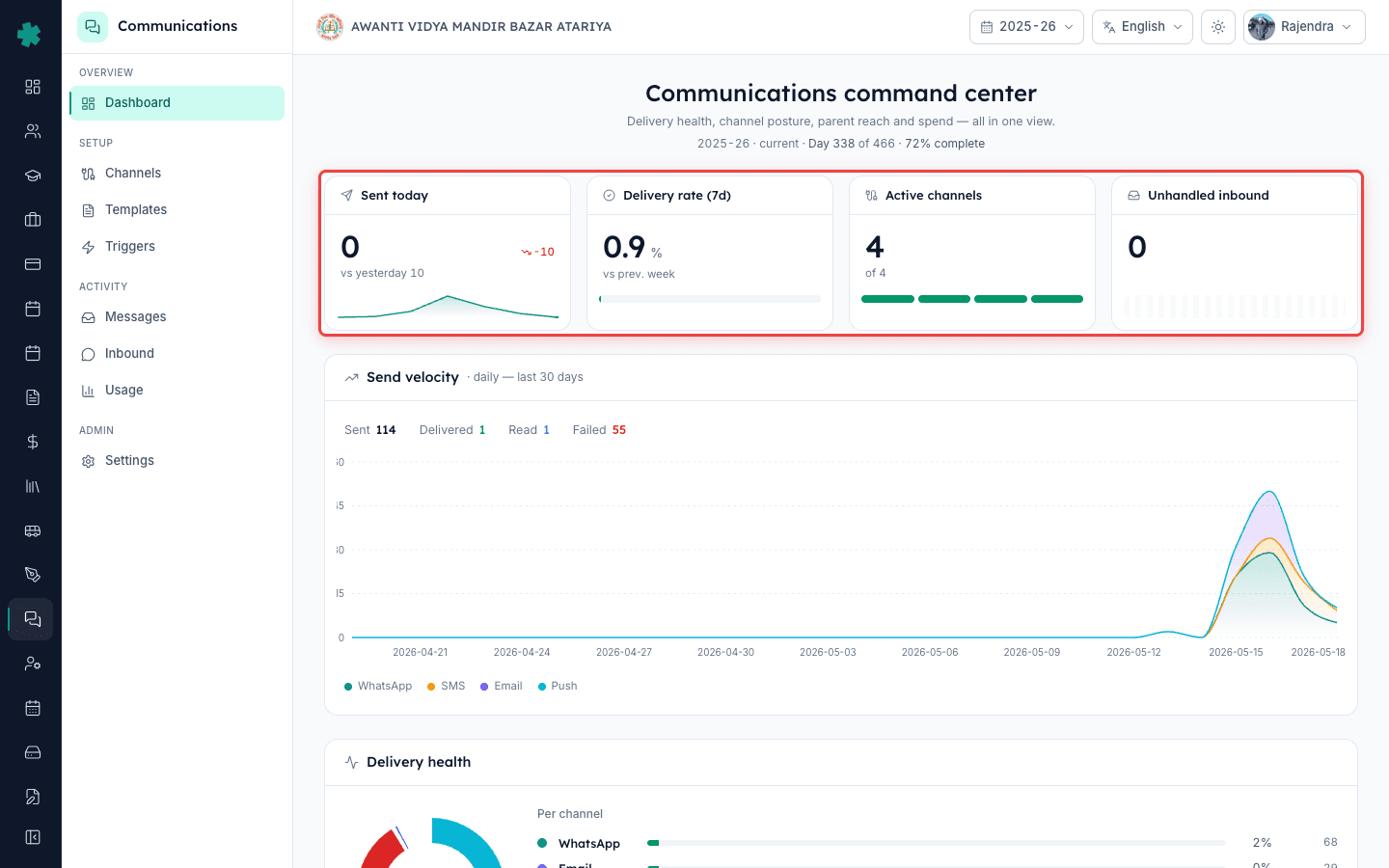
2. Check the Send velocity chart for unusual spikes or silence
Directly below the KPIs sits the Send velocity chart — a 31-day bar graph split per channel. Healthy schools see consistent daily volume on school days and near-zero on Sundays. Two patterns are red flags: a vertical spike (someone sent a 5,000-message blast without segmenting — likely template misuse) and an unbroken flat zero for three or more days on a channel you expect to be active (the provider is silently rejecting and your team hasn't noticed). Hover any bar to see the date and exact count, then click to jump into the Messages page filtered to that day.
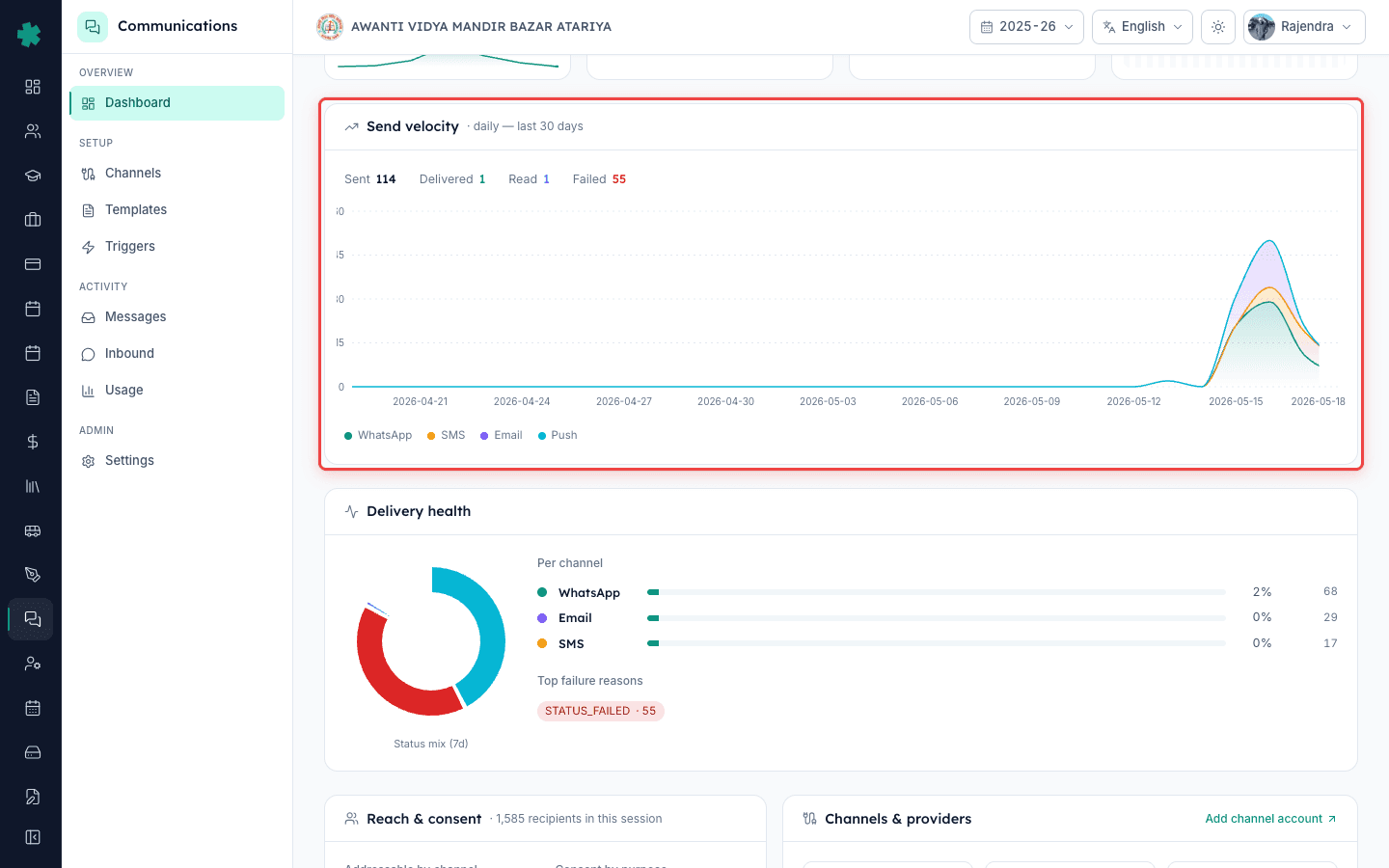
3. Read Delivery health to find the leaking channel
The Delivery health card breaks every message from the last 7 days into SENT, DELIVERED, READ, and FAILED, then lists the top failure reasons per channel. A common picture for a CBSE school in a Tier-2 city: WhatsApp 96% delivered, SMS 87% delivered with the top reason 'DLT template mismatch', Email 99% delivered. The point of this card is not the green number — it is the failure list. If 'RECIPIENT_NUMBER_INVALID' is in the top three, you have stale phone numbers; if 'TEMPLATE_NOT_APPROVED' shows up, a WhatsApp template was edited without re-submission to Meta.
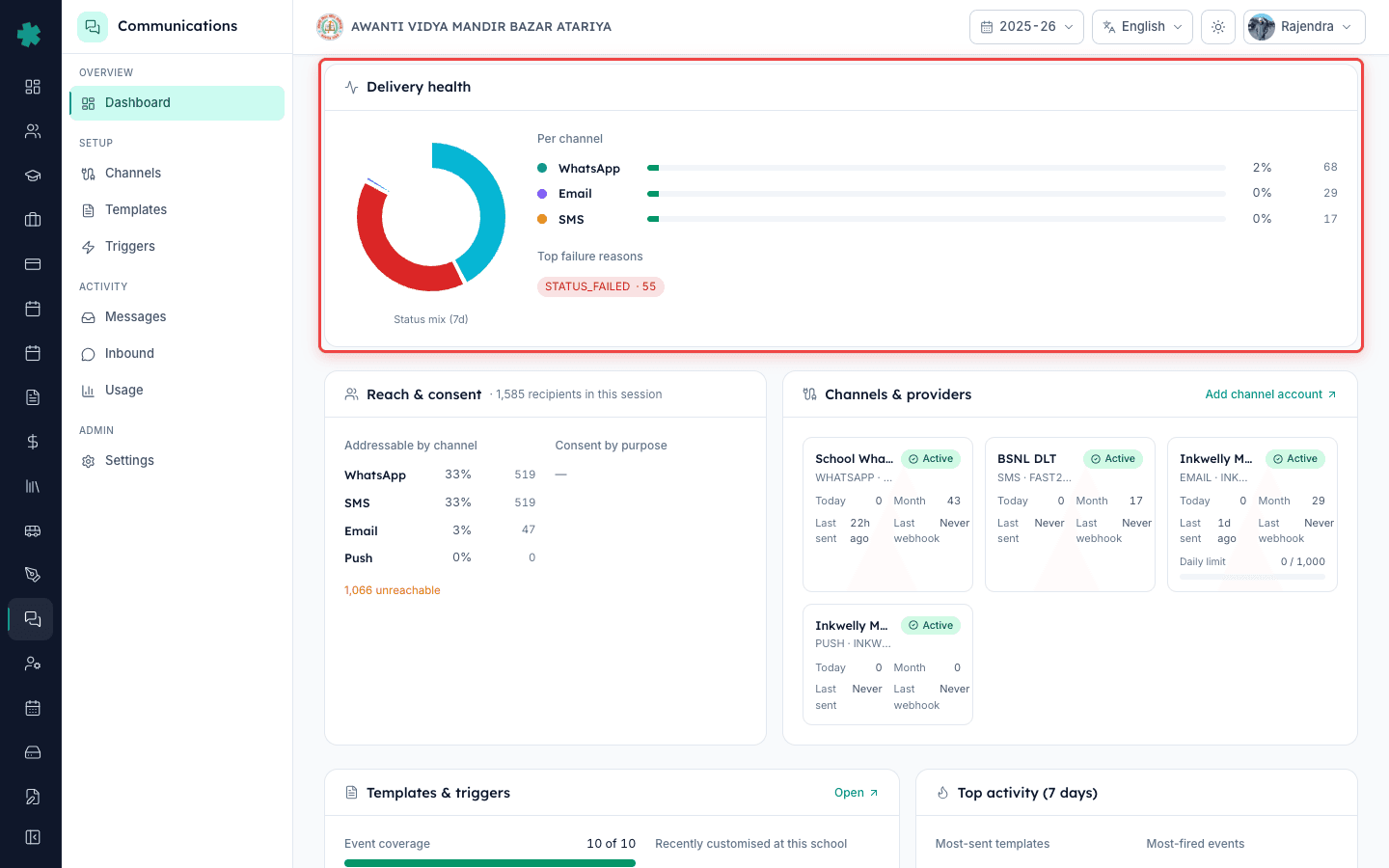
4. Use Reach & consent to spot unreachable parents
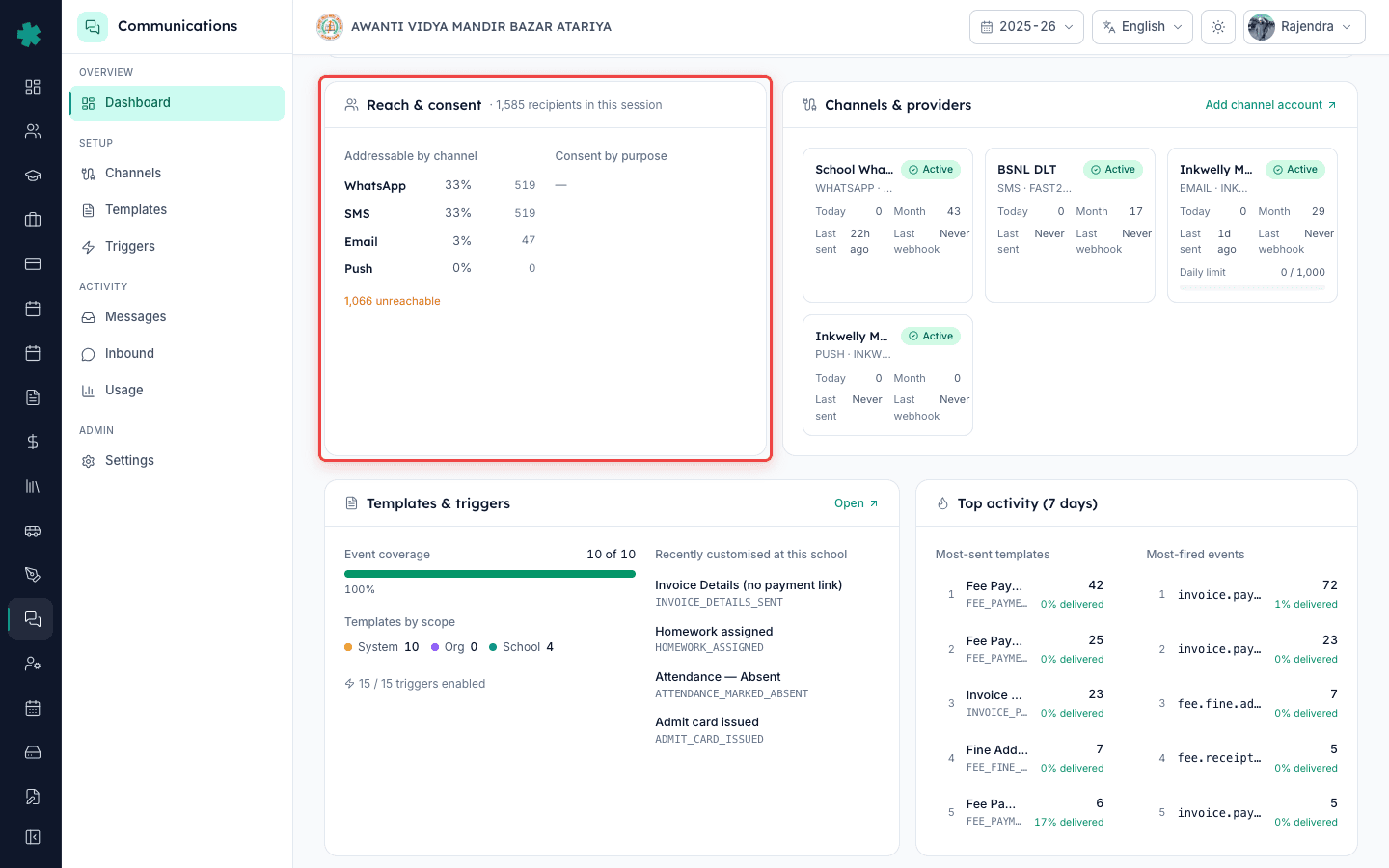
The Reach & consent card tells you how many of your recipients are actually addressable on each channel. It shows '1,247 recipients in this session' and breaks them down — WhatsApp 1,089, SMS 1,201, Email 612, Push 884 — plus a single 'Y unreachable' number for parents with no phone, invalid format, or who opted out. The honest target before you migrate fee receipts off paper is 90% WhatsApp reach. If you are below 90%, the fix is in the Students module, not Communications — go bulk-edit the phone column.
5. Skim Channels & providers and the Templates strip
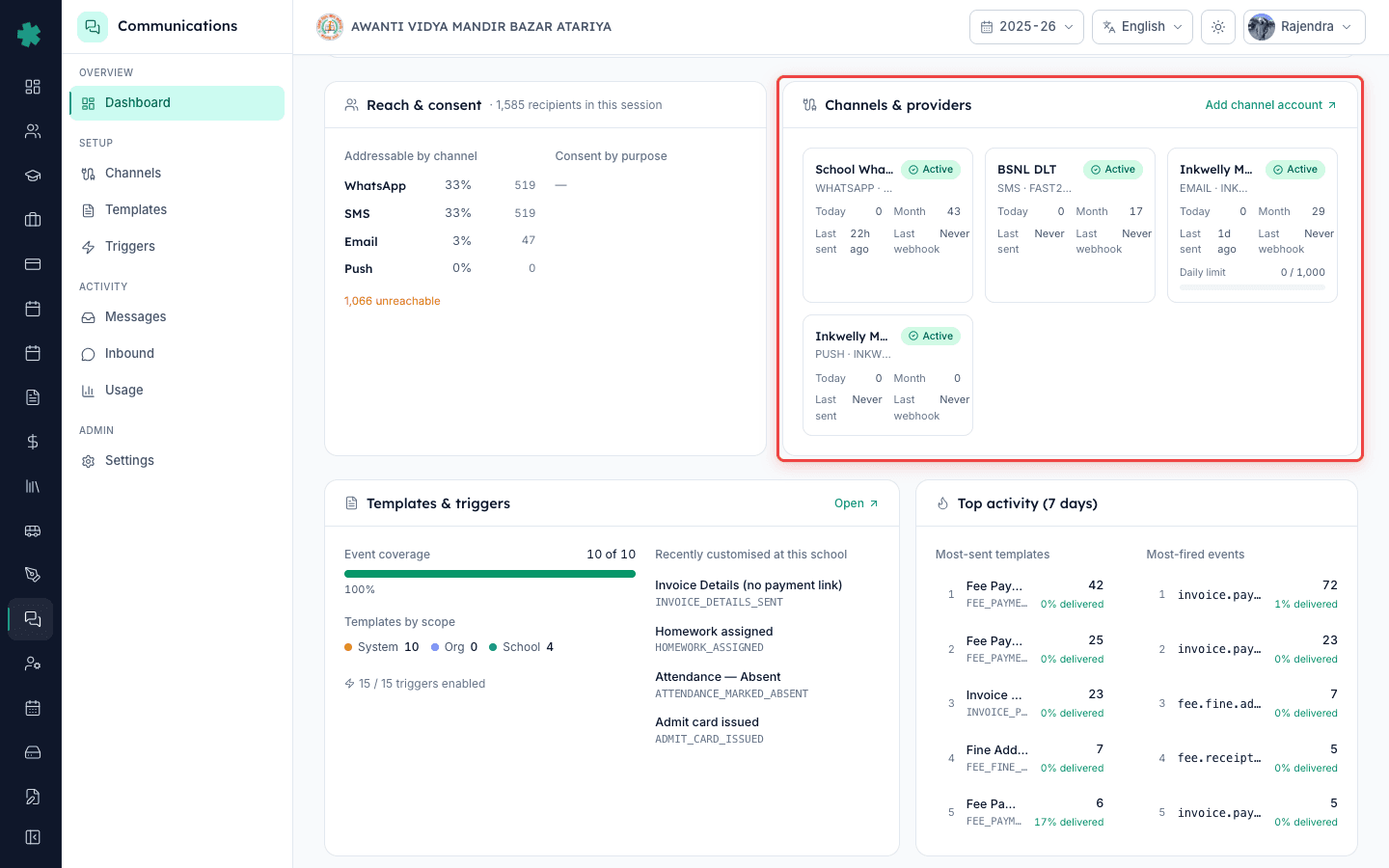
Next row shows the Channels & providers strip — each tile is one channel with its provider (WhatsApp via Meta Cloud API, SMS via MSG91 or Fast2SMS, Email via AWS SES, Push via FCM) and a health dot. A grey dot means 'never used', amber means 'recent failures', red means 'webhook silent' or 'credentials expired'. Right next to it, Templates & triggers shows event coverage — a percentage of how many school events (admission, fee, attendance, exam) have at least one active template. New schools start at 30–40% and reach 90%+ within a term.
6. Look at Top activity to confirm parents see what matters
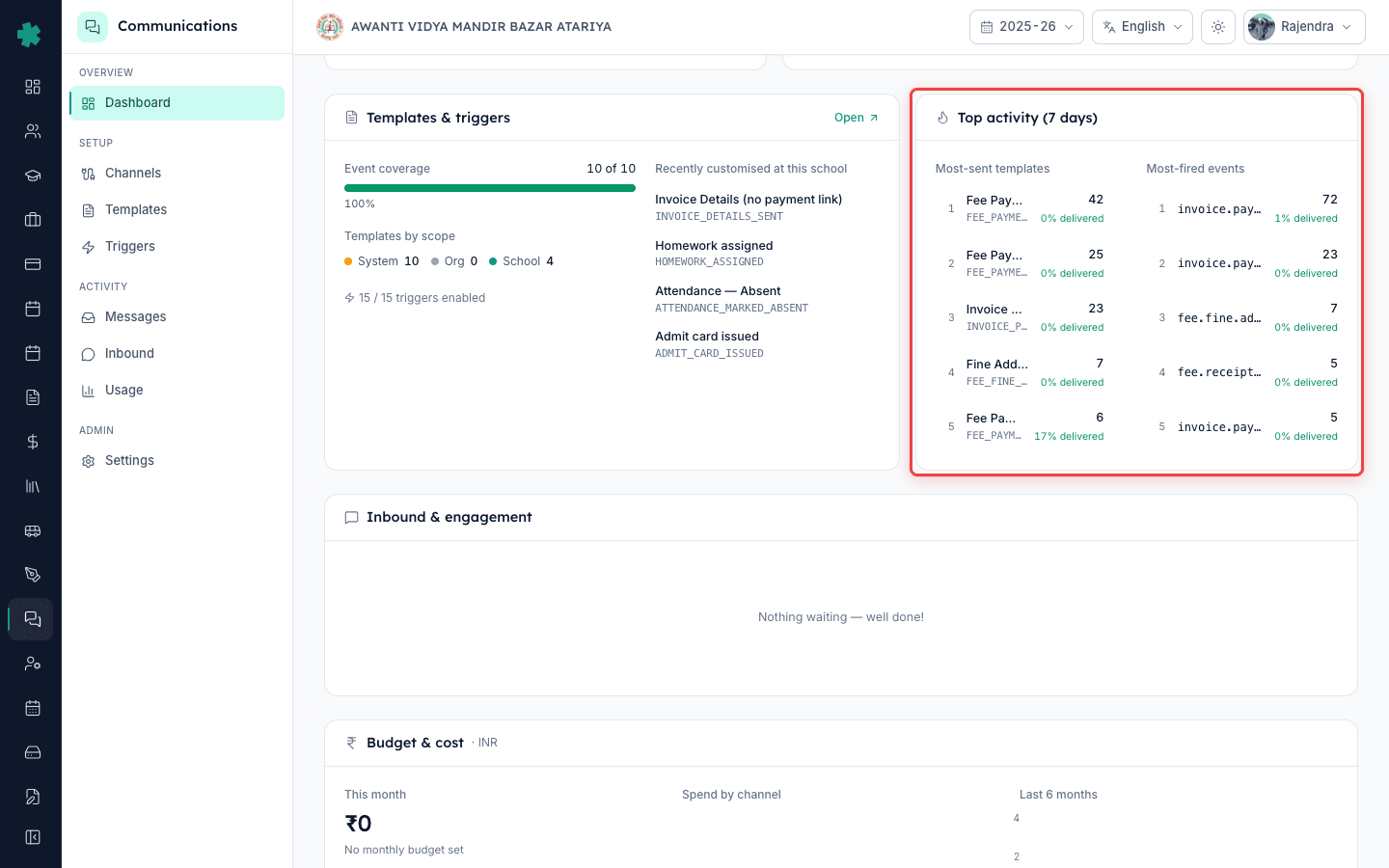
Top activity is two short lists — Most-sent templates this month (e.g. Fee receipt, Absent today, PTM reminder) and Most-fired events (e.g. payment.success, attendance.absent.marked, homework.assigned). This card answers a question principals rarely ask but should: 'Are parents hearing about the things that matter, or are we drowning them in noise?' If 'attendance.absent.marked' is firing 4,000 times a month while 'payment.success' is firing 200, the absent template will land in spam and the fee receipt will get lost. Tighten one, amplify the other.
7. Resolve every alert before you close the tab
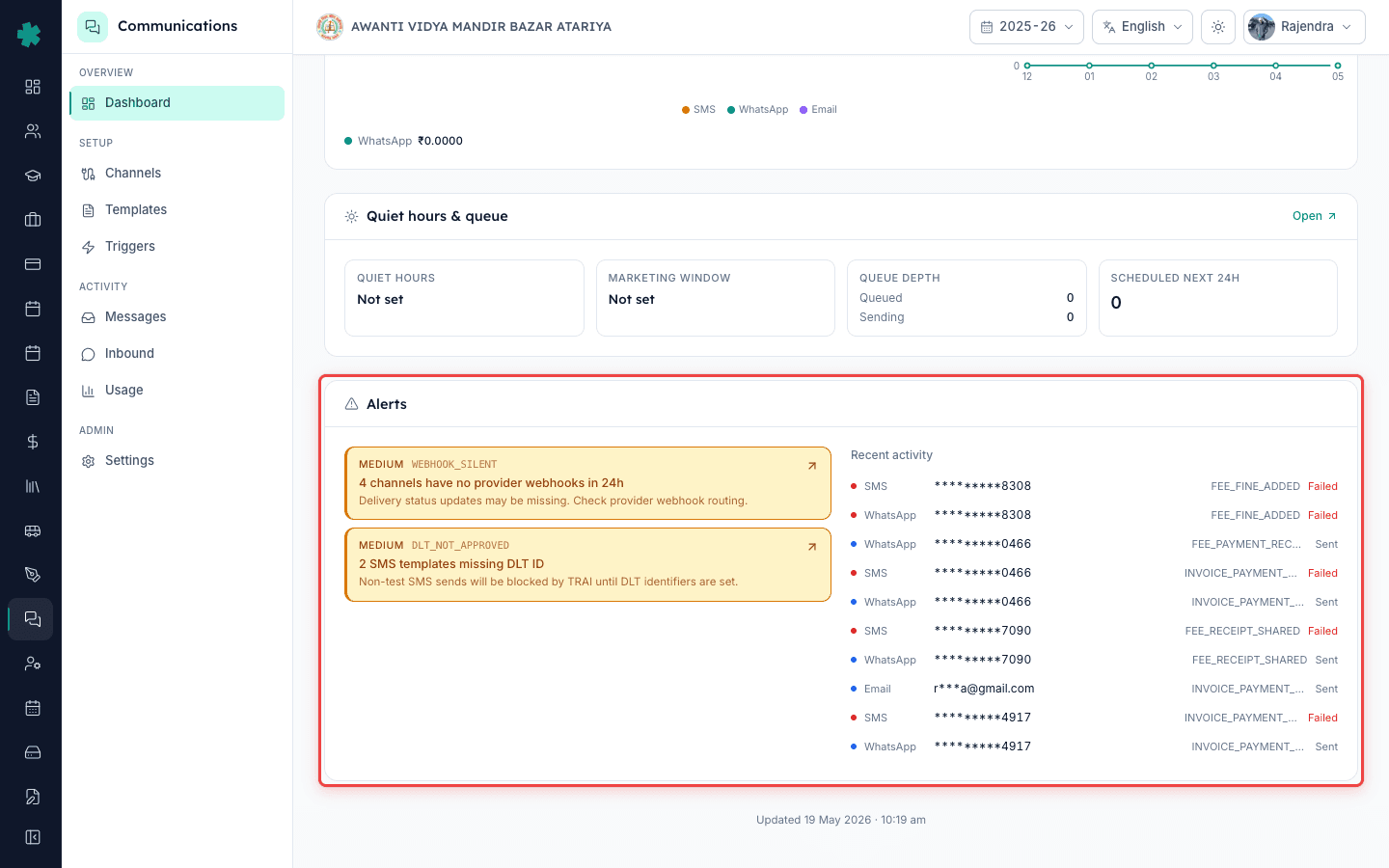
The Alerts strip at the bottom is non-negotiable — red banners only appear when something is silently broken. The three you will actually see are 'Webhook silent for >24h on <channel>' (delivery receipts have stopped — your green ticks are lying), 'DLT not approved for <template>' (every SMS using it is dropping), and 'Quiet hours overlap with school timing' (a misconfigured window is throttling 10am messages). Click the banner, the dashboard takes you to the exact settings page, fix it, and the banner clears within five minutes.
Next steps — Once the dashboard is clean, two things follow. First, set this page as the homepage tile for your Vice-Principal so they catch the morning dip before you do — Inkwelly lets each role pin a different default landing card. Second, open the Reach & consent card and start the 90% WhatsApp project: export the unreachable list, fix numbers in the Students module, and re-run the count weekly. Within one term most schools climb from 60% to 94% reach, which is the single largest unlock for going paperless on fee receipts and PTM cards.
See it live on your own data
Book a 25-minute demo and we will load your last 30 days of messages into a sandbox so you can read the dashboard with real numbers, not screenshots.
Frequently asked
6 questionsWhat is a healthy WhatsApp delivery rate for an Indian school?
On Inkwelly, a healthy 7-day WhatsApp delivery rate is 92% or higher. SMS sits a little lower at 85%+ because of DLT rejections and out-of-network numbers. Email runs at 98–99% if your sender domain is verified.
Why does the dashboard show 'Webhook silent' even though messages are going out?
Messages are dispatched but the provider's delivery receipts have stopped reaching Inkwelly, so green ticks are stale. This usually means the channel account's webhook URL or verify token was rotated. Re-verify the channel under Settings → Channels.
How often should the principal check the Communications dashboard?
Two minutes every morning is enough. Open it before the first bell, clear any red alert, glance at Delivery rate 7d and Unhandled inbound, then close the tab. Daily habit beats weekly deep-dive.
Can the Vice-Principal see the same dashboard as the Principal?
Yes, if the Communications module is added to their role under IAM. Inkwelly lets you pin the dashboard as the default landing card per role so the VP catches the morning dip first.
Does the dashboard show messages sent from the mobile app?
Yes. Every message — whether sent from the web dashboard, the Inkwelly teacher app, or fired automatically by a trigger (fee paid, attendance marked) — appears in the same Send velocity chart and Delivery health card.
What does 'Unhandled inbound' mean exactly?
It is the count of replies parents have sent to your messages that no human has opened or responded to yet. On WhatsApp this includes 'Yes, I received', 'My child is sick today', or any free-text reply. Aim to keep it under 10 at end of day.
You might also like
4 readsSources & references
- TRAI Telecom Commercial Communications Customer Preference Regulations, 2018 · accessed 18 May 2026
Governs DLT registration and template approval rules that drive SMS failure reasons surfaced on the Delivery health card.
- Meta WhatsApp Cloud API error codes · accessed 18 May 2026
Reference for the exact provider error codes (e.g. RECIPIENT_NUMBER_INVALID, TEMPLATE_NOT_APPROVED) shown in Delivery health failure reasons.
See Inkwelly on your school
30-minute demo. We open your current ERP with you and load your data into Inkwelly on the call. Dated go-live plan by the end of it.